
ASUS says its app can get a new router online in just 3 steps.
That’s the quick setup guide inside the ASUS Router app: turn the router on, name your Wi-Fi network, and you’re done.
But put one cable in the wrong port, or pick the wrong connection type, and ASUS router setup stalls.
So below are 8 steps in order, for the app or a browser, plus the settings to change after and the fixes when it won’t connect.
Best for: anyone with a new or freshly reset ASUS router. Skip it if your router is already online and you only need one setting.
Cost: Free. Everything you need comes in the box.
Time: Same day.
First step: Find the label on the back or bottom of the router and take a photo of it.
How to Set Up an ASUS Router Step by Step
To set up an ASUS router, connect your modem to its WAN port, power it on, join its default network and run Quick Internet Setup (QIS) in the ASUS Router app or a browser. QIS then walks you through the connection type, Wi-Fi name, Wi-Fi password and router login.
Step 1: Connect the Modem to the WAN Port
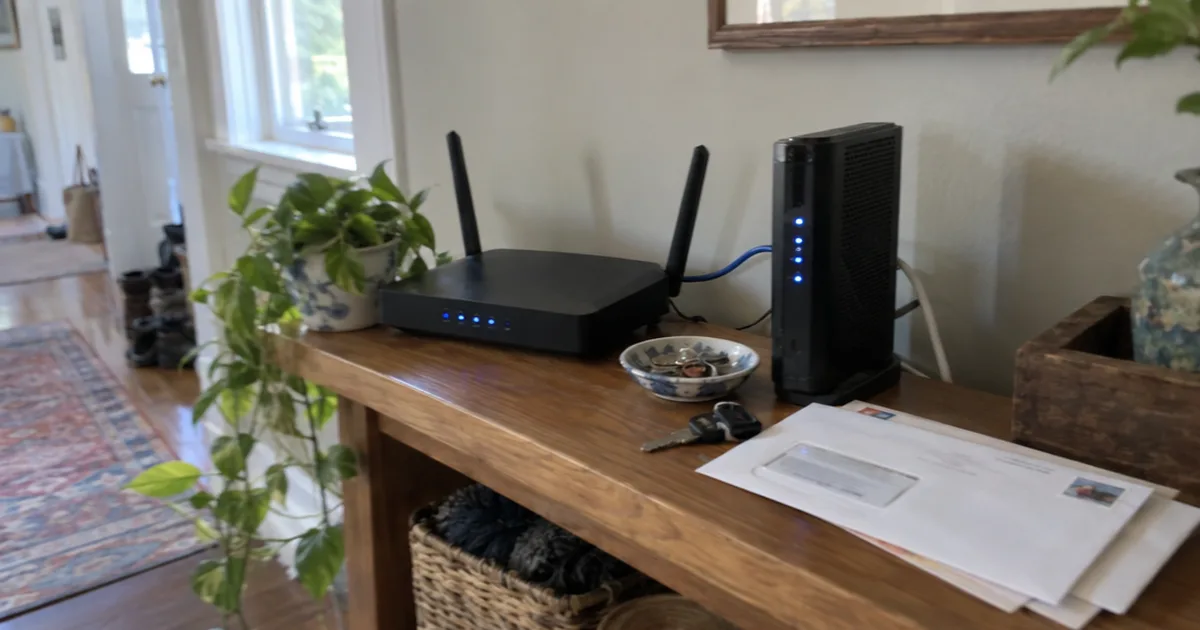
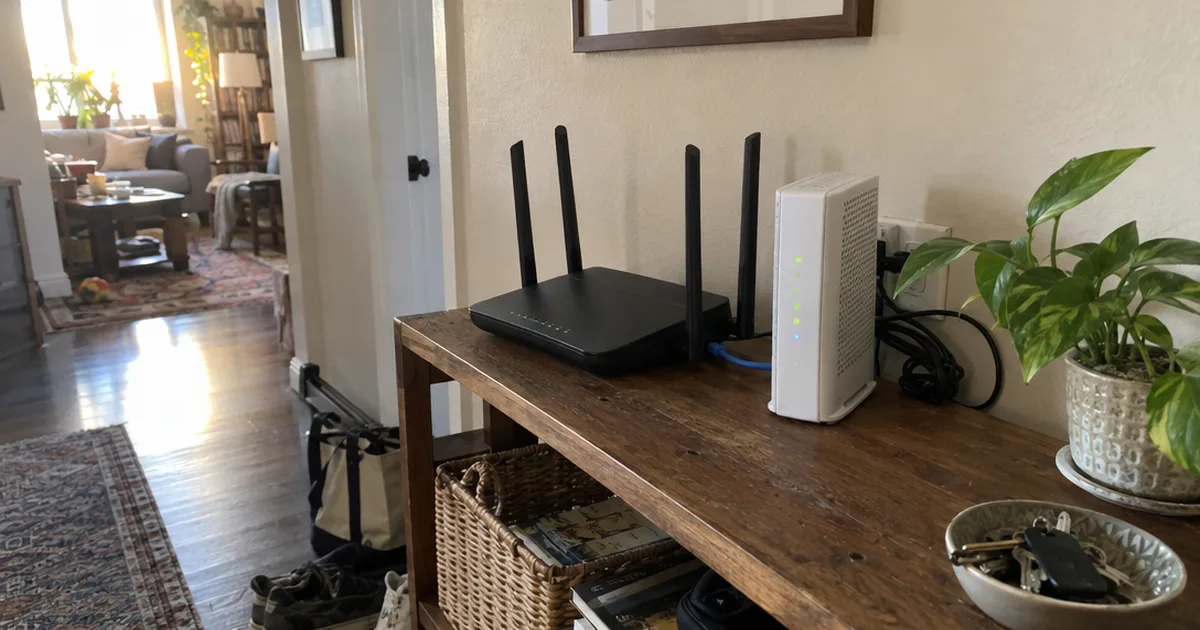
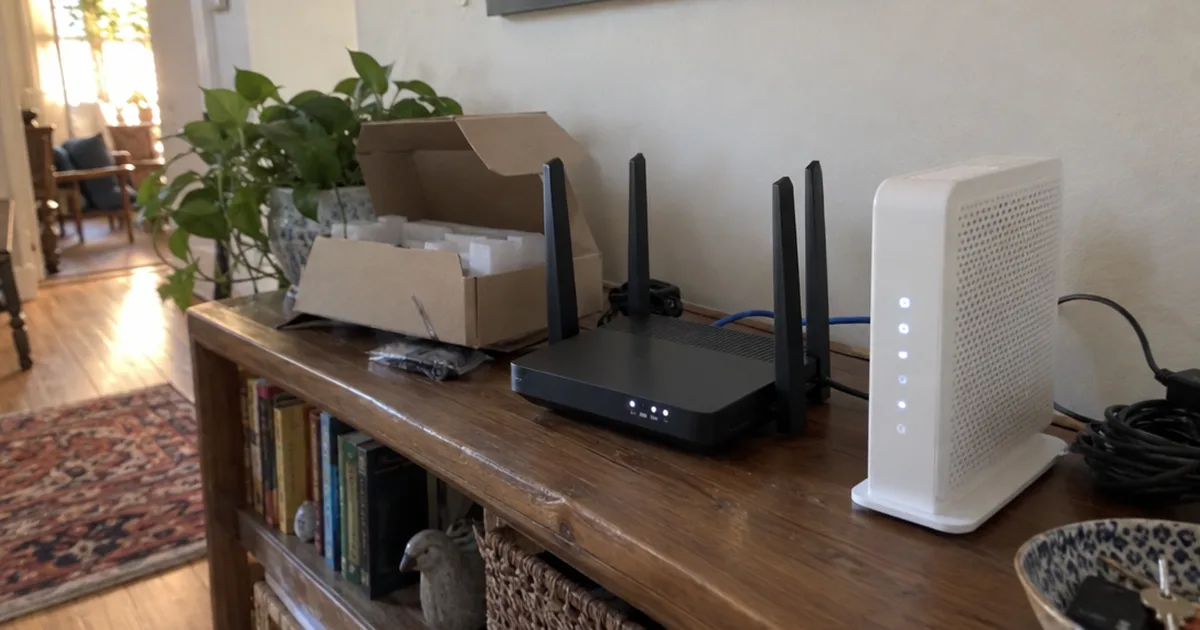
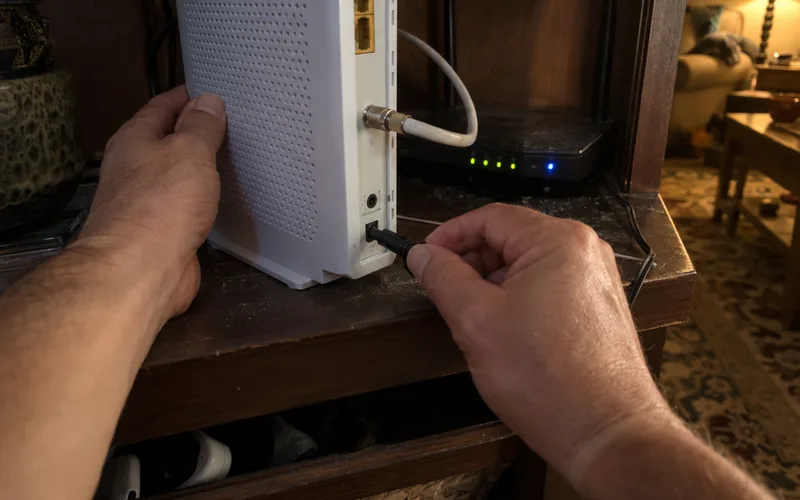
Plug one end of an Ethernet cable into your modem and the other end into the router’s WAN port, the one marked Internet or set apart in a different color.
The numbered LAN ports are for your computers and game consoles, not the modem.
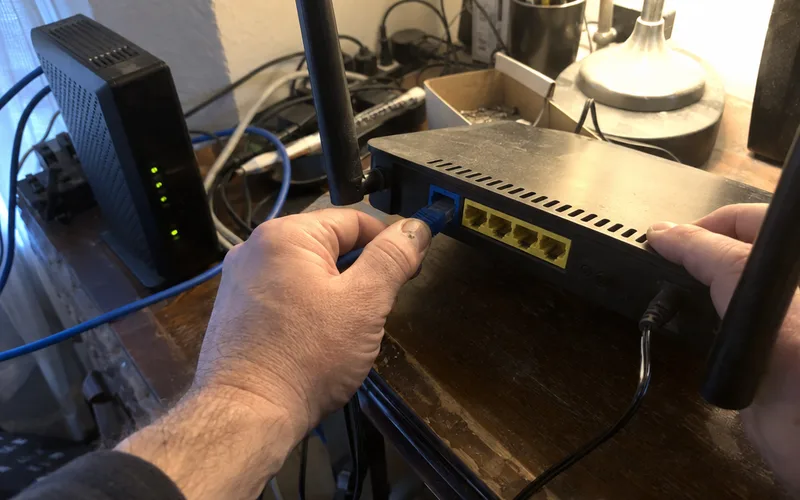
If your internet box is an ISP gateway with its own Wi-Fi, you’ll end up with two routers in a row.
Either put the gateway in bridge mode or expect double NAT, which can trip up gaming and port forwarding.
Step 2: Power On the Router
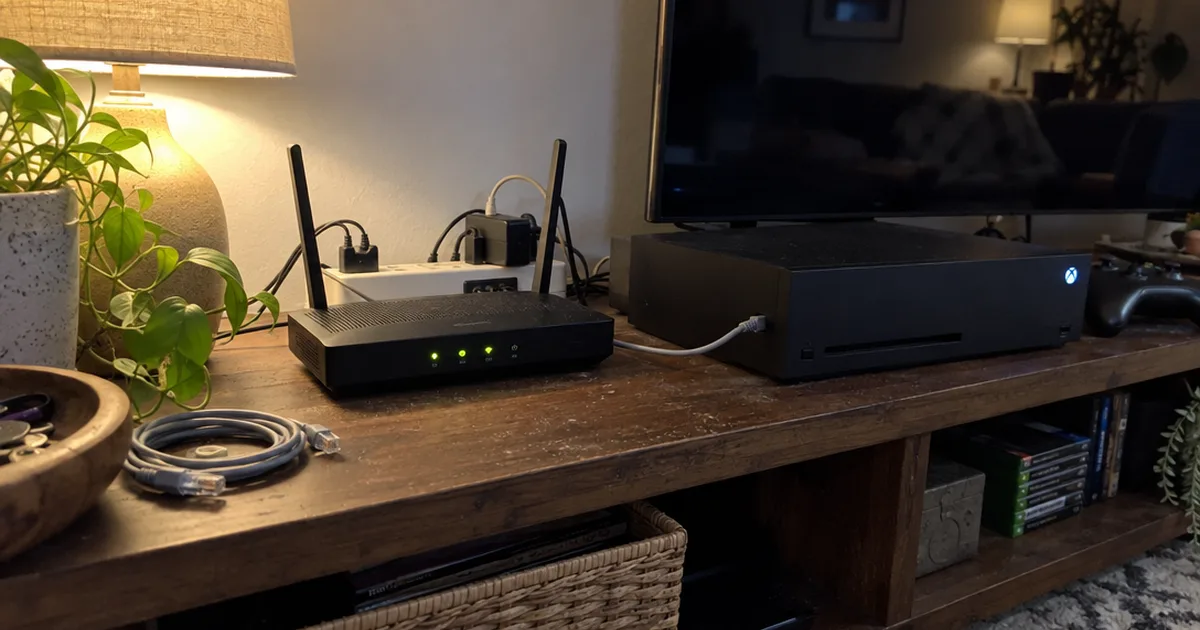
Plug in the power adapter, then press the power button on the back of your wireless router if your model has one.
Give it a few minutes: the lights blink while it boots, then settle once it’s ready.
Step 3: Connect Your Phone or Computer to the Router
Join its default wireless network, which is printed on the label and usually looks like ASUS_XX.
On a computer, you can plug into a LAN port with a second cable instead, which is the steadier choice for a browser setup.
Step 4: Start Quick Internet Setup
Quick Internet Setup is ASUS’s guided setup wizard, and you can start it two ways:
- App: Open the ASUS Router app, tap Setup, then ASUS Router, allow the permissions it asks for and tap Start.
- Browser: Open
www.asusrouter.comon the connected computer, and QIS launches on its own.
The questions that follow are the same either way.
Step 5: Choose Your Internet Connection Type
QIS usually detects your internet connection type, but check it before you tap Next.
Most cable and many fiber plans use Automatic IP, also called DHCP, which needs nothing from you.
DSL and some fiber plans use a PPPoE connection, which needs the username and password your ISP gave you.
Static IP is rare on home plans, and your ISP gives you the exact addresses to type in.
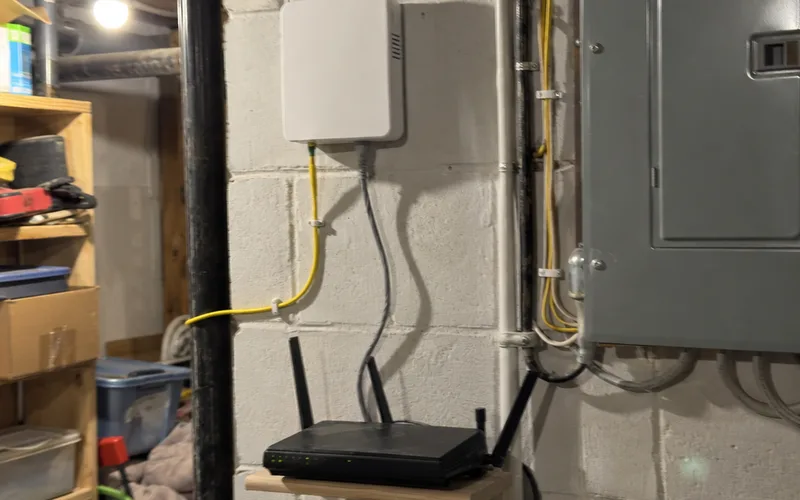
Not sure which you have? Call your ISP and ask, “Does my plan use DHCP or PPPoE, and if it’s PPPoE, what are my login details?”
Step 6: Name Your Wi-Fi and Set Its Password
Type a network name (SSID) that doesn’t include your name or address, then a long Wi-Fi password.
QIS lets you tick a box to give the 2.4GHz and 5GHz bands separate names.
Leave them combined unless an older smart plug or camera only connects on 2.4GHz.
For security, pick WPA2-Personal, which many routers label WPA2-PSK in their menus, or WPA3 if every device you own supports it.
Step 7: Create a Router Login
QIS then asks you to create a Router Login, a name and password that protect the settings page.
This router login is not your Wi-Fi password, so make it different and save it in a password manager.
In the app, a pop-up then asks about remote connection, so accept it only if you want to manage the router away from home.
Step 8: Update the Firmware
Firmware is the router’s built-in software, and updating it is the easiest step to forget once the internet works.
ASUS says app features such as WireGuard VPN and Instant Guard sharing only work on firmware newer than 3.0.0.4.388.
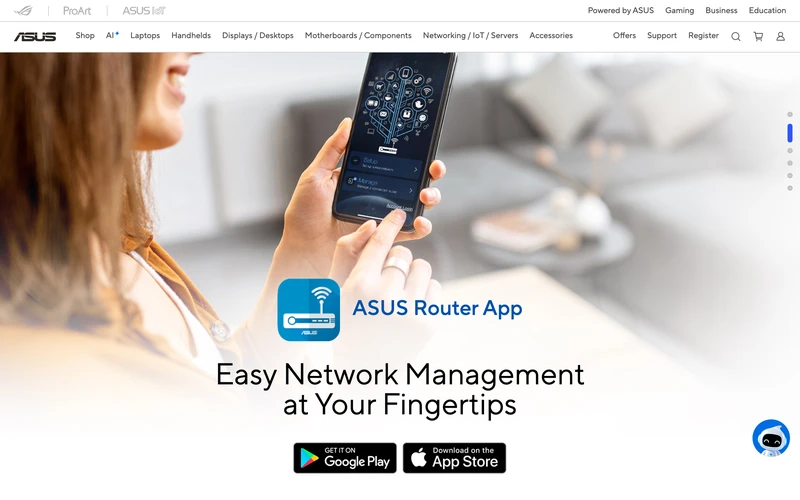
In the app, check for a firmware update in the router’s settings.
In the browser, go to Administration, then Firmware Upgrade, and click Check.
ASUS Router App vs Web Browser: Which Setup Is Easier?
The ASUS Router app is easier for most people because it runs QIS on your phone and keeps managing the router afterward. A web browser is better when you set up over an Ethernet cable from a computer, or when your plan uses PPPoE and you’d rather type long credentials on a keyboard.
The app also makes mesh simple.
The same app page says it can add another mesh node through a shortcut, which helps if you’re building an AiMesh network or one of the mesh Wi-Fi systems ASUS sells as ZenWiFi.
Note: ASUS’s DSL models only support router login and partial management in the app, so set those up in a browser.
How to Get Into Your ASUS Router Settings Later
You get into your ASUS router settings by opening www.asusrouter.com or the router’s IP address in a browser on your home network, then entering your router login. On most current models the IP address is 192.168.50.1.
Older ASUS models and older guides list 192.168.1.1 instead.
If neither works, look up your computer’s default gateway, the same steps you’d use to find any router IP address.
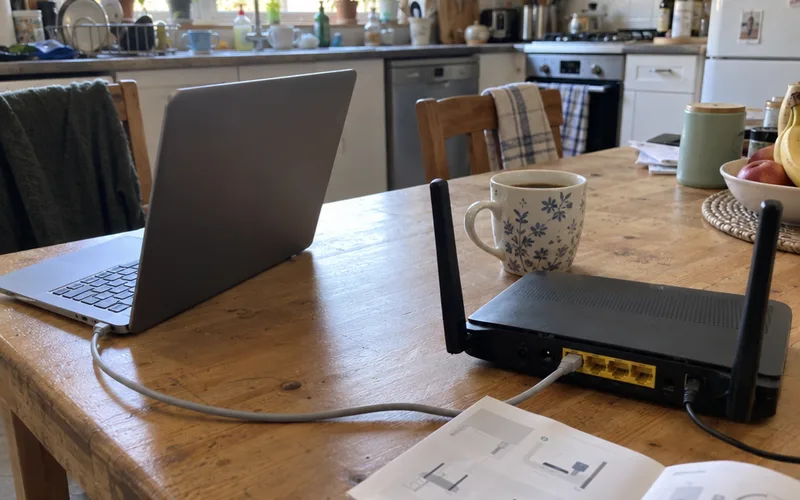
Once you’re logged in, the menus match the router settings you’ll find on most brands, just with ASUS names like Network Map, Wireless and WAN.
Settings to Change Right After Setup
The settings to change right after ASUS router setup are a new router login, updated firmware, WPA2 or WPA3 security, WPS turned off and a guest network. Add parental controls and a VPN only if your home needs them.
Here’s the short list, in order:
- Turn off WPS. Wi-Fi Protected Setup pairs devices with a button press, but you rarely need it once everything is connected.
- Add a guest network for visitors and smart-home gadgets, using ASUS’s Guest Network Pro on newer models.
- Turn on AiProtection, ASUS’s built-in security scan, in the app or the browser menu.
Turn On Parental Controls
ASUS parental controls are worth a look if you have kids, and ASUS’s app page says they set content filtering for each connected device and manage screen time.
Each child can get a profile with its own filters and time limits.
Set Up a VPN
A VPN is the other common add-on, and the app page also says its VPN setup lets you choose OpenVPN or WireGuard.
If you can’t decide, WireGuard vs OpenVPN lays out the trade-offs before you switch it on.
ASUS Router Not Connecting to the Internet? Try These Fixes
An ASUS router that won’t connect to the internet usually has the modem cable in a LAN port instead of the WAN port, the wrong connection type, or a modem that still remembers the old router. Check those three in that order before you reset anything.
Work through these in order:
- Move the modem cable to the WAN port and reseat both ends.
- Restart the modem first, wait until it’s fully online, then restart the router.
- Rerun QIS and check the connection type, retyping PPPoE details carefully.
- Turn off bridge mode on the ASUS if you enabled it by mistake, following the steps to turn off bridge mode.
The app can narrow it down, too: the company’s app page says its Port Status view checks the diagnostics for your router port connections and gives troubleshooting tips.
Still stuck? A factory reset with the recessed reset button wipes every setting, so treat it as the last step and run QIS again from Step 3.
Frequently Asked Questions
What is the default ASUS router login and password?
The default ASUS router login, on models that have one, is printed on the label on the back or bottom of the router. Newer models have you create your own router login during Quick Internet Setup instead.
How do I connect two ASUS routers together?
Two ASUS routers connect through AiMesh, which turns the second one into a mesh node of the first. ASUS’s app page says the app can add another mesh node through a shortcut and run a one-tap optimization afterward.
How do you set up an ASUS RT-AX86U or other Wi-Fi 6 router?
An ASUS RT-AX86U sets up like any other ASUS Wi-Fi 6 router, through Quick Internet Setup in the ASUS Router app or at www.asusrouter.com. The 8 steps in this guide apply unchanged.
How do I reset my ASUS router?
An ASUS router resets to factory settings with the small recessed reset button on its back, held with a paperclip until the lights change. Your Wi-Fi name, password and router login are erased, so you’ll run Quick Internet Setup again afterward.
Final Thoughts
The setup that sticks is the one where you update the firmware and change the router login before you close the app.
Today, plug the modem into the blue WAN port and run Quick Internet Setup while you still have the box in front of you.