
Everyday browsing and streaming need zero port forwards.
That’s straight from Google Fiber’s help center, which says general network use doesn’t require these settings at all.
So when do you need port forwarding? Only when something outside your home has to start the connection: a friend joining your game server, or you checking a camera from work.
Below are the 6 steps to set one up on almost any router, how to test it and what to check when it fails.
Best for: anyone hosting a game server, Plex server or camera that outside people need to reach. Skip it if you only want to reach your own stuff, since a VPN does that without opening anything.
Cost: Free.
Time: Same day.
First step: Look up the exact port numbers your game or app lists in its support pages.
How to Set Up Port Forwarding Step by Step
Port forwarding setup takes 6 steps on most home routers: find the port, fix the device’s IP address, log in, find the settings page, create the rule and test it.
The menus change from brand to brand, but the information you type in doesn’t.
Step 1: Find the Port Number and Protocol Your App Needs
Every port forward starts with 2 facts: the port number and the protocol.
Your game, camera or server lists both in its support pages. A protocol is TCP, UDP or both: TCP is the careful kind of traffic that checks every delivery, and UDP is the fast kind many games use.
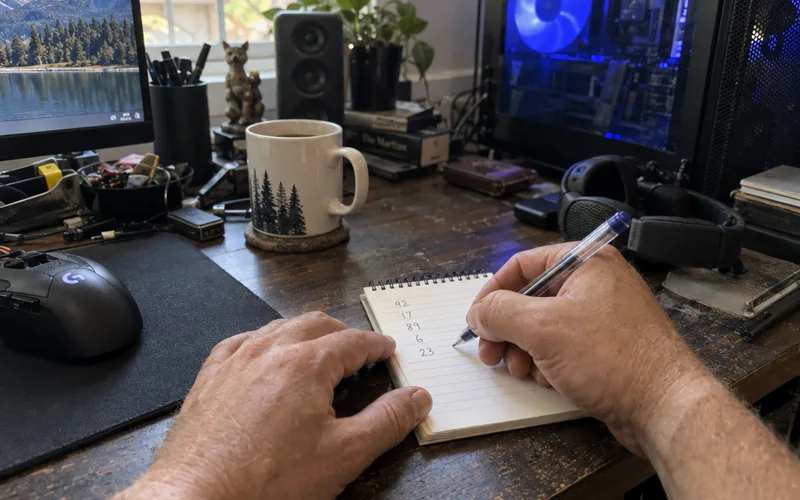
Write down exactly what the app lists. A guess here can leave you with a rule that never works.
Console players have their own lists, so follow the steps for Xbox port forwarding or PS5 port forwarding instead of copying a PC game’s ports.
Step 2: Give the Device a Fixed Local IP Address
A port forwarding rule points at one local IP address, like 192.168.1.50 in a typical home network.
The problem? Your router hands out those addresses automatically, and a device can get a new one after a restart.
If the address changes, the rule quietly points at nothing.
The fix is a DHCP reservation: a router setting that always gives the same device the same address. Look for it under DHCP or LAN settings, and pick the device from the list of connected clients.
Fuzzy on local versus public addresses? This IP address refresher covers the difference.
Step 3: Log In to Your Router
Open a browser on a device connected to your network and type your router’s address into the bar.
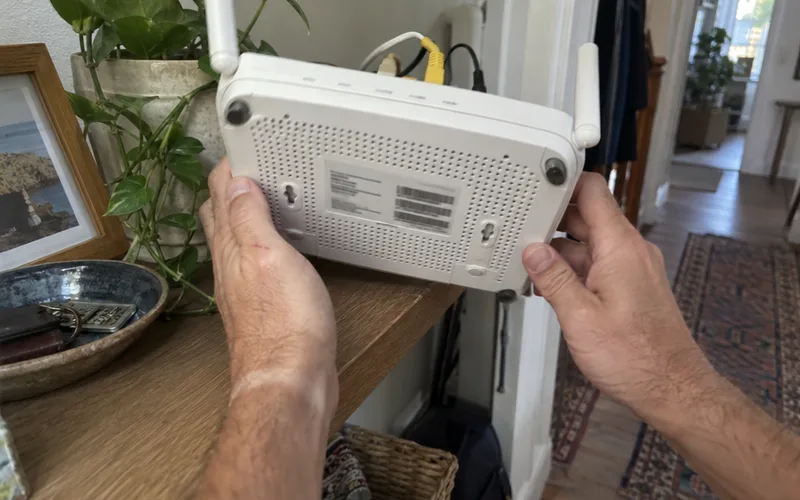
That address is usually printed on a sticker on the router, along with the admin login. If it isn’t, here’s how to find your router’s IP address from a phone or computer.
Some ISP gateways use a phone app instead, with the same port forwarding fields.
Step 4: Find the Port Forwarding or Virtual Server Page
The setting usually sits under Advanced, then Port Forwarding or Virtual Server, according to No-IP’s setup guide, last updated in October 2026.
Some brands use other names, like port mapping or NAT forwarding.
If you can’t log in at all, say in a dorm or a shared building, you’ll need a workaround for port forwarding without router access.
Step 5: Create the Port Forwarding Rule
Add a new rule and fill in 5 fields:
- Name: a label like “Minecraft server”, so you know what it’s for later.
- Protocol: TCP, UDP or both, exactly as Step 1 listed. Choose both only if the app says to or you truly can’t find out.
- External port: the port people outside connect to.
- Internal port: the port the service listens on. Most of the time it matches the external port.
- Internal IP address: the reserved address from Step 2.
Save the rule, and restart the router if it asks you to.
For example, say a Minecraft server on your PC listens on port 25565. Your rule sends external port 25565, TCP, to internal port 25565 at 192.168.1.50.
The full walkthrough, with the server side too, lives in the Minecraft port forwarding guide.
Step 6: Test the Open Port From Outside Your Network
Test the port while the service is running, or every checker will call it closed.
No-IP recommends an online port checker such as portchecktool.com, where you enter the port and it reports whether it’s open.
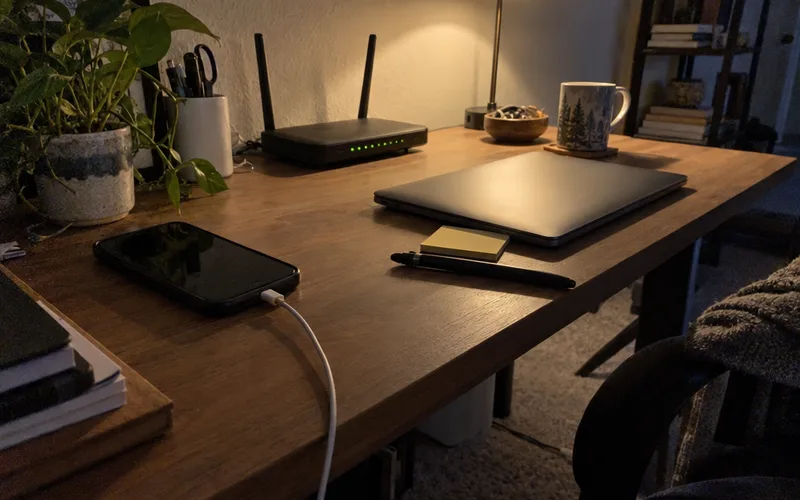
Pro Tip: Do your real test from a phone on mobile data. Many routers can’t loop a connection from inside your home back to your own public address, so a test from home Wi-Fi can fail even when the rule works.
To check which ports a PC is actually listening on, you can check open ports in CMD with one command.
What You Need Before You Forward a Port
You need 4 things before you forward a port: the app’s port list, the device’s reserved local IP, your router login and a way to test from outside.
A phone with Wi-Fi turned off covers that last one.
What Is Port Forwarding?
Port forwarding is a router rule that sends new connections arriving on one port from the internet to one device on your private network.
Think of your home as an apartment building with one street address. The port number is the apartment number, and the rule tells the front desk which door gets that visitor.
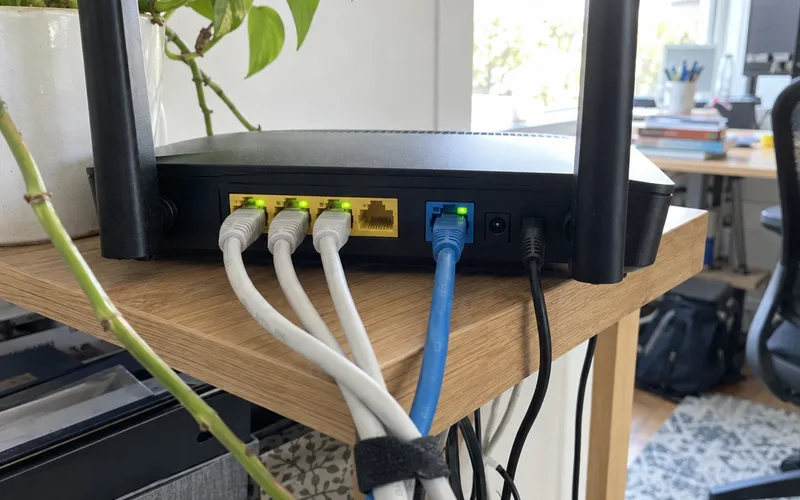
Why do you need a rule at all? Your router turns strangers away by default.
Per Google Fiber’s help center, a standard router acts as a protective firewall that blocks unsolicited incoming traffic, and port forwarding is a custom rule you create to bypass it.
So a port forward is a deliberate hole in that wall, for one service only. That’s why people also call it opening ports on your router.
How Does Port Forwarding Work?
Port forwarding works by rewriting the address on incoming traffic: the router sees a connection for its public IP address on a forwarded port, then passes it to the private IP address and port your rule names.
Here’s what happens to one connection, using made-up addresses:
- A friend’s game connects to your public IP, say 203.0.113.10, on port 25565.
- Your router checks its rules and finds one for port 25565.
- It hands the connection to your PC at 192.168.1.50, port 25565.
- Your PC replies, and the router sends the answer back out to your friend.
The part doing the rewriting is network address translation, or NAT. NAT lets every device in your home share one public IP address.
NAT handles replies to connections your devices start, like loading a web page. But a brand-new connection from outside has no matching record, so the router drops it.
In other words, NAT is the default, and port forwarding is the exception you write by hand.
When Do You Need Port Forwarding?
You need port forwarding when a device at home has to accept connections that start on the internet, not for anything your devices start themselves.
Google Fiber lists 3 typical cases:
- A private multiplayer game server, such as Minecraft or Ark
- A local web or media server, such as HTTP, FTP or Plex
- An IP security camera system you want to watch remotely
Gamers also forward ports to clear “strict” or “moderate” NAT warnings on consoles. Port forwarding for gaming covers which games actually need it.
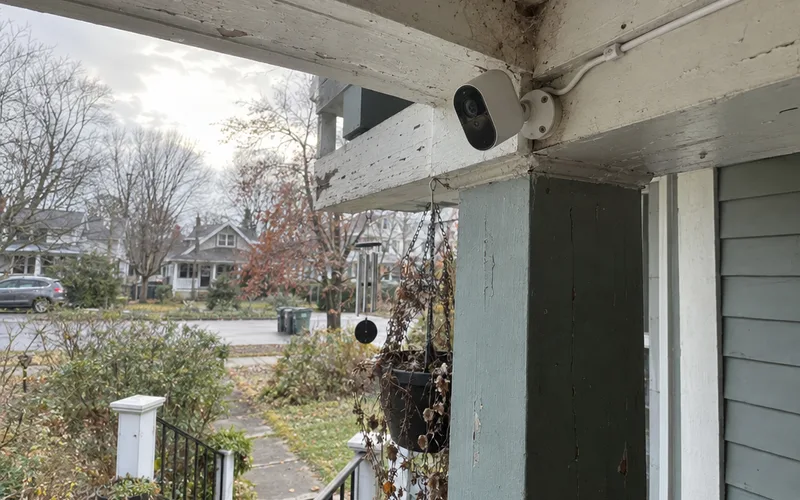
But port forwarding won’t lower your ping or speed up a slow connection. If your games lag when someone else uploads, the usual culprit is a problem called bufferbloat, not a closed port.
Port Forwarding vs UPnP, DMZ and VPN Tunnels
Port forwarding opens only the ports you choose, while UPnP lets apps open ports on their own, a DMZ opens every port on one device, and a VPN or tunnel opens none.
That makes manual port forwarding the narrowest way to let the internet in. Here’s how the 4 options compare:
| Option | What It Opens | Who Sets It Up |
|---|---|---|
| Port forwarding | Only the ports you choose | You, once per rule |
| UPnP | Whatever ports an app asks for | Apps, automatically |
| DMZ | Every port on one device | You, in one click |
| VPN or tunnel | No inbound ports | You, on both ends |
Universal Plug and Play (UPnP) is handy for consoles, but it means any app on your network can open ports without asking you.
A DMZ is the blunt option. It forwards everything to one device, so treat it as a last resort.
And if you only want to reach your own files or cameras, a VPN like WireGuard or Tailscale gets you in without opening anything. These port forwarding alternatives compare the options side by side.
Why Is Port Forwarding Not Working?
Port forwarding usually fails for one of 5 reasons: another NAT layer upstream, a device firewall, a changed local IP, the wrong protocol or a test run from inside your own network.
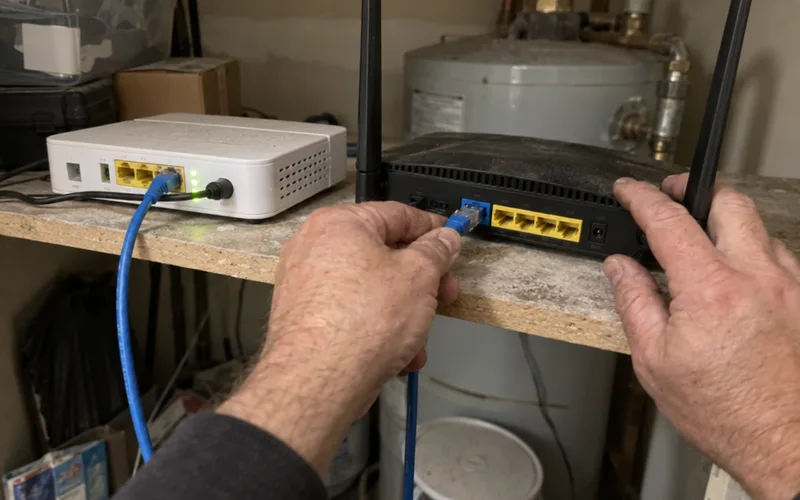
Work through them in this order:
- Double NAT: your own router sits behind an ISP gateway that also does NAT. Traffic stops at the first box, so fix the double NAT setup or forward the port on both.
- CGNAT: your ISP shares one public IP among many customers using carrier-grade NAT (CGNAT). No router rule can fix that, so ask your ISP for a public IPv4 address or use a tunnel.
- Device firewall: Windows or the app itself may still block the port, so open the port in Windows Firewall too.
- Changed IP: the device got a new local address. Go back to Step 2.
- Wrong protocol: the rule says TCP but the game uses UDP.
Quick test for an upstream NAT layer: compare the WAN IP on your router’s status page with the public IP a “what is my IP” site shows. If they differ, something above your router is translating too.
Is Port Forwarding Safe?
Port forwarding is safe enough when you open only the ports a service needs and keep that service patched, but every open port is reachable by anyone on the internet, not just your friends.
The real risk is the device behind the port. An old camera with a default password is the classic problem.
Note: Ports 80 and 443, the standard web ports, belong open only if you run a public website at home. Setting that up has its own steps in how to open port 80.
Cleanup matters too. Google Fiber advises routinely deleting old port forwarding rules for games, servers or apps you no longer use.
Before you open anything, run through this list:
- Forward specific ports, never a whole range “just in case.”
- Change default passwords on anything you expose.
- Turn off UPnP if no device needs it.
- Use a VPN for your own remote access.
For a deeper walkthrough, follow how to port forward safely before you open anything long term. More router settings, from Wi-Fi channels to DNS, live in the Routers guide.
Frequently Asked Questions
How do I turn port forwarding on?
You turn port forwarding on by adding a rule in your router’s admin page, usually under Advanced, then Port Forwarding or Virtual Server. Most routers have no single on switch, so the rule itself is what opens the port.
Should port 80 and 443 be open?
Ports 80 and 443 should be open only if you run a web server at home that the public must reach, since those are the standard web ports. If you just browse the web, leave them closed, because your browsing never needs an inbound port.
How do I know if my router is port forwarding?
Your router is port forwarding correctly when an online port checker, run while the service is on, reports the port as open. Run the test from outside your home network, such as a phone on mobile data, for a true result.
What is the difference between NAT and port forwarding?
NAT lets all your devices share one public IP address and handles replies to connections they start, while port forwarding is a rule you add on top of NAT for new connections that start outside. In other words, NAT is the default and port forwarding is the exception.
Is port forwarding safe in Minecraft?
Port forwarding for Minecraft is reasonably safe when you open only the server’s own port, keep the server software updated and use a whitelist. The risk grows if you open extra ports or forward to a PC with no firewall.
Is port forwarding a good idea?
Port forwarding is a good idea only when a device truly needs connections that start from the internet, such as a game server you host. For reaching your own files or cameras, a VPN is usually the safer choice because it opens nothing to the public.
Final Thoughts
Port forwarding is just one rule that points one outside port at one device, so keep each rule narrow and delete it when you’re done.
Before you add one this week, reserve the device’s IP address, then test the port from your phone on mobile data.