
Your phone, your laptop and your smart TV all have something in common.
Each one needs an IP address before it can load a single web page. In this guide, you’ll get IP addresses explained in plain English: what the numbers mean, where your devices get them, and what someone can (and can’t) do with yours.
We’ll keep it practical and tie everything back to the router sitting in your house.
Let’s dive right in.
What Is an IP Address?
An IP address is a unique identifier for a device on a computer network. The “IP” stands for Internet Protocol, the set of rules that governs data transmission: how data gets packaged, addressed and delivered between devices.
Think of it like the address on an envelope. When you send a letter, the post office reads the destination address and the return address, then moves the envelope toward the right mailbox.
Data on the internet works the same way. Everything you send or receive gets chopped into small chunks called packets, and every packet carries two IP addresses: where it came from and where it’s going.

Routers read those addresses and pass each packet along, hop by hop, until it arrives. Without an IP address, your device simply has no way to send or receive data on a network.
So what do IP addresses actually get used for? Here are the main jobs:
- Identifying a device (or a whole network) so other machines can reach it
- Routing traffic across the internet to the right destination
- Letting devices on your home network talk to each other, like a laptop sending a job to a printer
- Telling websites roughly where a visitor is, so they can serve the right language or content
That’s the core idea. Now let’s look at what happens when you actually use one.
How IP Addresses Work
Every IP address does two jobs at once: it says which network a device belongs to, and which specific device it is on that network. The Internet Protocol uses that information to get your data from point A to point B.
Here’s a quick walkthrough using a typical home setup.
A Quick Example From Your Living Room
Say your laptop sits on your home Wi-Fi with the private address 192.168.1.23. You type a website’s domain name into your browser.
First, your laptop asks a DNS server to translate that name into the site’s IP address. The Domain Name System is basically the internet’s phone book, and the DNS servers your router uses decide how fast that lookup happens.
Next, your laptop builds packets addressed to the web server’s IP and sends them to your router. Your router notices the destination is outside your home, so it swaps your laptop’s private address for the house’s single public IP address and forwards everything to your internet service provider (ISP).
From there, routers across the internet read the destination address and keep passing the packets along. The web server replies to your public IP, your router remembers which device asked, and the page lands on your laptop.
All of that takes a fraction of a second.
Key Takeaway: your devices have private addresses inside the house, your home has one public address outside it, and your router translates between the two.
What an IP Address Looks Like
Today you’ll run into two versions of the Internet Protocol. They look very different, so it helps to know both.
IPv4: Four Numbers, 32 Bits
An IPv4 address looks like this: 192.168.1.23.
It’s four numbers separated by dots, and each number can run from 0 to 255. Those four parts are called octets, because each one is 8 bits of binary data written as a regular decimal number.
Four octets of 8 bits makes the address 32-bit, which allows roughly 4.3 billion possible addresses. That sounded like plenty in the early 1980s.
It wasn’t.
IPv6: Eight Groups, 128 Bits
An IPv6 address looks like this: 2001:0db8:85a3:0000:0000:8a2e:0370:7334.
Instead of four decimal numbers, you get eight groups of four hexadecimal characters separated by colons. Hexadecimal just means each character can be 0 through 9 or A through F.
Long runs of zeros can be shortened with a double colon, so a real IPv6 address on your phone often looks shorter. Your devices also pick up more than one kind of IPv6 address at a time, and the different IPv6 address types each have their own job.
Here’s how the two versions compare side by side:
| Feature | IPv4 | IPv6 |
|---|---|---|
| Length | 32 bits | 128 bits |
| Written as | 4 decimal numbers | 8 hexadecimal groups |
| Separator | Dots | Colons |
| Total addresses | About 4.3 billion | About 340 undecillion |
The takeaway? IPv6 has so much address space that every device can have its own globally unique address, with room to spare for the foreseeable future.
Why We Ran Out of IPv4 Addresses
Mobile devices, laptops, tablets, game consoles and smart home gadgets all want an address. Billions of Internet of Things (IoT) devices piled onto that demand, and the free pool of IPv4 addresses dried up.
Network folks call this IPv4 address exhaustion. The internet dealt with it in two ways: sharing addresses through NAT (more on that below) and rolling out IPv6.
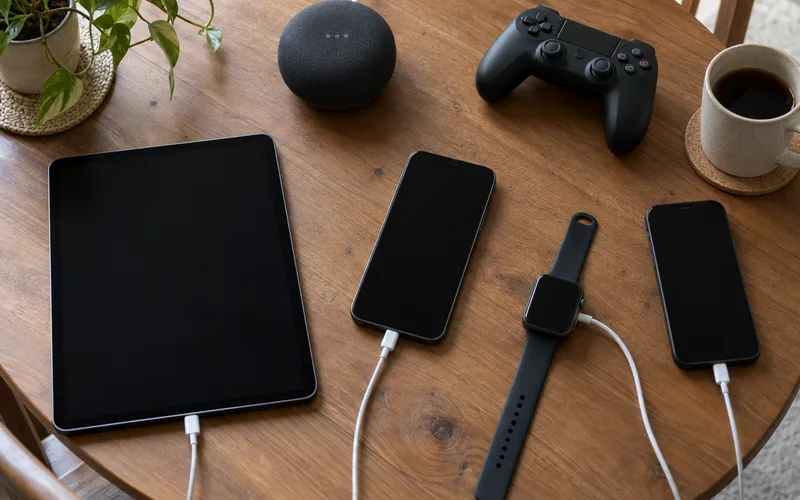
Most home internet plans now run both versions side by side, which is called dual-stack. If your ISP and router support IPv6, your devices probably already use it without you noticing.
Network and Host: The Two Halves of an Address
Every IP address splits into two parts. The network portion says which network a device belongs to, and the host portion says which device it is on that network.
A subnet mask marks where that split happens. On most home networks, which use a simple star-shaped network topology around one router, the mask is 255.255.255.0, which means the first three octets name the network and the last octet names the device.
Here’s an example:
With the address 192.168.1.23 and that mask, your network is 192.168.1.0 and your laptop is host number 23. Every device in the house shares the 192.168.1 part, so they can talk to each other directly without leaving the local area network (LAN).
You’ll also see the same thing written in CIDR notation, like 192.168.1.0/24. The “/24” just means the first 24 bits are the network portion.
Older guides talk about Class A, B and C addresses.
That classful system was replaced by Classless Inter-Domain Routing (CIDR) back in the 1990s, so it’s mostly history now.
If you want to go deeper, the difference between a subnet and a subnet mask trips up a lot of people.
The Four Types of IP Addresses
When people say “the four types of IP addresses,” they usually mean public, private, static and dynamic. These aren’t four separate boxes, though.
Public and private describe where an address works, while static and dynamic describe whether it changes.
So your router’s public address might also be dynamic, and your printer’s private address might be static.
Public IP Addresses
A public IP address is the one the rest of the internet sees. Your ISP assigns it to the box that connects your home to their network.
That box might be a standalone modem or an all-in-one unit, so it’s worth knowing the difference between a modem, router and gateway.
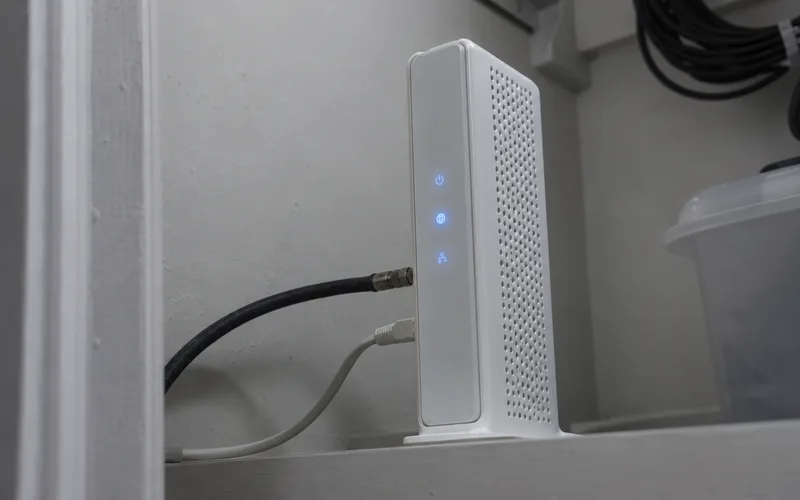
Every website, email server and game server you connect to sees this address. It has to be unique across the whole internet, because that’s how replies find their way back to you.
Who hands these out?
The Internet Assigned Numbers Authority (IANA) allocates big blocks of addresses to regional registries. Those registries pass smaller blocks to ISPs, which spread them across their network infrastructure until one reaches you.
Private IP Addresses
Private IP addresses work only inside private networks, like the Wi-Fi in your house. They’re not routable on the public internet, so nobody outside can reach a private address directly.
The RFC 1918 standard sets aside three IPv4 ranges for private use:
- 10.0.0.0 to 10.255.255.255
- 172.16.0.0 to 172.31.255.255
- 192.168.0.0 to 192.168.255.255
Because these ranges are reserved, millions of homes reuse the exact same addresses with no conflict. Your router usually takes the first address for itself, like 192.168.1.1 or 10.0.0.1, and that’s the router IP address you type into a browser to reach its settings.
Dynamic IP Addresses
A dynamic IP address is assigned automatically and can change over time. This is the default for nearly every home network.
Inside your house, your router runs a Dynamic Host Configuration Protocol (DHCP) server. When a phone joins your Wi-Fi, it asks for an address, and DHCP leases one from a pool for a set period of time.
Your ISP usually does the same thing with the public address on your internet connection. It may stay the same for months, but it can change after a long outage, a modem swap or a lease renewal.
Static IP Addresses
A static IP address stays the same until someone changes it by hand. Businesses use static public addresses for things like web servers and mail servers, because customers need to find them at a consistent address.
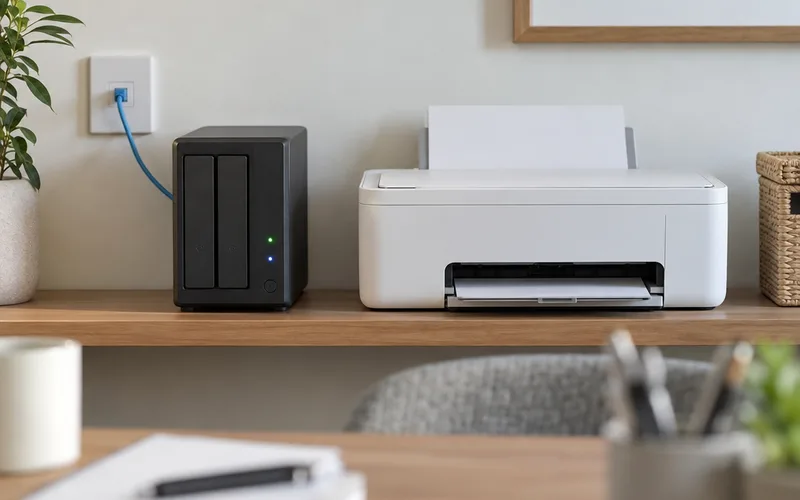
At home, you’ll mostly use static addresses inside your LAN. Giving network devices like a printer, NAS or home server a fixed private address (or a DHCP reservation in your router) means other devices always know where to find it.
Note: a static public IP from your ISP usually costs extra and comes with business plans. For most households, a dynamic public address works fine.
How NAT Lets Your Whole House Share One Address
Here’s the deal: your ISP gives you one public IPv4 address, but your home might have 30 connected devices. So how do they all get online?
The answer is Network Address Translation (NAT).
Your router keeps a table of every outgoing connection. When your tablet requests a video, the router rewrites the packet so it comes from the public address, notes which device asked, then sends the reply to the right device when it comes back.
That’s why all the internet traffic from your house shows the same public IP when you check it on a website. It’s also a big reason IPv4 hasn’t completely collapsed.
NAT has a side effect, too.
Because outsiders can only see your public address, unsolicited traffic from the internet stops at your router unless you open a path for it. That’s where port forwarding and NAT come in, for things like game servers or remote camera access.
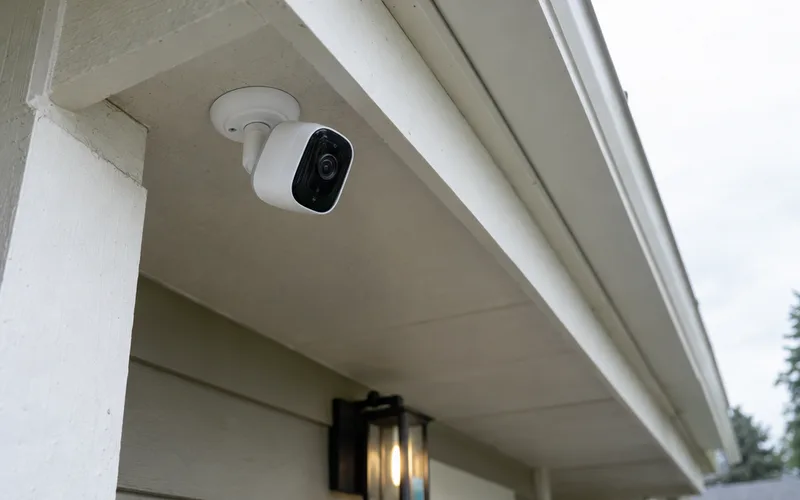
Open that path carelessly, though, and the device behind it sits in plain view. FortiGuard Labs’ threat research describes a Linux botnet that goes after internet-facing devices with DDoS, SSH attacks and exploits for known flaws.
Two NAT problems are worth knowing about:
- Double NAT: your ISP’s gateway does NAT, and your own router does it again behind it. This can break gaming and port forwarding, and a double NAT setup is usually fixed by putting the gateway in bridge mode.
- Carrier-grade NAT (CGNAT): some ISPs, especially fixed wireless and 5G home internet, share one public address among many customers. If your router’s WAN address starts with 100.64 through 100.127, you’re probably behind CGNAT, because that block is reserved for it.
So NAT quietly does a huge amount of work in your home network. Just remember it’s there the next time a game or camera refuses to connect.
Special IP Addresses You’ll See at Home
Some addresses have fixed meanings, reserved in IANA’s special-purpose registry. Spotting them saves you a lot of head-scratching when you’re troubleshooting.
127.0.0.1: Loopback
This address always points back to the device you’re using. Software uses this loopback address, also called localhost, to talk to itself, and you can’t reach another device with it.
169.254.x.x: Link-Local
If a computer shows an address starting with 169.254, it asked for an address and nobody answered. That almost always means DHCP failed, so check the cable, the Wi-Fi connection or the router.
0.0.0.0: No Address Yet
This means “no address yet” or “any address,” depending on context. You’ll see it in router settings and routing tables more than on a device.
255.255.255.255: Broadcast
Packets sent here go to every device on the local network at once. DHCP requests use broadcast, because a new device doesn’t know the router’s address yet.
224.0.0.0 to 239.255.255.255: Multicast
Multicast sends one stream to a selected group of devices. IPTV and some streaming gear rely on it.
192.168.1.1, 192.168.0.1 and 10.0.0.1: Your Router
These are the default router addresses for many brands. They’re private, so they only work from inside your own network.
IP Address vs. MAC Address
These two get mixed up all the time. Both are identifiers for network communication, but they work at different layers of the TCP/IP model.
A MAC address is burned into your device’s network interface card by the manufacturer. It lives at the data link layer, and it only matters on your local network.
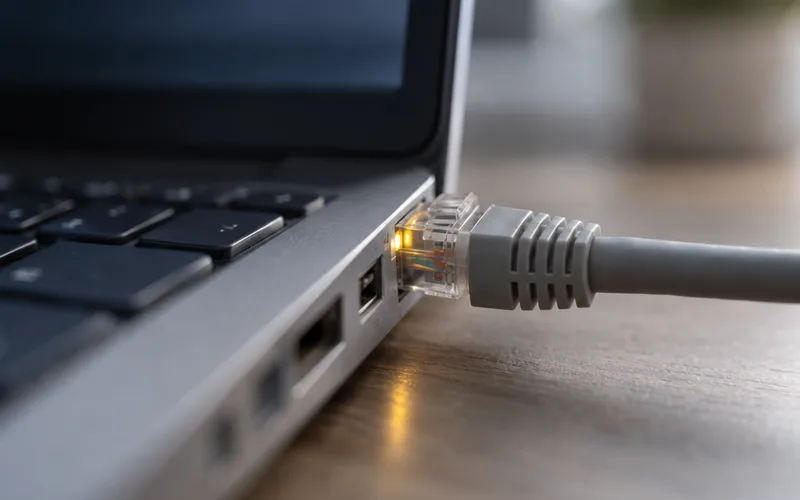
An IP address lives at the network layer. It can change, and it’s what lets data cross from one network to another.
Here’s an easy way to think about it: the MAC address is like a person’s name, and the IP address is like their current mailing address. Your router uses both, which is why its device list shows a MAC and an IP for every gadget.
There’s more nuance than that, so I recommend the full breakdown of MAC address vs. IP address if you’re setting up device filtering or DHCP reservations. Phones add a twist, too, because a MAC address on iPhone can be a private, randomized one for each Wi-Fi network.
How to Find Your IP Address
You actually have two addresses to look up: the private one on your device and the public one your router uses. Here’s how to find each.
Find Your Private IP Address
On Windows, open Command Prompt, type ipconfig and press Enter. Look for “IPv4 Address” under your active adapter.
On a Mac computer, open System Settings, click Network, pick your connection and click Details. Your address is listed under TCP/IP.
On an iPhone, go to Settings, then Wi-Fi, and tap the (i) next to your network. On Android, open your Wi-Fi network’s details from the network settings.
Your router’s admin page also lists every connected device with its private address. That’s handy when you’re hunting for a smart TV or a printer.
Find Your Public IP Address
Your public address isn’t shown on your device, because it belongs to your router’s connection. The fastest way to see it is a “what is my IP” lookup site.
For example, Outbyte’s What Is My IP tool page says it shows your public IP along with your location, ISP and timezone as websites see them. That’s a useful preview of exactly what every site you visit can see about your connection.
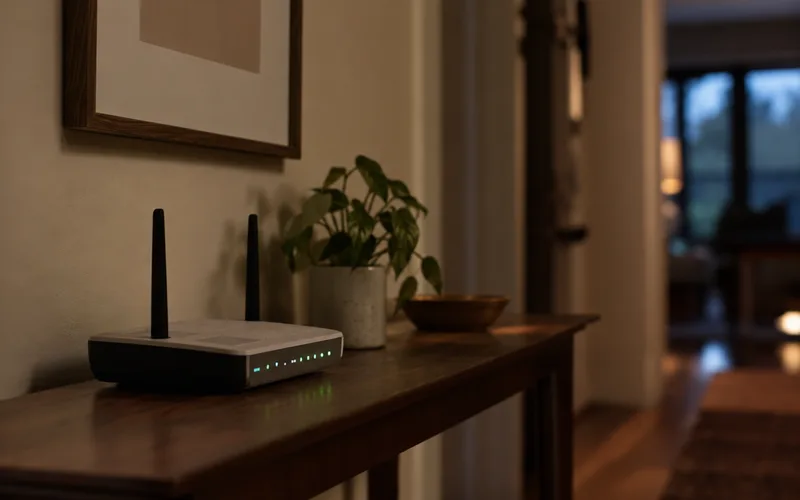
You can also check your router’s status page. The WAN or internet address listed there should match what lookup sites show, and if it doesn’t, you’re probably behind double NAT or CGNAT.
How to Change Your IP Address
Changing your private address is easy: renew your DHCP lease, set a reservation in your router or toggle Wi-Fi off and on. Each device type has its own steps, like those for changing the IP address on an iPhone.
Changing your public IP address is trickier, because your ISP controls it. Here are the usual options:
- Restart your modem or gateway. Unplug it for a few minutes, then plug it back in and let its blinking status light settle. Some ISPs hand out a new address, but many give you the same one back.
- Use a VPN. A virtual private network sends your traffic through another server, so websites see the VPN server’s address instead of yours.
- Use a proxy server. Similar idea, but usually just for one app or browser, and often without encryption.
- Ask your ISP. They can sometimes assign a new address, especially if yours ended up on a block list.
Pro Tip: if you need a stable address to reach your home network remotely, don’t fight your ISP. Dynamic DNS keeps a hostname pointed at your current public IP, even when it changes.
What Can Someone Do With Your IP Address?
Less than most people fear. But it’s not nothing.
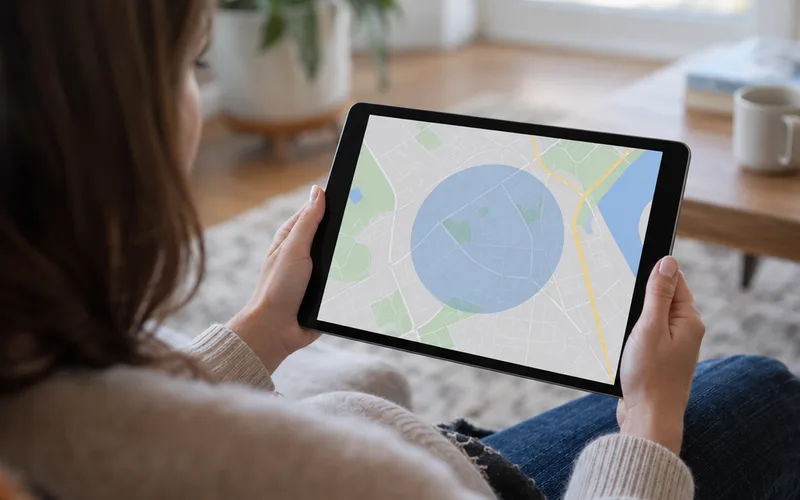
Your public IP address can reveal your ISP and an approximate location, usually a city or region. Lookup databases tie address blocks to places, and those guesses are often off by miles.
It does not reveal personal information like your name, your street address or what’s on your computer. Your ISP knows which customer had an address at a given time, but they generally only share that with law enforcement through a legal process.
So is looking up someone’s IP address illegal?
No. Every site you visit sees your address, and the same goes for game servers and email services, because that’s how replies reach you.
What matters is what someone does with it, because using an address for cybercrime is where the law steps in. Here are the real risks:
- DDoS attacks: an attacker floods your public IP with junk traffic until your connection slows to a crawl or drops.
- Scanning and probing: automated bots constantly scan public addresses looking for open ports and vulnerabilities.
- Phishing and social engineering: a scammer might use your rough location or ISP name to make a fake message seem more believable.
- Spoofing: attackers can fake the source address on packets to hide where an attack came from.
That second risk is the one that touches every household.
FortiGuard Labs, Fortinet’s threat research team, reports it blocked 3.8 trillion vulnerability exploitation attempts in 2025. That gives you a sense of how much automated attack traffic is constantly out there.
How to Protect Your IP Address and Network
You can’t hide your public IP from the sites you use, and you don’t need to. The goal is making sure nothing behind that address is an easy target for cyber attacks.
Here’s what I’d do, in order:
- Keep your router’s firmware updated. Your router is the device sitting on your public IP, so its security holes are the ones attackers reach first. FortiGuard Labs’ threat signals, for example, flag critical Ubiquiti UniFi OS vulnerabilities that can be chained for unauthenticated remote code execution.
- Leave the firewall on. Your router’s built-in firewall blocks unsolicited inbound connections, and learning how home firewalls work helps you tighten it further.
- Close ports you don’t use. Every port forward is a door from your public IP into your network. Turn off UPnP if you don’t need it, and remove old forwarding rules.
- Change default passwords. Default logins defeat the whole point of authentication, so routers, cameras and NAS boxes that still use them are easy targets once they’re reachable.
- Use a VPN on public Wi-Fi. A VPN adds encryption and privacy, hiding your address from the network you’re on, and many use IPsec or similar protocols to do it.
Bottom line: your IP address is just an address. Good security behind it is what keeps your home network safe.
Wrapping Up
Your devices use private addresses at home, your router uses one public address for the house, and NAT and DHCP keep everything flowing between them. Once you see that picture, most network problems start to make a lot more sense.
If you want to keep going, your home router is the best place to start, since it’s the device running all of this.
Which part of your network are you going to check first?
Frequently Asked Questions
What is the 192.168.1.1 IP address?
It’s a private address that many home routers use for themselves on your local network. Type it into a browser on a connected device and you’ll usually reach the router’s admin page, though some brands use 192.168.0.1 or 10.0.0.1 instead.
Is finding an IP address illegal?
No, because every website, game server and email service you use sees your public IP address as a normal part of how the internet works. What can be illegal is using an address to attack, harass or break into someone’s network.
Where is my IP address located?
Your private IP address lives on your device and your router, and you can see it in your network settings. Your public IP address belongs to your router’s connection, and lookup sites can tie it to an approximate city and your ISP, not your street address.
What are the four types of IP addresses?
The four types people usually mean are public, private, static and dynamic. Public and private describe where an address works, while static and dynamic describe whether it stays the same or changes over time.
Can two devices have the same IP address?
Not on the same network at the same time, because that causes an address conflict and one device loses its connection. Private addresses like 192.168.1.10 repeat across millions of separate homes, though, and that’s perfectly normal.