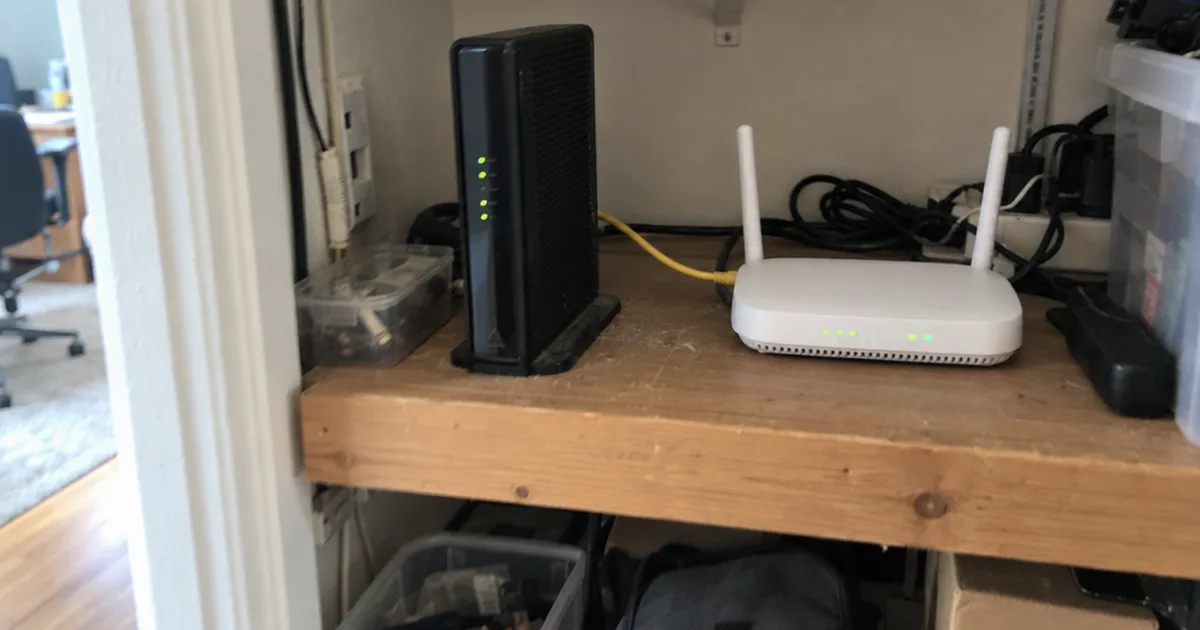

In January 2022, one Xfinity customer’s internet, TV and phone stayed dead for 47 hours while the modem blinked green.
Then it all came back on its own, with no new wiring and no new modem.
That’s the frustrating truth about an Xfinity modem blinking green: sometimes the fix is in your living room, and sometimes it’s miles away.
Below, you’ll learn how to tell which one you have, the 8 fixes to try in order and what to say when you call.
What Does a Blinking Green Light on an Xfinity Modem Mean?
A blinking green light on an Xfinity modem means it’s trying to reconnect to the internet but hasn’t finished, according to wikiHow’s expert-reviewed guide. Until the light turns solid, nothing on your home network can get online.
Here’s what’s happening inside the box.
A cable modem has to find Xfinity’s downstream channels, lock onto them and check in with Xfinity. Only then does it hand out internet access.
So you’ll see the light every time the modem is booting, and it usually settles within a few minutes of a reboot.
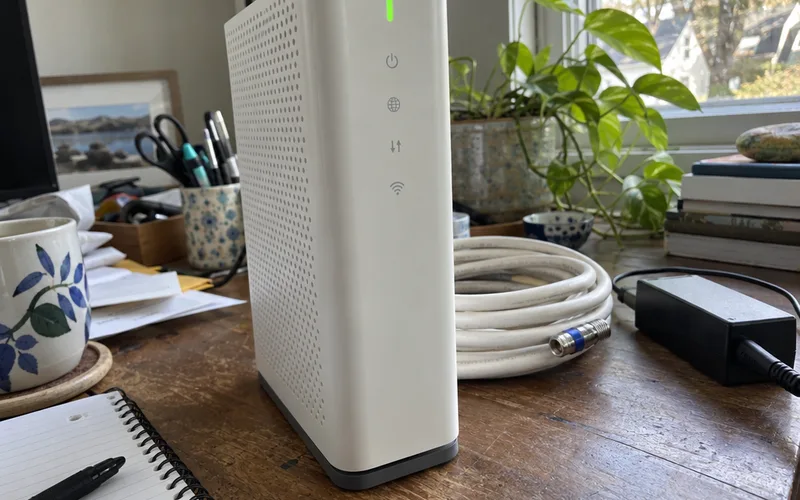
But if it never stops, something is blocking the connection: a weak line, a loose connector, an outage or an account problem.
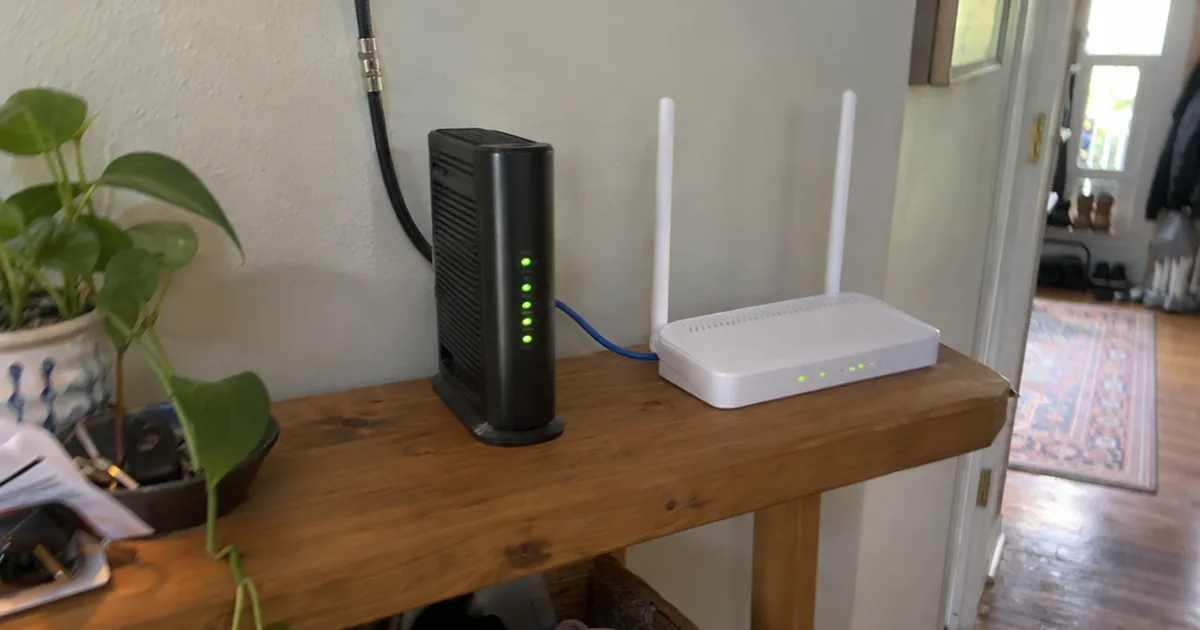
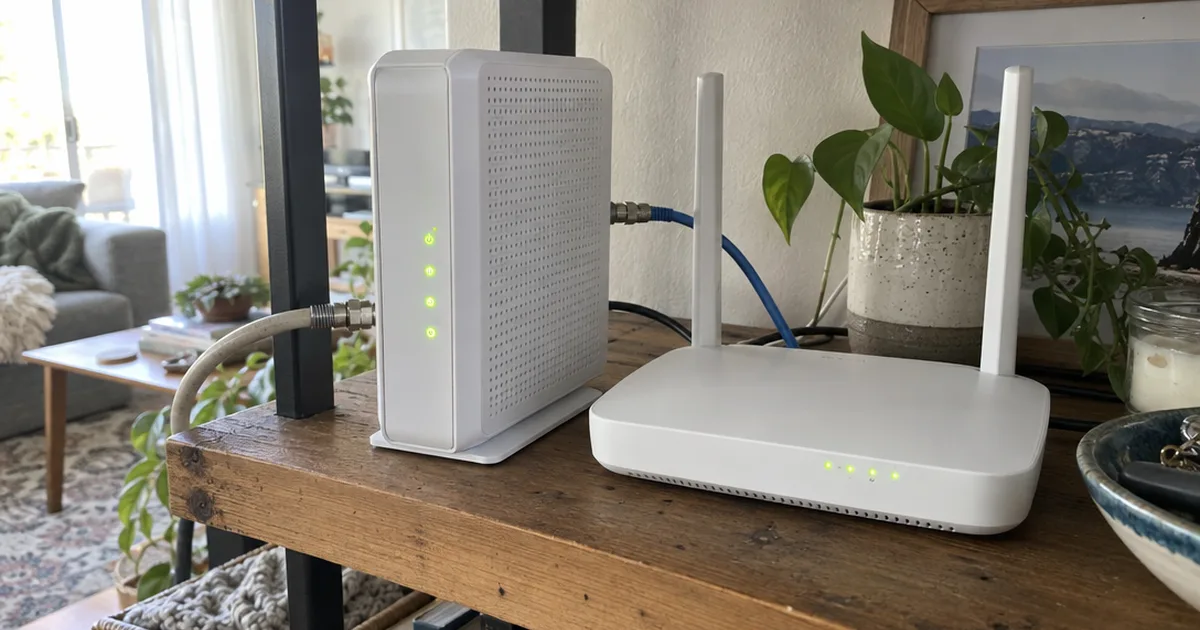
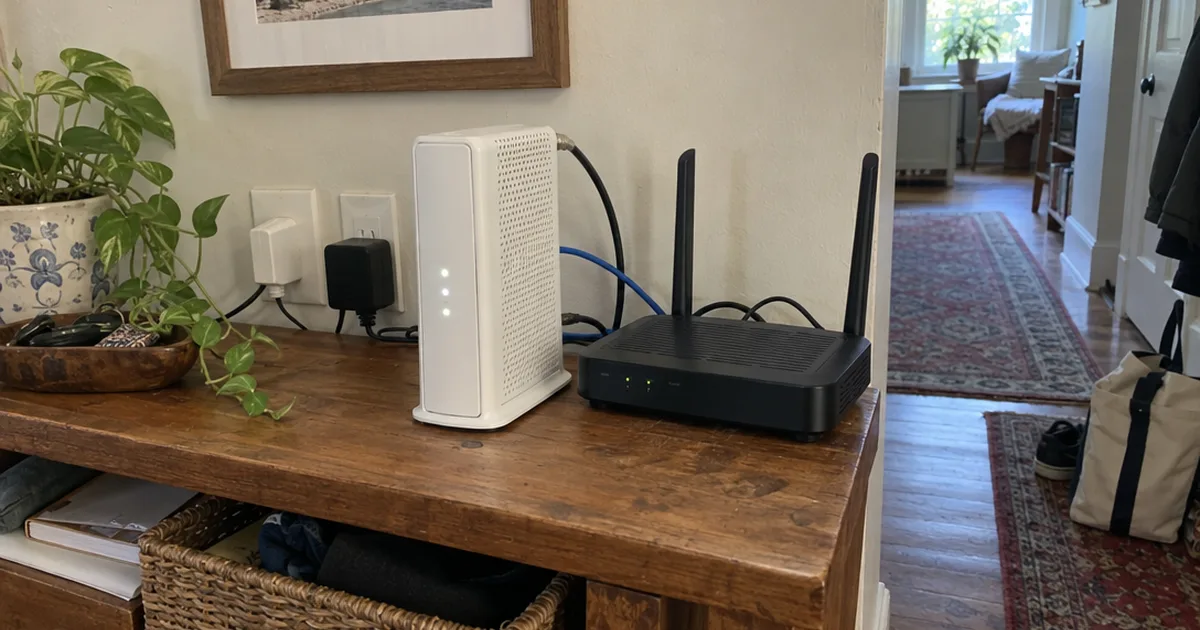
On most Xfinity gear, the modem and router share one box called an xFi Gateway. So an Xfinity router blinking green is usually the same light on the same device.
Not sure which box you have? Here’s how a modem, router and gateway differ.
In other words, blinking green isn’t an error code: it’s a modem that hasn’t finished its job.
How Long Should an Xfinity Modem Blink Green?
An Xfinity modem usually needs about 3 minutes after a restart before you can test the internet. wikiHow’s expert-reviewed guide says to give a blinking green light about 15 minutes before you keep troubleshooting.
So use this timeline:
- 0 to 3 minutes: normal startup. Leave it alone.
- 3 to 15 minutes: still possibly normal, especially after a firmware update or a power outage.
- Past 15 minutes: the modem is stuck, and it’s time for the fixes below.
Why wait that long?
Firmware updates can keep the modem busy longer than a normal restart. And unplugging it in the middle of a firmware update can make things worse.
Pro Tip: Note the time when you first see the blinking. It’s one of the first things Xfinity’s support team will ask.
What Color Should Your Xfinity Modem Light Be?
A working Xfinity gateway shows a solid light, which is solid white on most xFi Gateways. Any blinking status light means the gateway is still busy with something.
Here’s how that guide reads the main status light on most Xfinity models:
- No light: the modem is off.
- Solid white: on and activated. That’s the one you want.
- Blinking white: on but not activated yet.
- Solid red: no internet access, and the service is down.
- Blinking blue: WiFi Protected Setup (WPS) pairing mode is on.
- Blinking green, orange or yellow: trying to connect.
On the XB7 gateway, a helper on the Xfinity Community Forum noted a solid white LED when it’s connected.
Older and customer-owned modems can use different colors, so check the label next to each light. An Arris modem’s lights, for example, follow their own chart.
What if the light is solid but you still have no internet? Then the modem is probably fine, and the problem is your router or wireless network.
Why Is Your Xfinity Modem Blinking Green With No Internet?
Your Xfinity modem blinks green with no internet when something stops it from locking onto Xfinity’s signal. The cause is either inside your home, like cables and splitters, or on Xfinity’s side, like an outage or an account problem.
The usual suspects:
- A service outage. Your modem can’t connect to service that’s down.
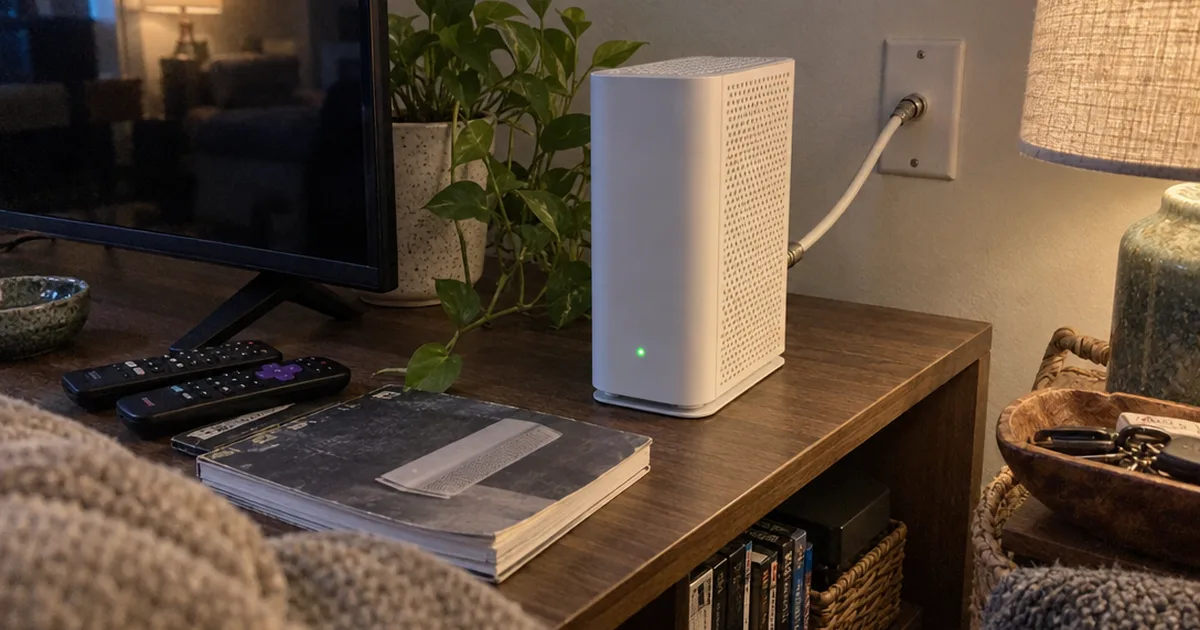
- A loose or damaged coaxial cable. The coaxial cable is the round line that runs from the wall to the modem.
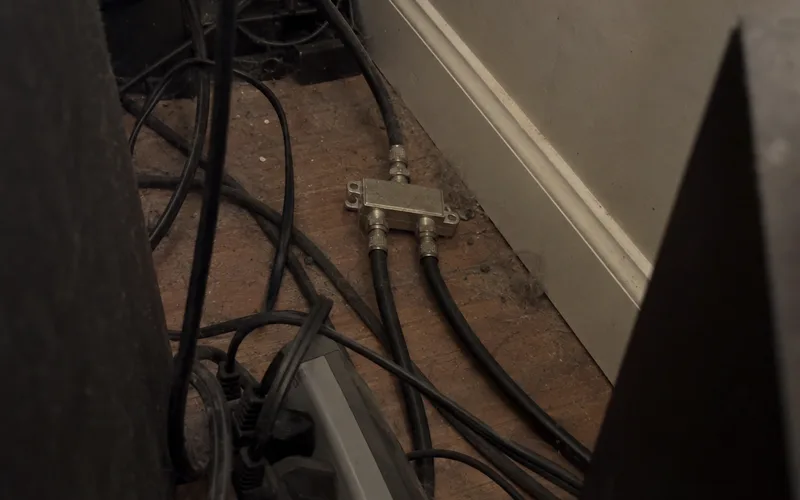
- Too many splitters. Each one weakens what reaches the modem.
- A dead coax outlet. Not every outlet in an older house is still connected.
- A suspended account. An overdue balance can get your account suspended, which can cause a flashing green light, according to wikiHow.
- A new modem that isn’t activated. Xfinity has to recognize the modem before it gets service.
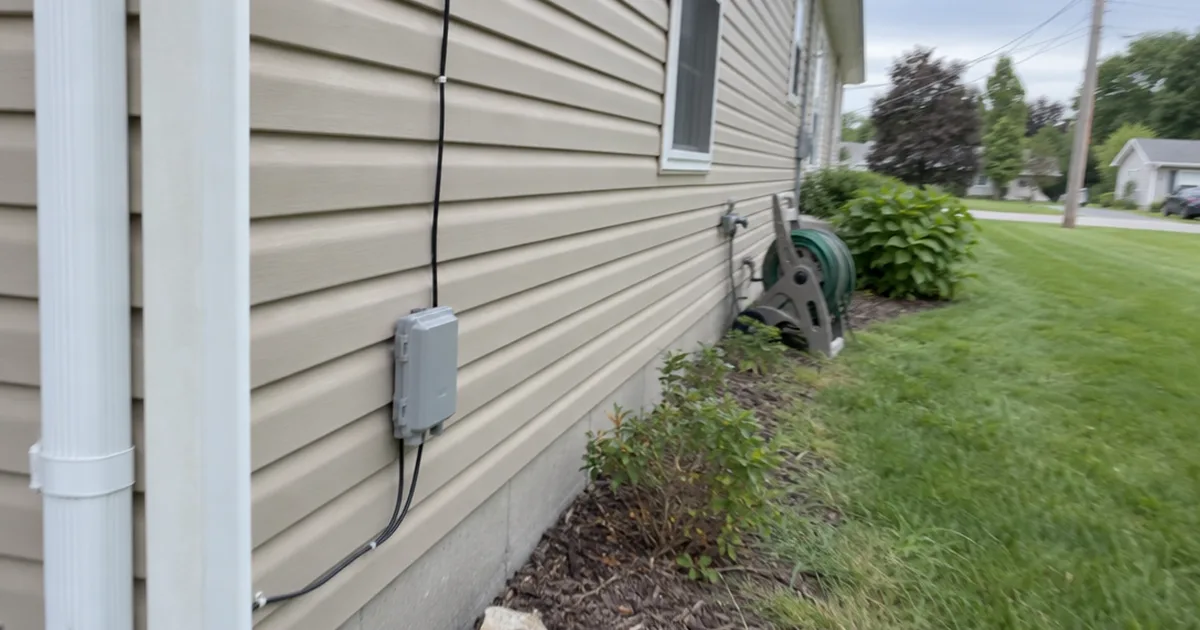
- A line problem outside your home. Only Xfinity, as your internet service provider, can fix the line, the tap or the neighborhood node.
You can check the first 5 yourself. The last 2 usually need a call, so start at the top.
How to Fix an Xfinity Modem Blinking Green
To fix an Xfinity modem blinking green, check for an outage, power cycle the modem, tighten the coaxial cable and remove splitters. If it still blinks, try another outlet, the app’s network test, your account balance and finally a factory reset.
Give the modem a few minutes after each fix. The first 3 cost nothing and take minutes.
Before you start, switch your smartphone to cellular data. The Xfinity app still works that way while your home internet is down.
Check for an Xfinity Outage First
Checking for an outage first saves you from troubleshooting a problem you can’t fix.
Open the Xfinity Mobile App on cellular data, on a phone, tablet or other mobile device, and sign in to see outage alerts for your address. You can also type your address into Xfinity’s status map from any device that’s online.
If there’s an outage, stop here. Nothing you do at home will turn the light solid until Xfinity restores service.
And that can take a while: the forum customer from the top of this guide waited 47 hours for service to return. If you work from home, plan for a phone hotspot.
Power Cycle the Modem
A power cycle is a full restart, and it clears most temporary glitches.
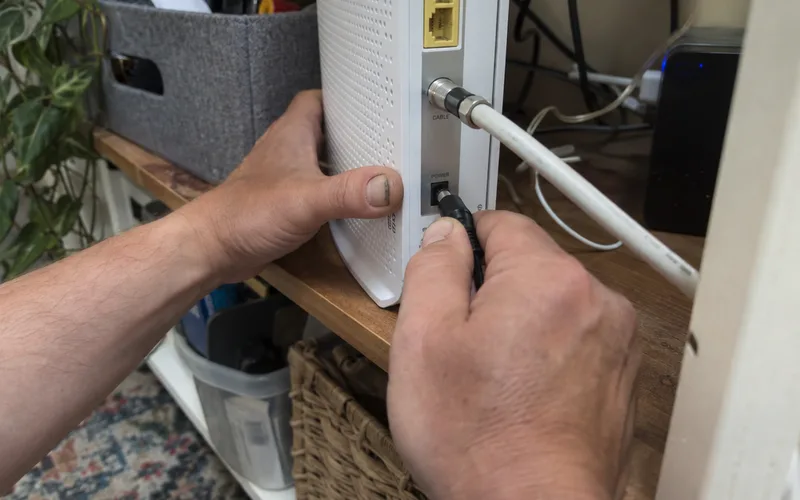
- Unplug the power cable from the back of the modem.
- Wait about a minute so the modem fully powers down.
- Plug it back in.
- Wait about 3 minutes, then test the internet.
Don’t press the recessed Reset button for this. A restart and a factory reset aren’t the same thing, so save the factory reset for later.
Tighten and Inspect the Coaxial Cable
A loose coax connector is one of the most common reasons a modem can’t lock on.
Follow the line from the wall outlet to the modem, and turn the connector at each end until it’s finger-tight. Then look for sharp kinks, cuts or crushed spots, like the ones a door or a desk leg leaves.
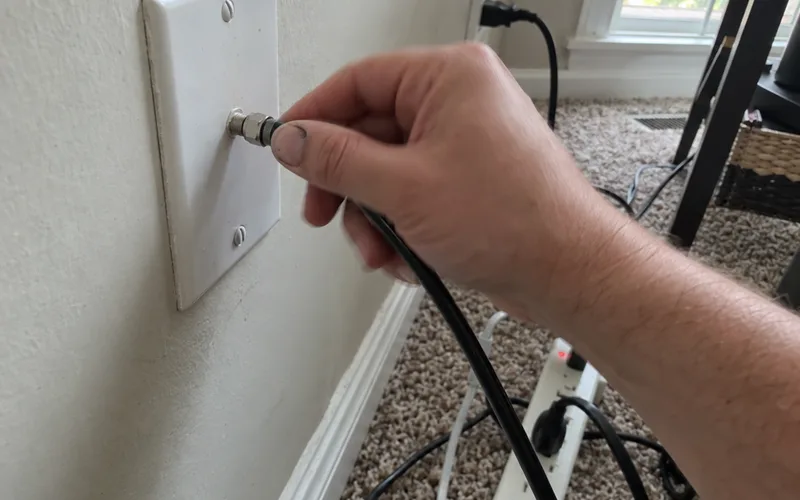
If you find damage, swap in a new coax line and power cycle again. While you’re there, check that the Ethernet and power plugs are pushed all the way in.
Take Splitters Out of the Line
Splitters divide one coax line so it can feed several TVs and other electronic devices. Every split leaves less for your modem.
So test without them. Connect the modem straight to the wall outlet, then power cycle it.
If the light goes solid, the splitter was the problem. Keep the direct run, or ask Xfinity about a better line to that outlet.
Try a Different Coax Outlet
Not every coax outlet in your home is live, and you can’t tell by looking.
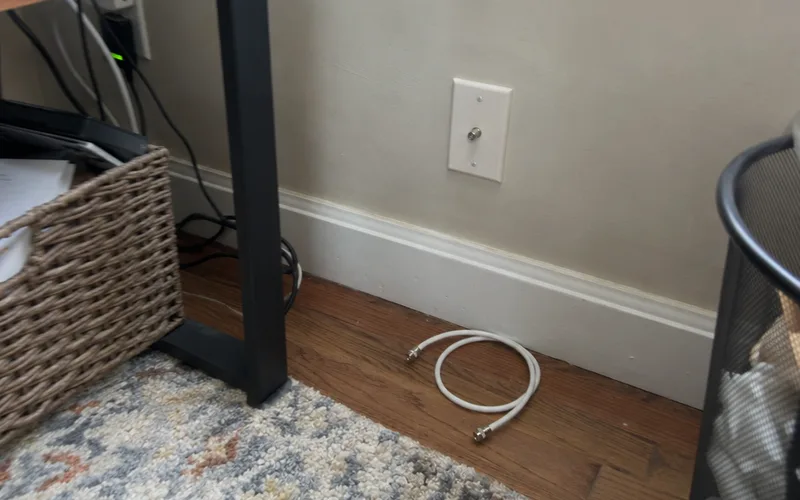
So if another outlet is nearby, move the modem there and power cycle it. A solid light at the new outlet points to the old outlet or the wiring behind it.
Run the Xfinity App’s Network Test
If you have an xFi Gateway, the Xfinity app can test it for you:
Open the app, select WiFi, tap Run a test, and then tap Run a test under Full Network Test. It checks for outages first, then the equipment in your home.
Follow any steps it gives you. If the app finds your modem is too old for a steady connection, you’ll be offered a new one at no extra charge.
Check Your Account Balance
An unpaid bill can look exactly like a hardware problem.
So check your balance in the Xfinity Mobile App on cellular data. If an overdue balance got your account suspended, paying it restores your internet access, and the light should settle on its own.
Factory Reset as a Last Resort
A factory reset wipes the modem’s custom settings, including your SSID (the name your devices join), and puts back the default password.
To do it, hold the small recessed Reset button on the back with a paperclip, then let the modem restart. It can clear a corrupted setting or a stuck firmware state, but it can’t fix a damaged line, a weak connection or an outage.
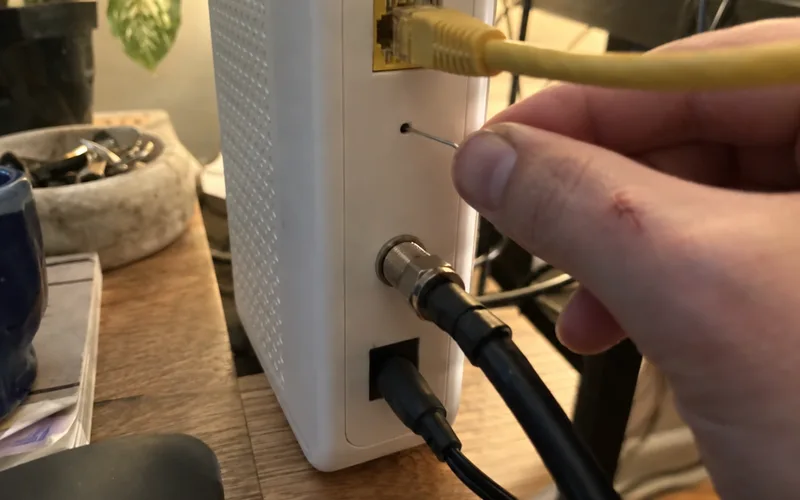
Afterward, you’ll set up the SSID and password again. If you’d rather skip the app, you can set up an Xfinity gateway without the app from a web browser.
How to Check Your Xfinity Modem’s Signal Levels
An Xfinity modem’s signal levels show whether a blinking green light comes from a weak line or the hardware, and you can read them at 192.168.100.1 or 10.0.0.1.
On the Xfinity Community Forum, a volunteer Customer Expert told a stuck customer to start with the modem’s signal stats.
To find them:
- Connect a computer to the modem, ideally with an Ethernet cable.
- In a web browser, type 192.168.100.1 to open the modem’s web interface. If that doesn’t load, try 10.0.0.1, the admin IP address.
- Find the Downstream Power Level, Upstream Power Level and SNR (signal-to-noise ratio).
- Copy all of them into a note.
Don’t worry if the numbers mean nothing to you. The forum expert asked for them in full so someone could check them, and Xfinity’s technical support team can use them the same way.
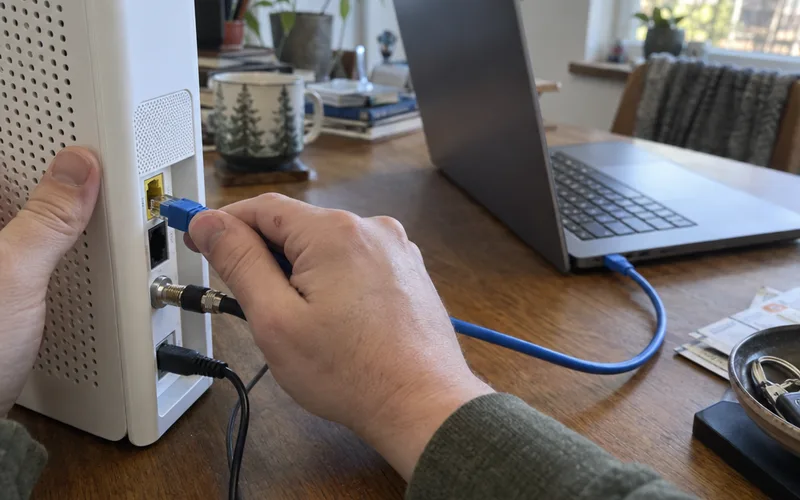
Note: If neither page loads, you may be looking at a complete outage. That’s what the forum expert concluded when the customer saw only blank pages.
The login steps match those for any router’s settings page.
Why a New Xfinity Modem Keeps Blinking Green
A new Xfinity modem keeps blinking green when Xfinity hasn’t activated it on your account yet. Until the network recognizes its MAC address, the modem can’t get service, no matter how good your cables are.
In a January 2022 Xfinity Community Forum thread, a helper asked whether a new modem’s MAC address was “authenticated/whitelisted by Xfinity”. A MAC address is the modem’s built-in hardware ID, printed on its label.
So if you just swapped in new hardware:
- Leased Xfinity modem: finish activation in the Xfinity app, then power cycle.
- Your own modem: confirm it’s on Xfinity’s list of compatible modems, then call with the MAC address from the label.
Key Takeaway: A brand-new modem can blink forever if Xfinity doesn’t know it exists.
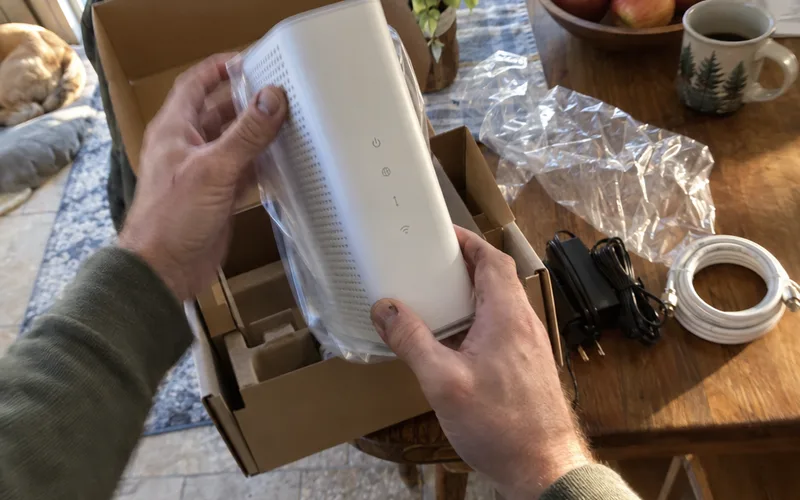
Planning the switch? Here’s how to replace an Xfinity modem with your own without that stall.
Xfinity Modem Blinking Green and Orange
An Xfinity modem blinking green and orange is still trying to connect, because blinking orange, yellow and green all mean “trying to connect” on most xFi Gateways. The alternating pattern isn’t a separate error.
You’ll often see it during setup or right after you reset the modem, and it should finish in a few minutes.
But what if it repeats for a long time?
Readers on the forums describe exactly that: “blinks orange and then blinks green then repeats.” Past about 15 minutes, use the same fixes in the same order.
Other brands use their own patterns. Here’s how to read router lights flashing with no internet on non-Xfinity gear.
Still Blinking Green After a Reset?
If your Xfinity modem still blinks green after you reset it and you’ve ruled out an outage, cables and splitters, the problem is likely on Xfinity’s side. It’s usually a signal problem on the line or an activation problem only your ISP can fix.
Why?
Resetting only fixes the modem’s own settings and software. It can’t strengthen a weak connection or repair the line outside your home.
So stop resetting, since each extra reset just starts another 15-minute wait. Write down what you’ve already tried instead, because that list makes the next step fast.
When to Call Xfinity (and What to Say)
Call Xfinity when the light still blinks green after a power cycle, a cable check, a splitter test and a 15-minute wait. wikiHow lists the support number as 1-800-Xfinity (800-934-6489), and the Xfinity app also has chat.
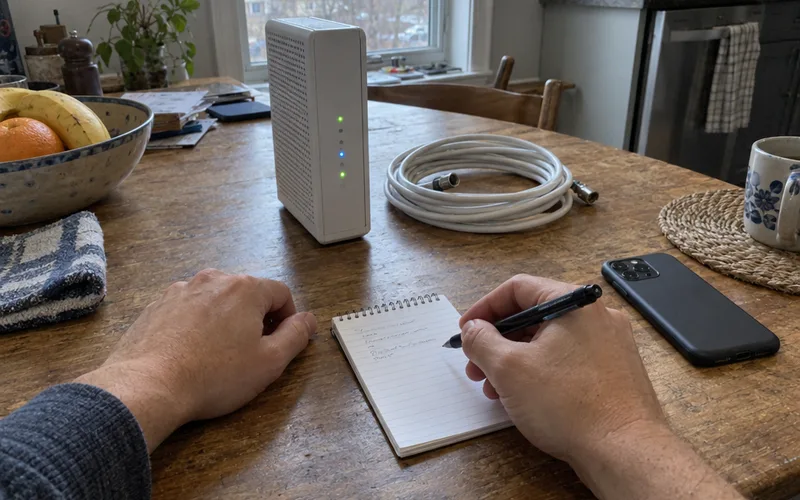
Have your account number, the time the blinking started and your downstream and upstream readings ready.
Here’s what to say:
“My modem has been blinking green since this morning, and there’s no outage on the status map. I’ve power cycled it, tightened the coax at both ends and connected it straight to the wall without splitters.
Can you check my signal levels and confirm my modem’s MAC address is activated on my account?”
That script skips the basic checklist and gets you to someone who can see your line.
If they send a technician, ask what they found before they leave, including whether a firmware update or new equipment was needed. The forum customer was promised a follow-up fix “in a week or two,” never heard back, and the green light returned.
Blinking Green Ethernet or WiFi Lights Are Usually Normal
A blinking green Ethernet or Wi-Fi light on an Xfinity modem is usually normal, because those lights flicker when data moves across your network. Only the main status light tells you whether the modem is online.
wikiHow’s guide makes the same point: a blinking Wi-Fi light means activity, not a fault.
So check which light is blinking. If the status light is solid, troubleshoot why your WiFi is not working instead.
What to Do Right Now
An Xfinity modem blinking green hasn’t reached Xfinity’s network yet, so check the outage map first and then work down the fixes in order.
Still blinking 15 minutes after the last fix? Call Xfinity with the script above, or browse more connection troubleshooting guides and the rest of our home internet setup section.
Frequently Asked Questions
How do I reset my Xfinity modem?
To restart an Xfinity modem, unplug its power cable for about a minute, plug it back in and give it about 3 minutes. A factory reset uses the recessed Reset button and erases your network name and password, so save it for last.
How long does it take for an Xfinity router to reset?
An Xfinity modem usually needs about 3 minutes after you plug it back in before you can test the internet, based on wikiHow’s expert-reviewed guide. If the light is still blinking green, give it up to about 15 minutes before you try the next fix.
Why is my router blinking green but no internet?
A router or gateway blinking green with no internet is still trying to reach Xfinity’s network, so nothing past the modem can get online yet. The usual causes are an outage, a loose or damaged coaxial cable, too many splitters, a new modem that isn’t activated or a suspended account.
What color should my Xfinity router be blinking?
A working Xfinity modem shouldn’t be blinking at all: its status light should be solid, which is solid white on most xFi Gateways. Blinking white means it isn’t activated yet, and blinking green, orange or yellow means it’s still trying to connect.
Why is my Xfinity Gateway blinking yellow?
An Xfinity Gateway blinking yellow or orange is still trying to connect, just like a blinking green light. Wait about 15 minutes, then use the same fixes: outage check, power cycle and coax line.
Does a blinking green light mean I need a new modem?
No, a blinking green light usually doesn’t mean the modem is broken, because it only shows the modem can’t finish connecting. Rule out an outage, wiring, splitters and your account first, and let Xfinity, your internet service provider, check your line before you replace any hardware.