
Xfinity bridge mode leaves your gateway room for exactly 1 device.
That’s the one-device limit in Xfinity support, and that device should be your own router.
Below are 4 steps for your gateway setup, plus what stops working and the fixes.
Best for: anyone running their own router or mesh.
Cost: Free.
Time: Same day.
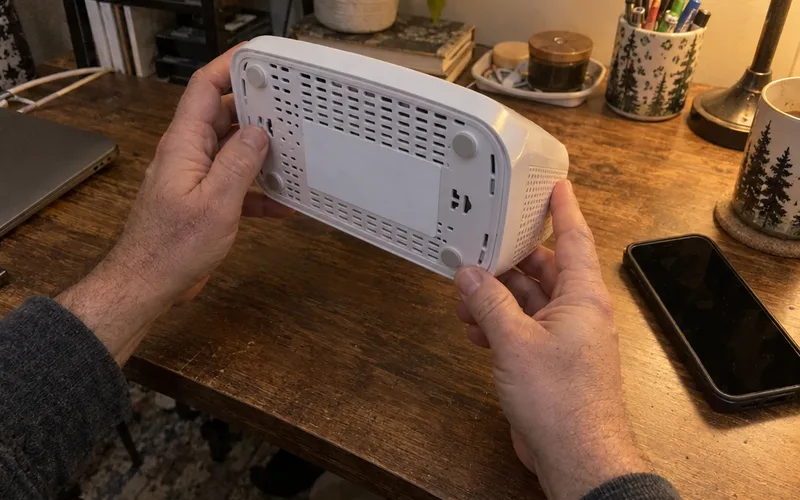
First step: Photograph the sticker under your gateway.
How to Turn On Xfinity Bridge Mode
To turn on Xfinity bridge mode, sign in to the Admin Tool at http://10.0.0.1, go to Gateway > At a Glance and click Enable next to Bridge Mode. Then connect your own router to any gateway Ethernet port.
Step 1: Open the Admin Tool
Connect your computer directly to the Wireless Gateway with Ethernet or WiFi, not through your router, then open a web browser and go to http://10.0.0.1.
If it won’t load, you may have to allow Admin Tool access in the Xfinity app.
Step 2: Sign In
Enter admin as the Username, then the sticker password, or your own if you changed it.
An Xfinity employee gave password in a July 2025 forum thread, so try that only if the sticker fails.
Step 3: Click Enable
Select Gateway > At a Glance, then click Enable next to Bridge Mode.
A warning says this turns off the router functions and private WiFi, so click OK. Your gateway may restart.
Step 4: Plug In Your Router
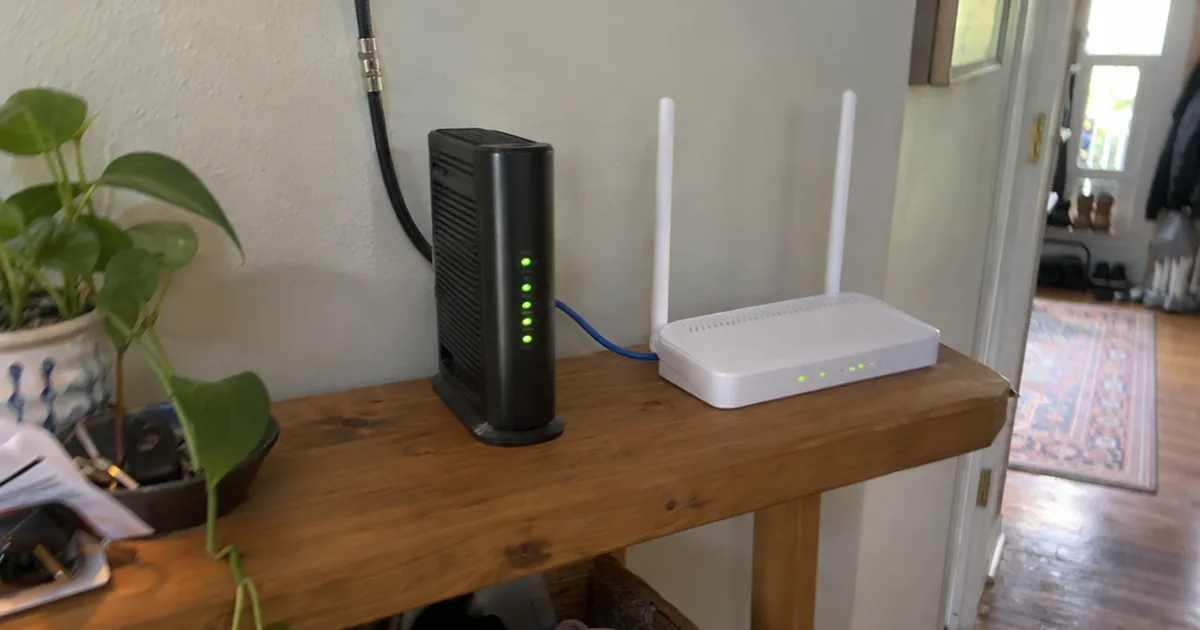
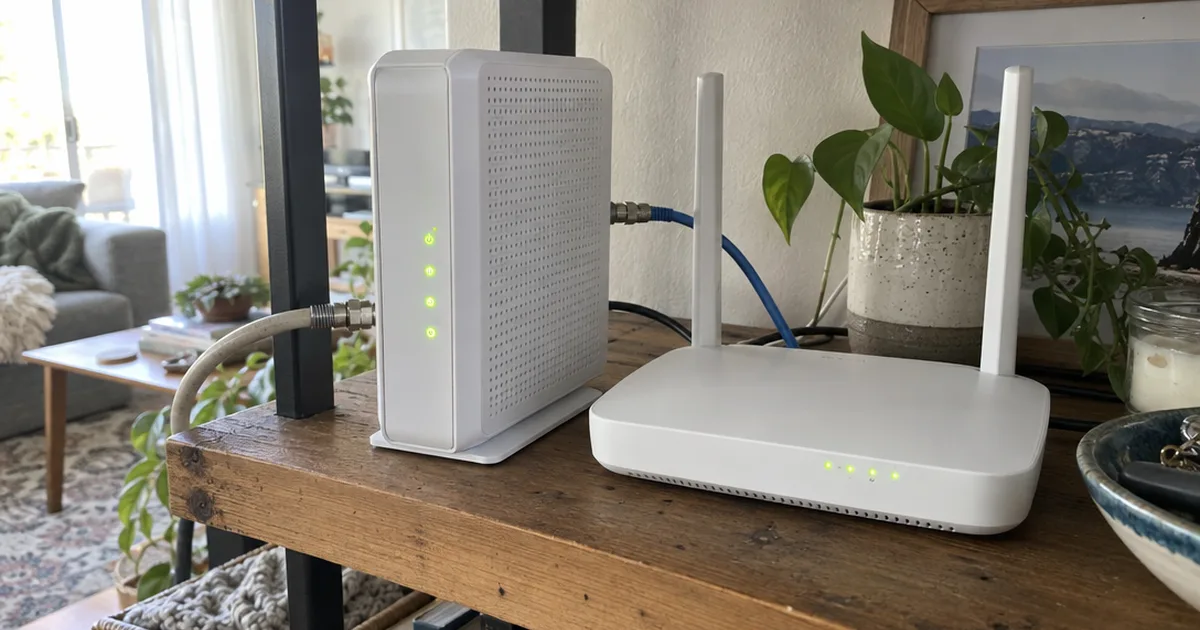
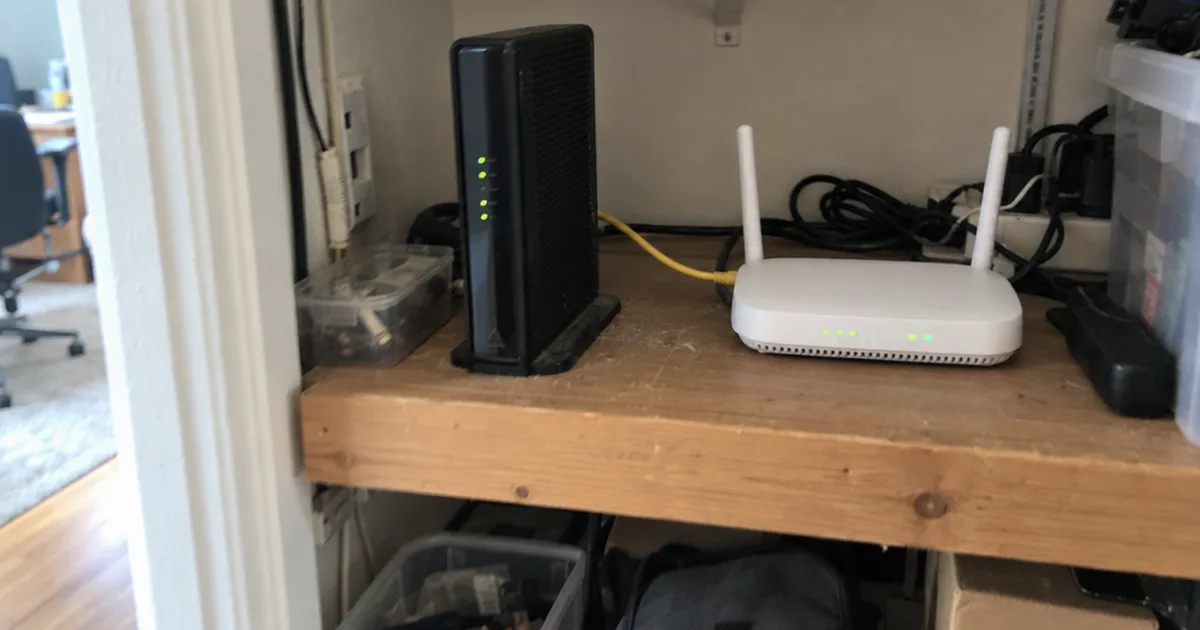
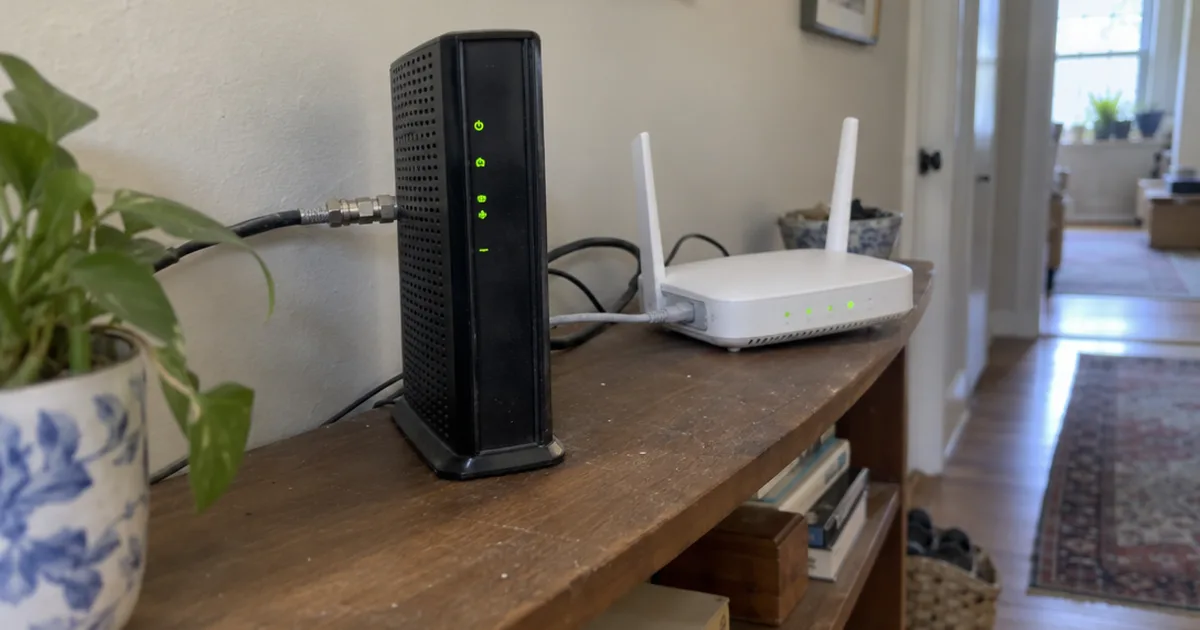
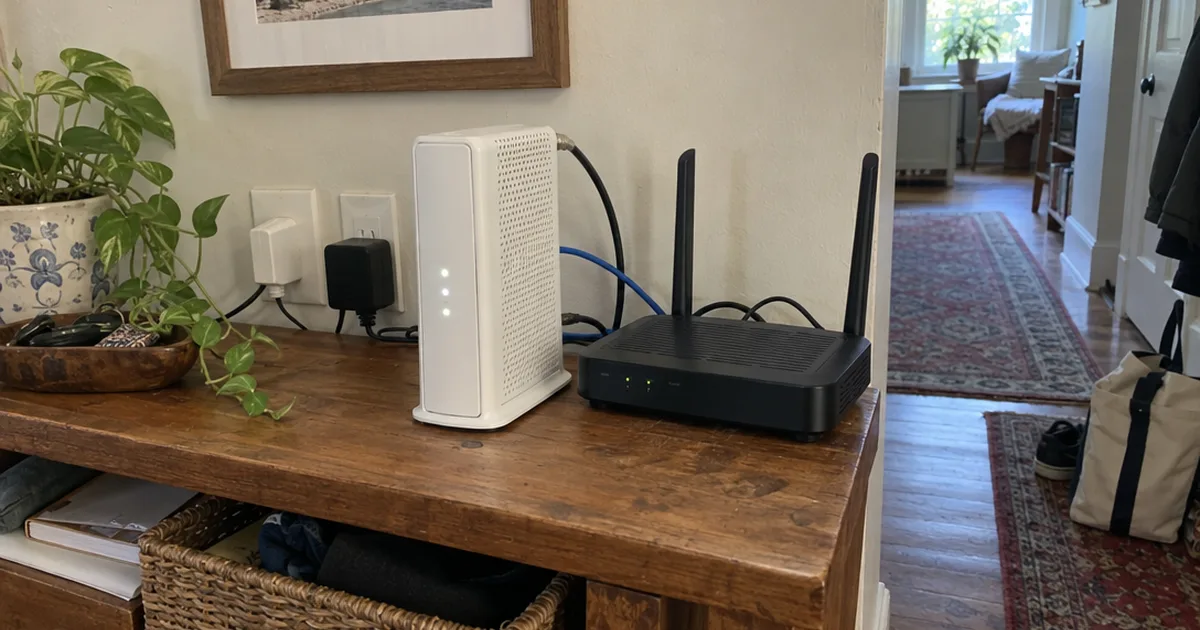
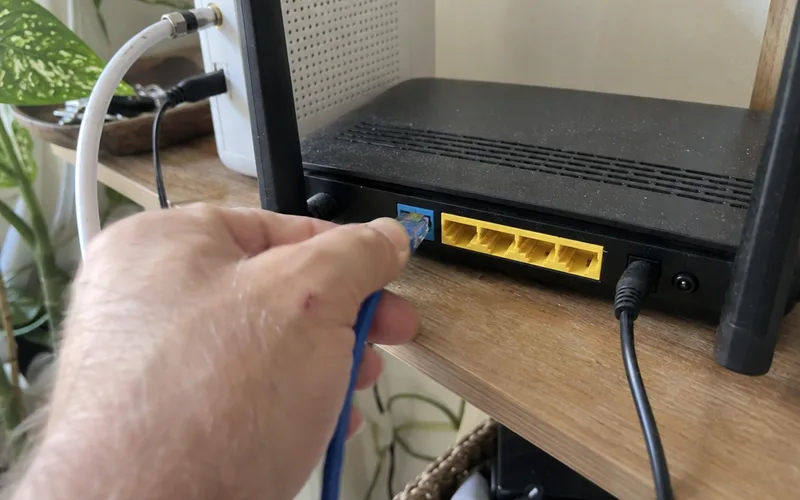
Run an Ethernet cable from any gateway port to the WAN port on your router.
Everything else now connects to your router, because the gateway serves only 1 device.
What Does Bridge Mode Do on Xfinity?
Xfinity bridge mode turns off the gateway’s routing and leaves its modem on, so your own router takes over. An Xfinity employee adds that it also disables WiFi and DHCP, which hands out IP addresses.
That removes double NAT, which TP-Link says commonly hits online gaming, remote access apps and port forwarding rules.
It won’t speed up a healthy network, though, the same July 2026 guide says.
Should Bridge Mode Be On or Off?
Leave Xfinity bridge mode off if the gateway is your only router, because there’s no routing conflict to fix. Turn it on if your own router sits behind the gateway and gaming or a VPN misbehaves.
To keep Xfinity features, use access point mode on your router, which adds no second layer of routing.
No problems with 2 routers? TP-Link calls it optional.
What Stops Working in Bridge Mode?
Xfinity bridge mode turns off the gateway’s private WiFi and several Xfinity features, according to Xfinity support.
- WiFi: Your router broadcasts its own network.
- Xfinity app: Manages your account, not your home network.
- WiFi Extenders and Pods: Can’t be used.
- CyberSecure: Not available.
- Firewall: TP-Link says the gateway firewall goes inactive.
- Home Hotspot: Stays on, on some gateways.
Why Is Bridge Mode Missing or Greyed Out?
Xfinity bridge mode won’t turn on if WiFi Extenders are already activated, according to Xfinity support, so check those first. Next, confirm Admin Tool access is on in the Xfinity app.
The Xfinity page names no gateway models, so if it’s gone, ask: “Does my gateway support Bridge Mode?”
If not, replace the Xfinity modem with compatible gear.
Why Is There No Internet in Bridge Mode?
No internet after Xfinity bridge mode usually means your router hasn’t taken over, because the gateway no longer provides WiFi or routing. Try these fixes in order:
- Move the cable to the WAN port on your router, not a LAN port.
- Unplug every other device from the gateway.
- Join your router WiFi, not the old network.
- Restart your router.
How to Turn Off Xfinity Bridge Mode
To turn off Xfinity bridge mode, connect a computer to the gateway with an Ethernet cable, sign in at http://10.0.0.1, open Gateway > At a Glance and set Bridge Mode to Disable. Xfinity requires that wired connection.
Frequently Asked Questions
How do I tell if my Xfinity gateway is in bridge mode?
An Xfinity gateway shows its status in the Bridge Mode field under Gateway > At a Glance.
Which Ethernet port do I use in Xfinity bridge mode?
Any Ethernet port works in Xfinity bridge mode, according to Xfinity support.
What is the default username and password for the Xfinity gateway at 10.0.0.1?
The default Xfinity gateway Username is admin, and the password is on the sticker on the bottom of the gateway.
Does bridge mode fix double NAT on Xfinity?
Yes, Xfinity bridge mode fixes double NAT, because only your own router is left doing NAT.
Can I use bridge mode with a mesh WiFi system on Xfinity?
Yes, Xfinity bridge mode works with a mesh system: an Xfinity employee backed it for an XB7 owner with an Eero Pro 6E.
Final Thoughts
Turn on bridge mode only when your own router is ready to take over.
This week, photograph the gateway sticker and pick a quiet time to switch.