
A 60-second unplug fixes the most common cause of this error.
A router or modem that needs a restart is “the most common cause by far,” a July 2026 TP-Link fix guide says.
So if you see Wi-Fi connected but no internet, you probably don’t need a new router.
Below are 8 steps in the order I’d run them, with the free checks first.
Best for: anyone whose phone, laptop or TV shows Wi-Fi but won’t load anything. Skip it if your device can’t find any network at all.
Cost: Free.
Time: Same day.
First step: Grab a second device and open a website on the same Wi-Fi.
How to Fix WiFi Connected but No Internet Step by Step
To fix Wi-Fi connected but no internet, test a second device, check for an ISP outage, then restart your modem and router. If only one device fails, forget the network, fix its DNS and renew its IP address.
Stop as soon as pages load, because each step takes more work than the one before it.
Step 1: Check a Second Device
Open a website on another phone, tablet or laptop, with mobile data turned off so you’re really testing the Wi-Fi.
If every device fails, the problem is likely your router, modem or ISP, so work through Steps 2 to 4.
If only one device fails, jump to Step 5, because your connection is probably fine.
Hotel, cafe and airport Wi-Fi is a separate case: a sign-in page that never appeared can leave you connected with nothing loading.
Step 2: Check for an ISP Outage
Use mobile data to check your provider’s status page or Downdetector for reports from others nearby.
If there’s an outage, nothing you do at home will change it, so you wait for your ISP to fix it.
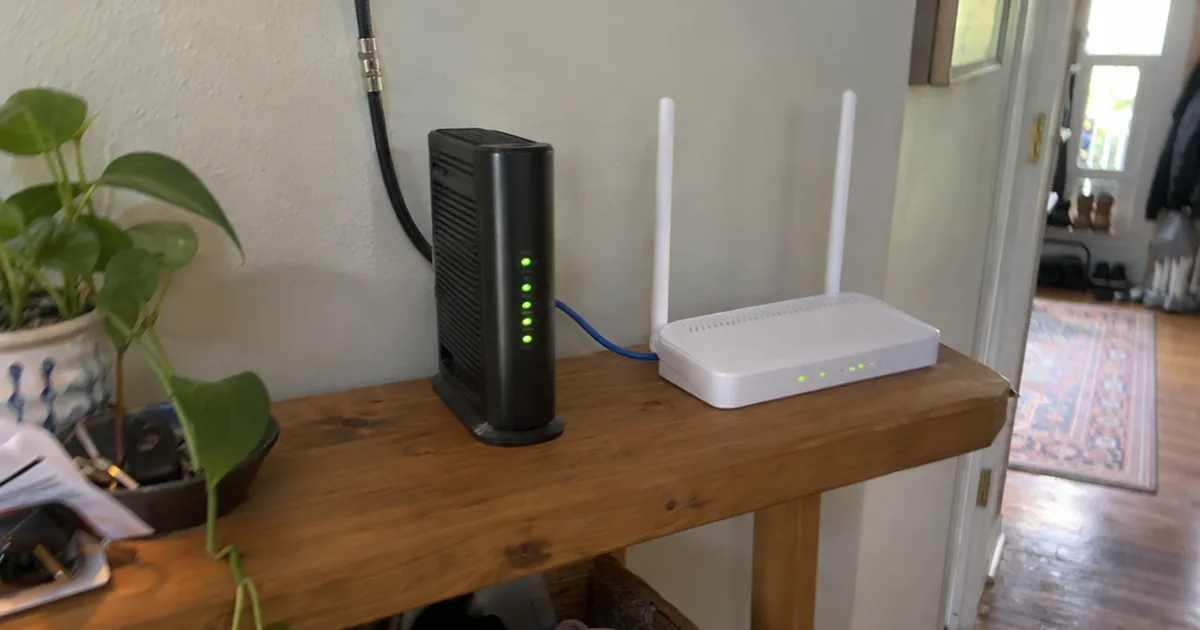
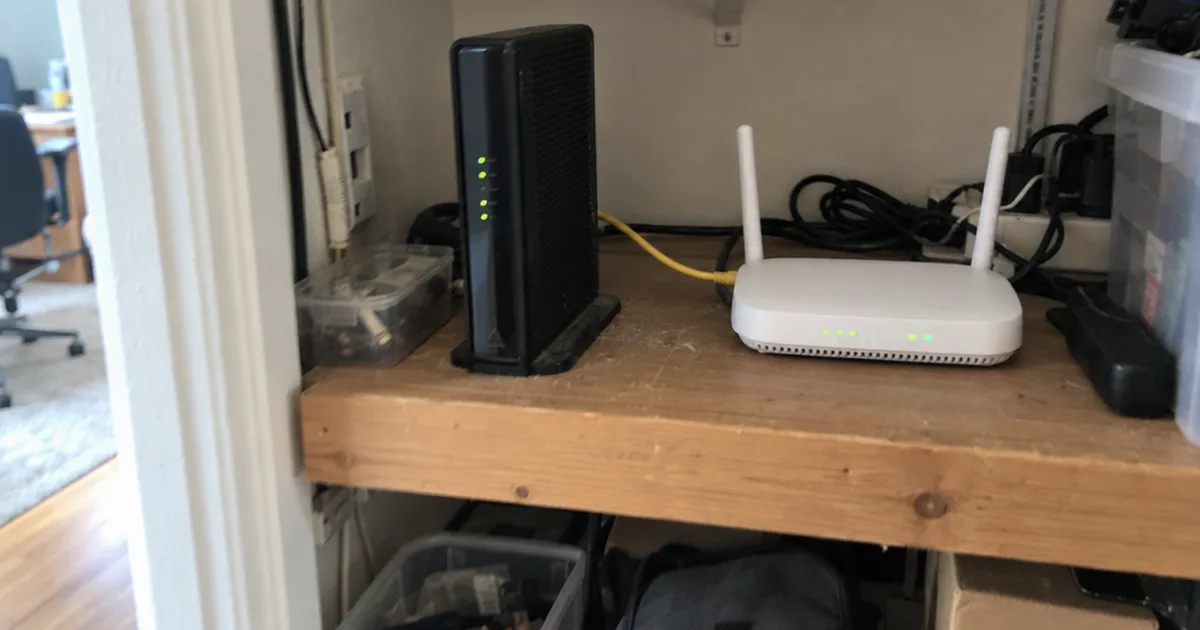
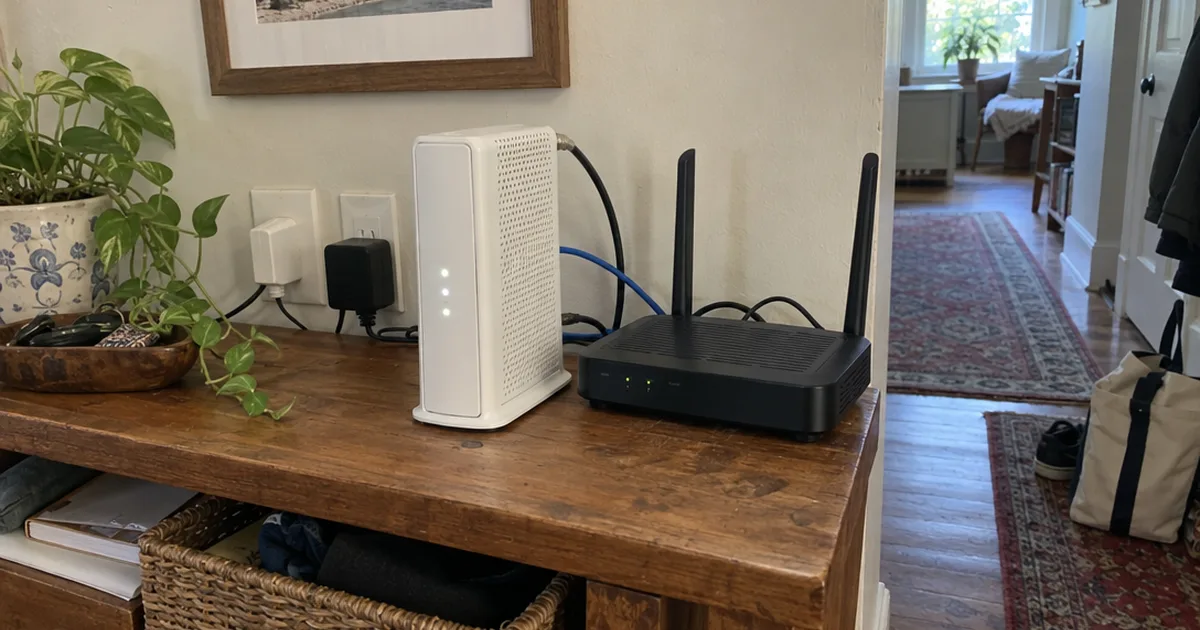
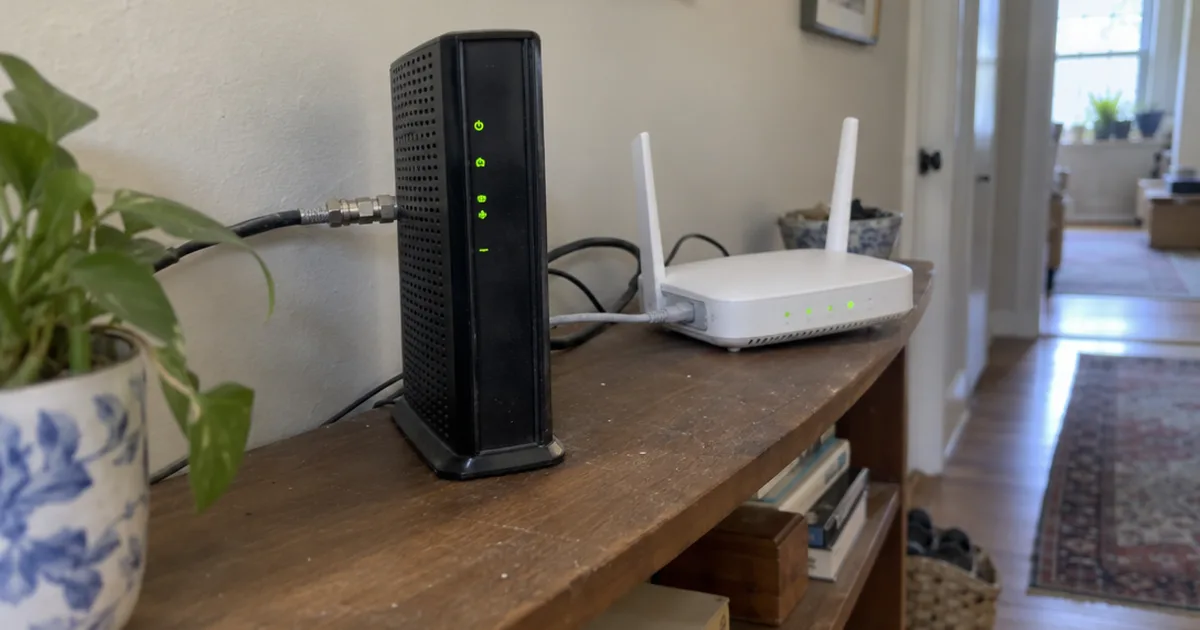
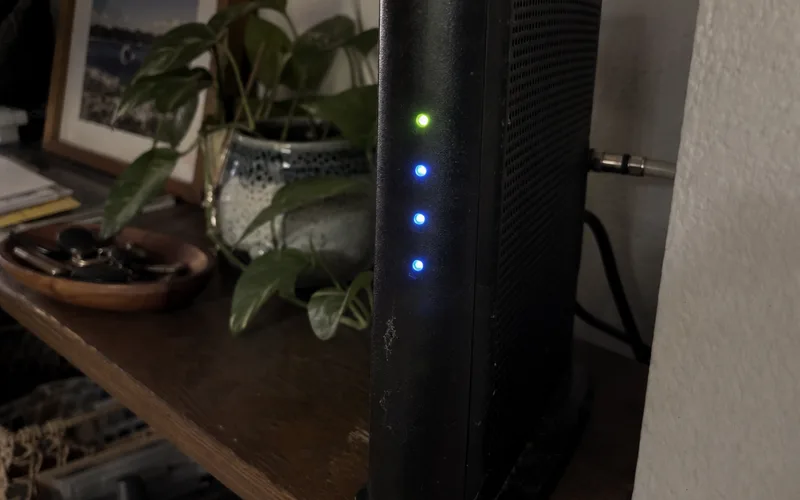
Step 3: Restart Your Modem and Router
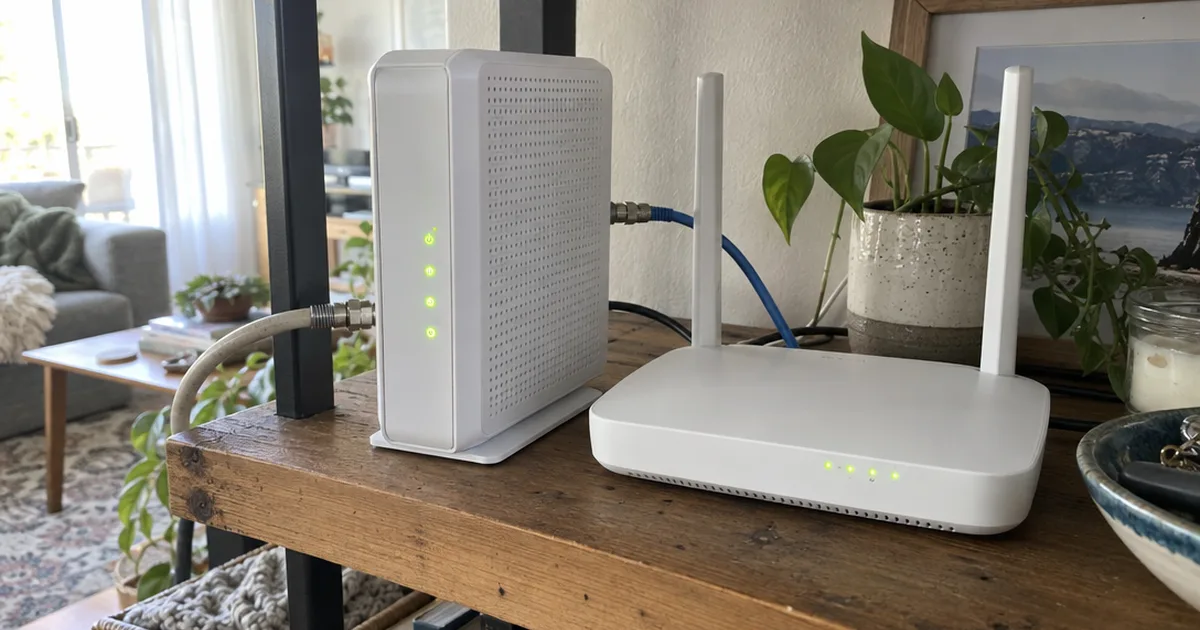
Unplug your modem and router for 30 to 60 seconds, then power the modem up first so the router has a live connection to join.
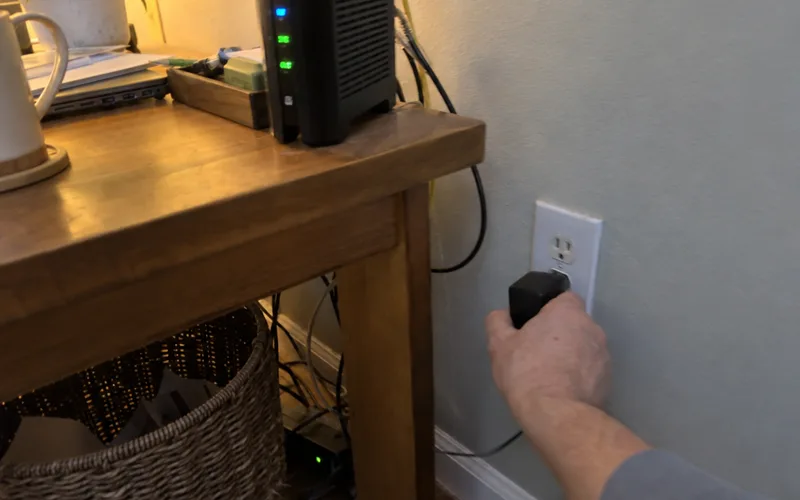
Here’s the order:
- Unplug the modem and wait 30 to 60 seconds, per TP-Link.
- Plug the modem back in and wait for its lights to stabilize, usually about a minute.
- Unplug the router, wait 30 seconds and plug it back in.
- Let the router fully reconnect before you test.
If you have 1 combination gateway instead of 2 boxes, restart that one box the same way.
Step 4: Check Every Cable
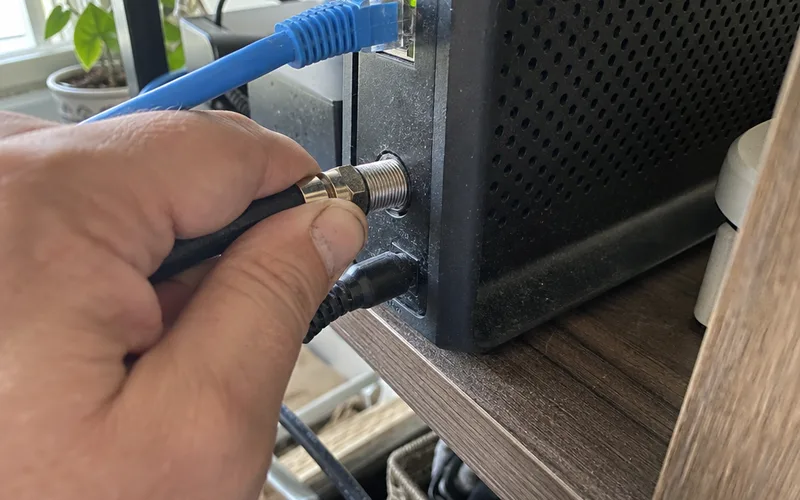
A loose cable can drop your connection with no warning, so unplug each one and push it back in firmly:
- The Ethernet cable between the modem and router
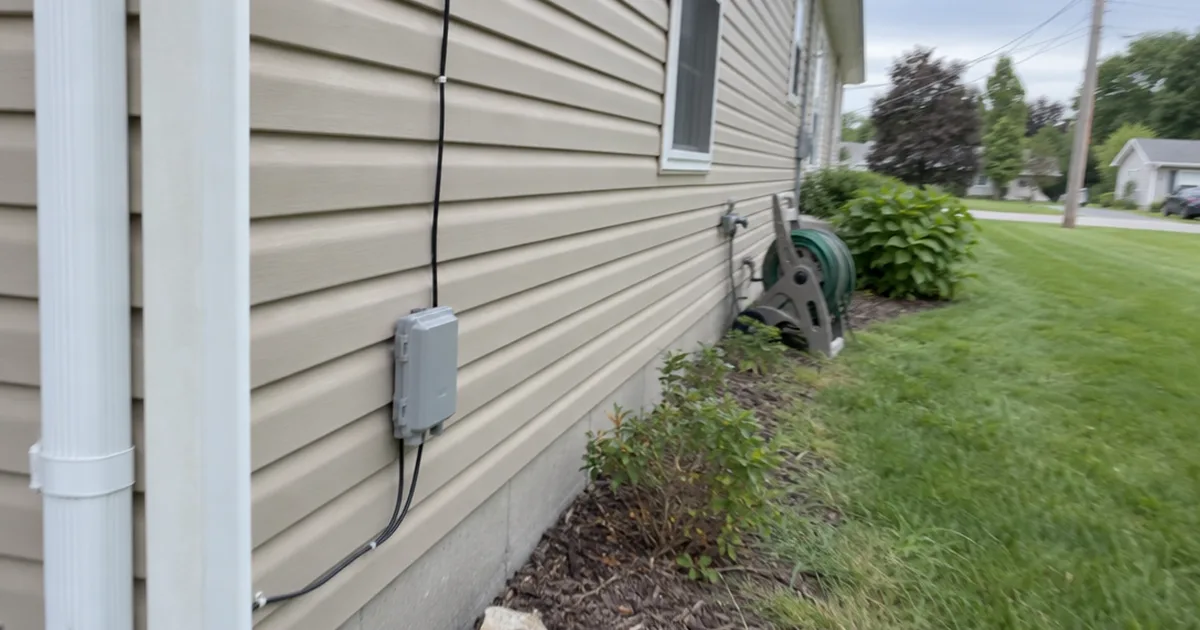
- The coax or phone line going into the modem
- The power cords on both boxes
Replace anything that looks worn.
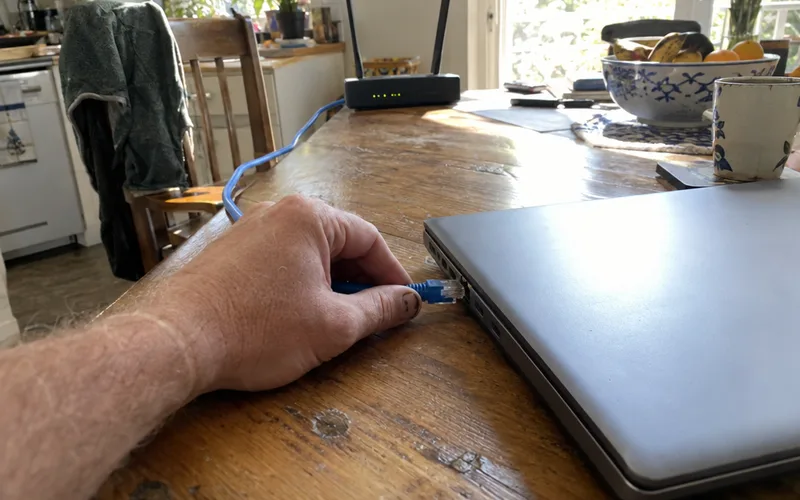
Then plug a laptop into the router with Ethernet as a quick test. If pages load on the wire, Wi-Fi is the weak link, and if they don’t, call your ISP before you go further.
Step 5: Restart the Device and Forget the Network
Turn Wi-Fi off and on, then restart the failing device so it builds a fresh connection.
Still stuck? Forget the network to clear its saved data, then rejoin with your password:
- Windows: Settings, Network and Internet, Wi-Fi, Manage known networks, then Forget.
- iPhone: Settings, Wi-Fi, the information icon, then Forget This Network.
- Android: Settings, Network and Internet, Wi-Fi, long-press the network, then Forget.
Step 6: Fix DNS and Renew Your IP Address
DNS translates website names into addresses, so a bad setting leaves you connected with no pages loading.
Set DNS to automatic first, and if that fails, try the public DNS server at 8.8.8.8 from Google, as TP-Link advises.
Next, renew your Internet Protocol address so DHCP, the router feature that hands out addresses, gives you a fresh one.
On Windows, open Command Prompt and run ipconfig /release, then ipconfig /renew. On a Mac, use Renew DHCP Lease.
ipconfig /flushdns clears old lookups too. If a browser still blames DNS, these DNS server fixes go deeper.
Step 7: Pause Your VPN and Update the Driver
A VPN or custom DNS app can block traffic on one device, so pause it for a quick test and turn it back on afterward.
On Windows, open Device Manager, expand Network Adapters, right-click your wireless adapter and choose Update driver. Run the built-in network troubleshooter too.
Step 8: Reset Network Settings, Then the Router
On Windows, go to Settings, Network and Internet, Network reset, then Reset now. You’ll need to re-enter your Wi-Fi password afterward.
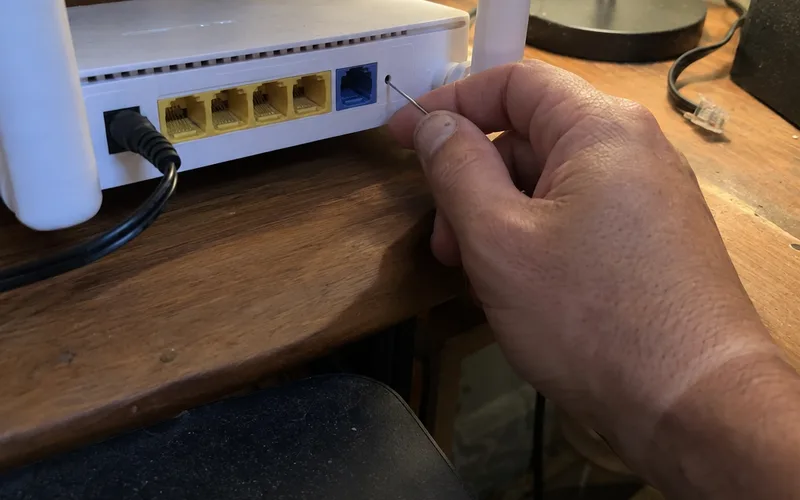
A factory reset is the last resort, because it wipes your Wi-Fi name, password and custom settings.
Hold the pinhole button with a paperclip for 30 seconds, let the router reboot, then rebuild your router settings from scratch.
What Does Connected Without Internet Mean?
“Connected without internet” means your device reached your router, but traffic can’t get past it to the wider internet. Full Wi-Fi bars only measure that first radio link.
Picture a relay: your device talks to the router, the router to the modem and the modem to your ISP.
Only your ISP gets you online, so TP-Link puts it plainly: being connected to Wi-Fi “doesn’t mean the Internet is actually working.”
The break sits further up the chain, somewhere in your home internet setup or at your ISP.
Is It Your Router, Modem or ISP?
Connected but no internet points to your router, modem or ISP when every device fails, and to the device itself when only 1 fails. After a restart, the lights on your gear narrow it down further:
- Modem lights never stabilize: suspect the modem or your ISP line.
- Modem looks normal, Wi-Fi still dead: suspect the router, or the cable between it and the gateway or modem.
- Everything looks normal: run Steps 5 to 7 on the failing device.
Still unsure? Call your ISP with the time it started and the steps you’ve tried.
What Does a 169.254 Address Mean?
A 169.254 IP address means your device never got a working address from the router’s DHCP service, so it can’t reach the internet. Check it on Windows with ipconfig, or in your Wi-Fi details on a phone.
Restart the router, then renew the address with Step 6. These IP address basics show what a normal one looks like.
When to Factory Reset or Replace Your Router
Factory reset a router only after Steps 1 to 7 fail, and replace it when the problem keeps coming back after restarts. TP-Link lists the signs of failing hardware:
- The issue returns regularly, not just once
- Restarting helps for a while, then it comes back
- Several devices stay slow or unreliable
- Your router is more than 4 to 5 years old
To head off repeats, restart your router once a month and check for firmware updates every few months.
Fixes for Your Exact Device or Light
These guides pick up where the 8 steps stop:
- Lights: a router with a red light, flashing lights with no internet, Arris modem lights, an Xfinity modem blinking green, an eero solid red light or a Google Fiber jack blinking red.
- Spectrum: connected without internet, a router blinking blue, a Spectrum red light or Wi-Fi not working on Spectrum.
- Phones: internet not working on a phone, a Samsung phone that won’t connect or slow internet on a phone.
- PCs: one PC that won’t connect, a Wi-Fi adapter not working, no networks found on Windows 11 or connecting manually on Windows 10.
- Slow, not dead: Wi-Fi that’s suddenly slow, slow internet at night or ping spikes.
And if your Wi-Fi drops completely rather than showing connected, start with these fixes for Wi-Fi not working.
Frequently Asked Questions
Why do I have full signal but no internet?
Full signal means a strong Wi-Fi link to your router, not a working internet connection. The break is between the router and your ISP, so restart the modem and router first.
Why does my phone say connected to Wi-Fi but no internet?
A phone says connected with no internet when it reached the router but can’t get online. Test another device, then restart the phone and forget the network if only the phone fails.
Why does my laptop say connected but no internet on Windows?
A Windows laptop shows connected with no internet when it joined the Wi-Fi but can’t get past the router. If other devices work, forget the network, renew the IP address and update the adapter driver.
Why am I connected to the internet but cannot access websites?
Websites that won’t load on a working connection usually point to DNS, the service that turns site names into addresses. Set DNS to automatic, or try 8.8.8.8 as TP-Link suggests.
Why isn't my Wi-Fi working on my TV but on other devices?
Wi-Fi that fails only on a TV is usually a TV setting, not your router. Restart the TV, then forget the network and rejoin it.
How do I reset my router?
Reset a router by holding its pinhole button for 30 seconds with a paperclip, which erases your settings. Try a plain restart first, because that keeps everything.
Final Thoughts
The break behind Wi-Fi connected but no internet is usually closer than it looks, and a plain restart clears the most common cause.
If you’re offline right now, test a second device, then give your modem and router that 60-second restart.