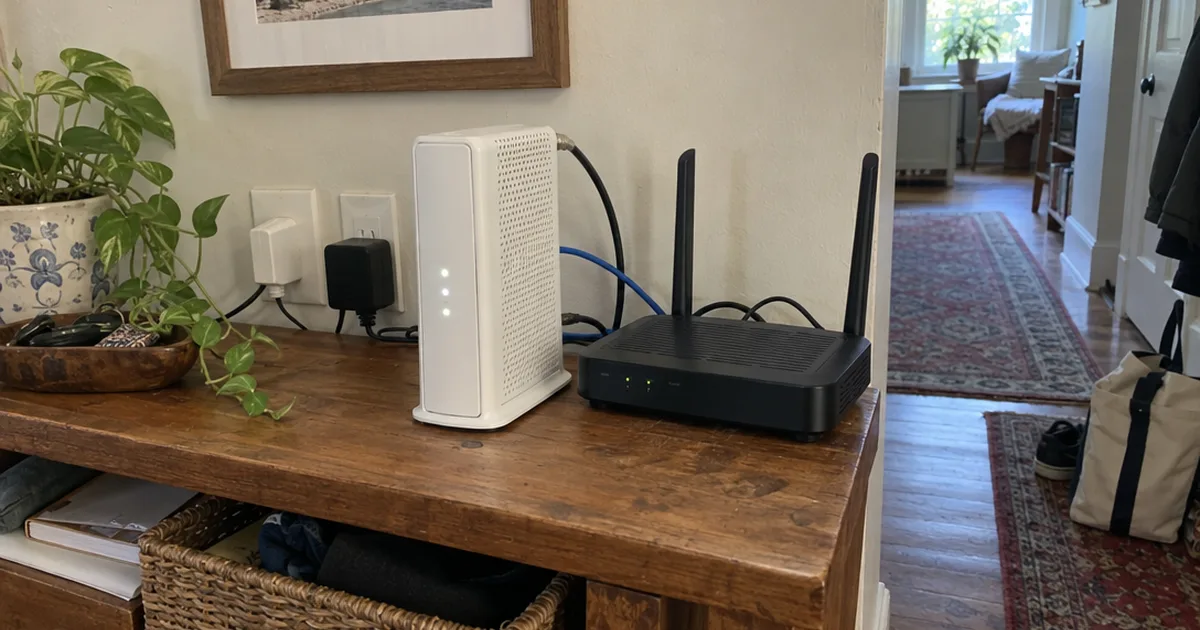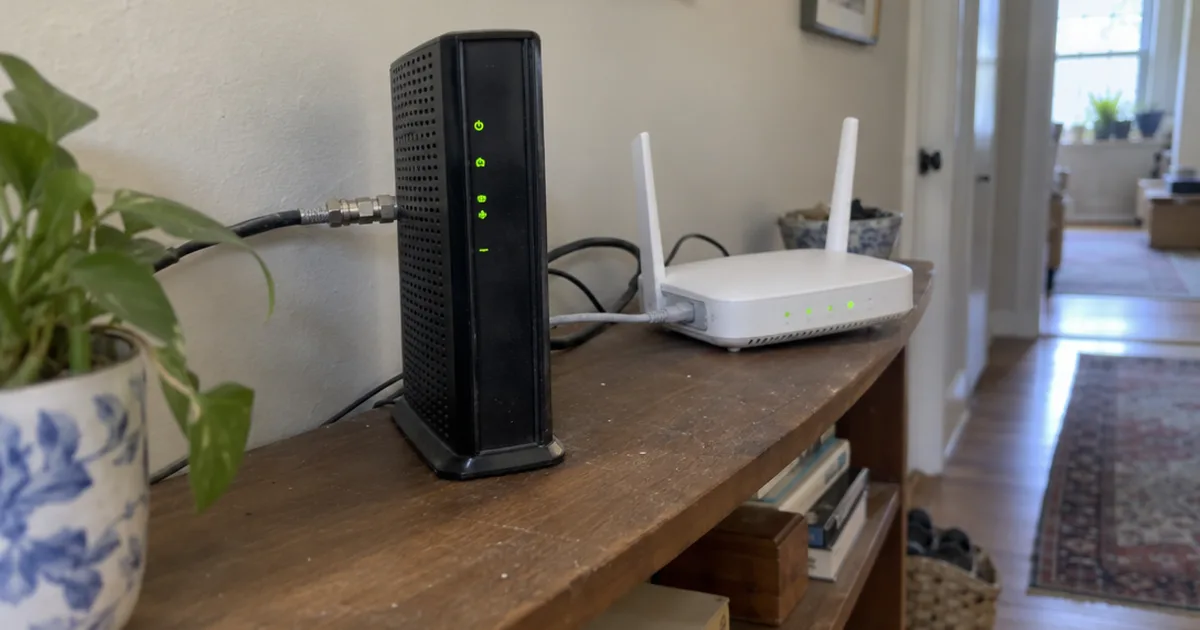

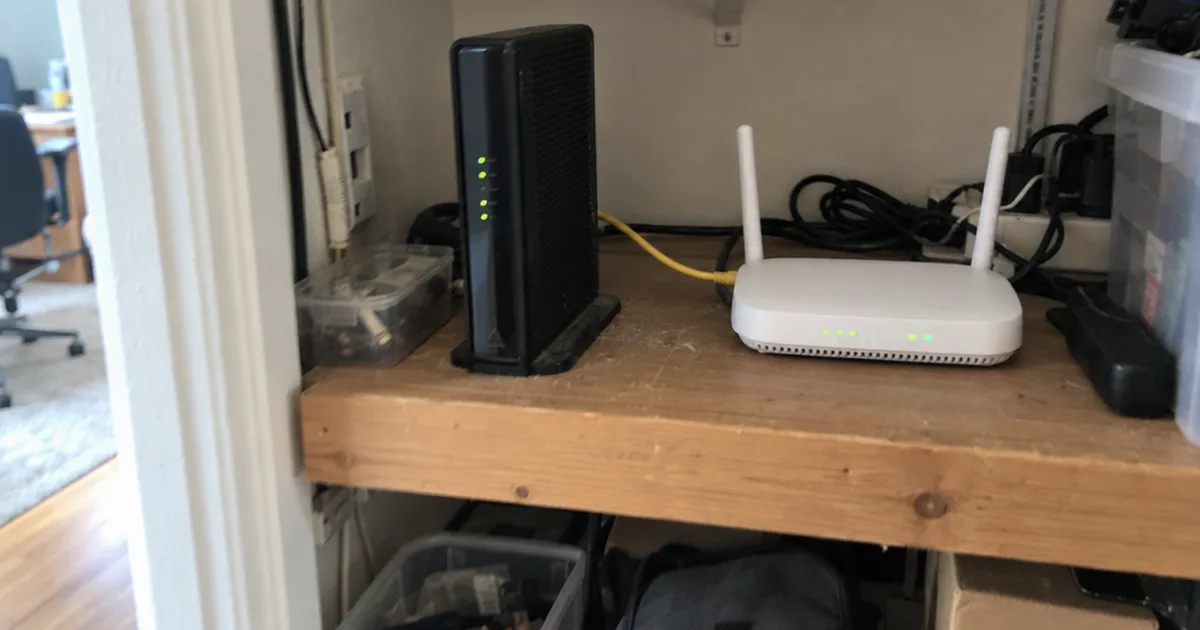
Flip 1 setting, and your ISP gateway can serve just 1 device.
That’s what bridge mode does on Xfinity gateways, and that 1 device is meant to be your own router.
So why would anyone choose that? Because 2 routers in a row can break gaming, VPNs and port forwarding.
Here’s the plain answer: what bridge mode switches off, when to use it and what it costs you.
What Is Bridge Mode?
Bridge mode is a modem or gateway setting that turns off routing, so a separate router runs your home network. TP-Link describes it in a July 2026 post as disabling the routing function, which lets the other router take full control.
A quick refresher helps here.
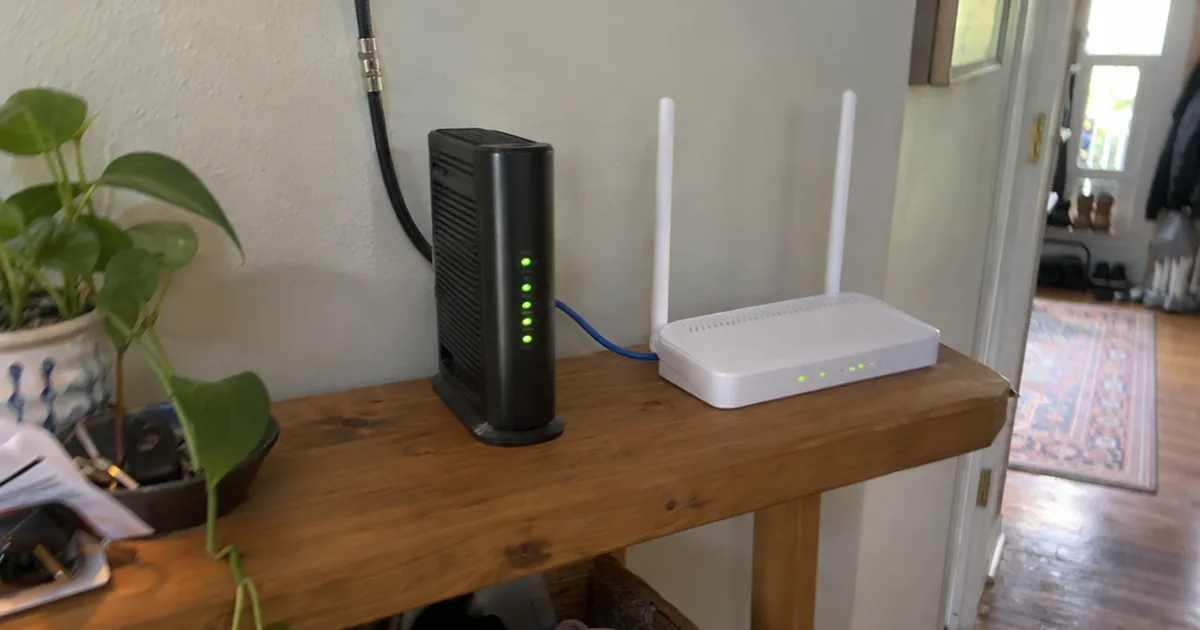
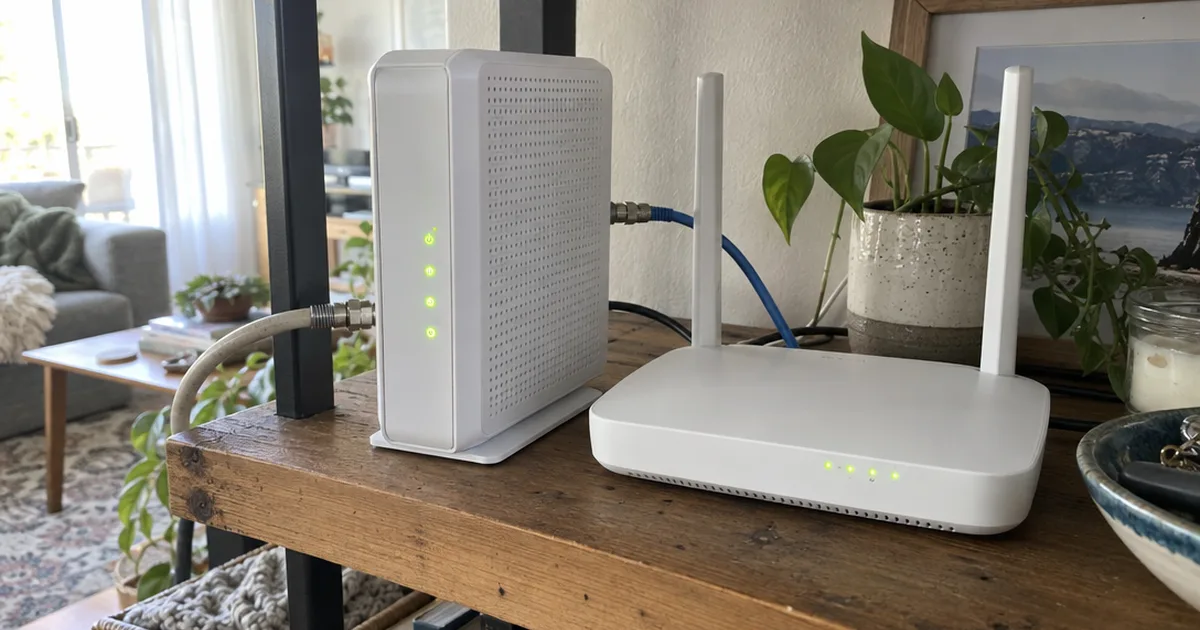
A modem connects your home to your internet service provider (ISP). A router connects your devices to that modem, and a gateway puts both in 1 box.
Routing is the job of directing traffic between your local area network (LAN) and the internet. It includes the DHCP service, which gives each device a private IP address.
Network Address Translation (NAT) is part of the job too. It lets all those devices share 1 public IP address.
With bridge mode on, the gateway drops those jobs and acts like a simple network bridge between your ISP and your router. An Xfinity support page puts it plainly: bridge mode turns off routing capabilities and leaves the modem capabilities on.
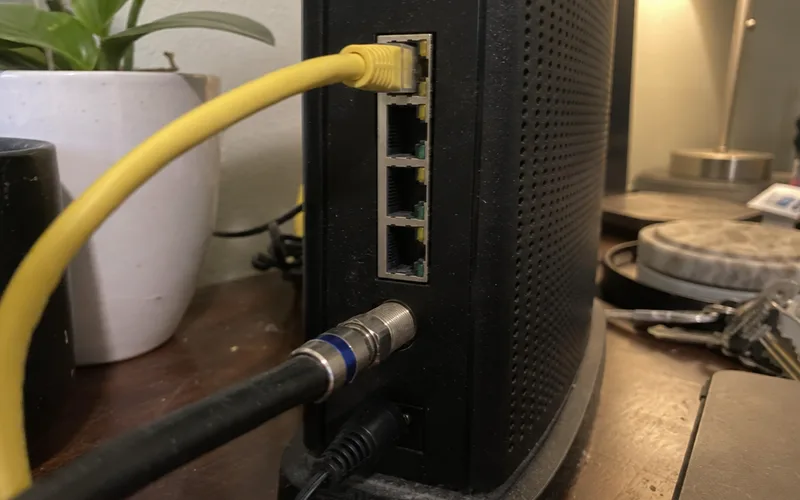
In other words, your internet connection still comes through the gateway. Your router just makes every decision after that.
What Problem Does Bridge Mode Solve?
Bridge mode solves double NAT, which happens when 2 devices in a row both run Network Address Translation. You usually get it by plugging your own router or mesh system into an ISP gateway.
Why does that matter? TP-Link says double NAT commonly affects online gaming, port forwarding rules and remote access apps.
With the gateway bridged, only your router runs NAT. All your settings, such as parental controls, live in 1 place too, so you stop wondering which box is blocking what.
Not sure you have the problem? You can confirm double NAT from your router’s WAN address before you change anything.
Should Bridge Mode Be On or Off?
Bridge mode should stay off when your ISP gateway is your only router. Turn it on when a second router or mesh system is causing problems.
Your setup decides it:
- Only the ISP gateway: Leave it off. There’s no routing conflict, and turning it on would shut down your only router.
- Gateway plus your own router, with problems: Turn it on. Trouble with gaming, a VPN or port forwarding points to double NAT.
- Gateway plus your own router, no problems: It’s your call. TP-Link calls bridge mode optional in this setup.
If everything works, I’d leave it alone until something breaks.
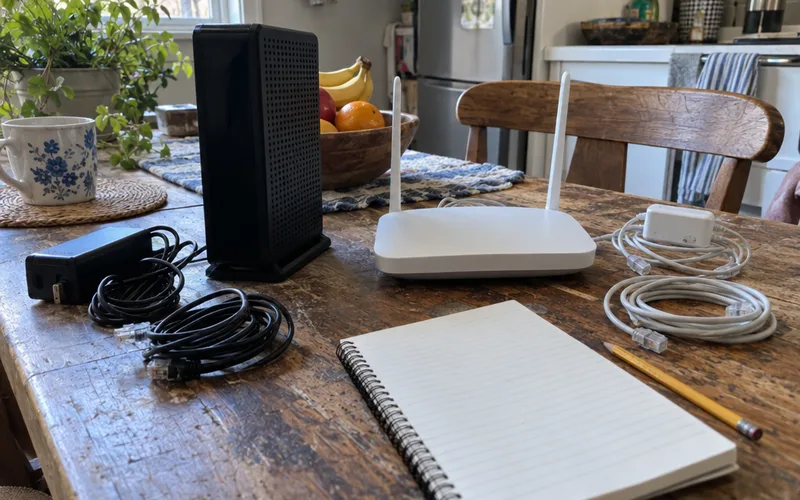
One more check before you plan around it: TP-Link says not all ISP gateways include the option, and some ISPs restrict those settings.
Here’s what to ask your ISP: “Does my gateway model support bridge mode, and can I turn it on myself?”
Which Device Should Be in Bridge Mode?
The ISP gateway should be in bridge mode, and your own router should stay in router mode. TP-Link says bridge mode is most commonly enabled on the ISP device, not on the router you’re adding.
Why that way around? Something has to keep routing, and your ASUS or TP-Link WiFi router is the one you bought for that job.
The same goes for a mesh WiFi system: bridge the gateway and let the mesh route. Just never put both devices in bridge mode, because then nothing runs your network.
Bridge Mode vs. Router Mode
Bridge mode and router mode differ in who runs your network. In router mode the gateway does it all, and in bridge mode your own router takes over.
TP-Link says router mode is the default for most modems and gateways.
Here’s how the jobs shift on an ISP gateway:
| Job | Router Mode | Bridge Mode |
|---|---|---|
| Runs the network | Gateway | Your router |
| Assigns IP addresses (DHCP) | Gateway | Your router |
| Private WiFi | On at gateway | Usually off at gateway |
| Firewall | On at gateway | Off at gateway |
| Double NAT risk | With a 2nd router | Gone |
So bridge mode adds nothing new to your network. It moves every one of those jobs to your router, which means your router has to be ready for them.
What Stops Working in Bridge Mode?
Bridge mode shuts off the gateway’s routing, its firewall and usually its private WiFi, plus some ISP app features. Before it changes anything, an Xfinity gateway warns that you’ll turn off the private WiFi network.
Here’s what else changes on an Xfinity gateway, according to the same support page:
- Wired devices: Only 1 device can connect, though any Ethernet port works.
- Xfinity app: You can manage your account, but not personalize your network.
- WiFi Extenders: They stop working, and activated ones keep you from enabling bridge mode at all.
- Xfinity CyberSecure: You lose access to it.
That 1-device limit catches people out, so move anything wired into the gateway, such as a game console or smart home hub, over to your router first. Add a network switch if you run out of ports.
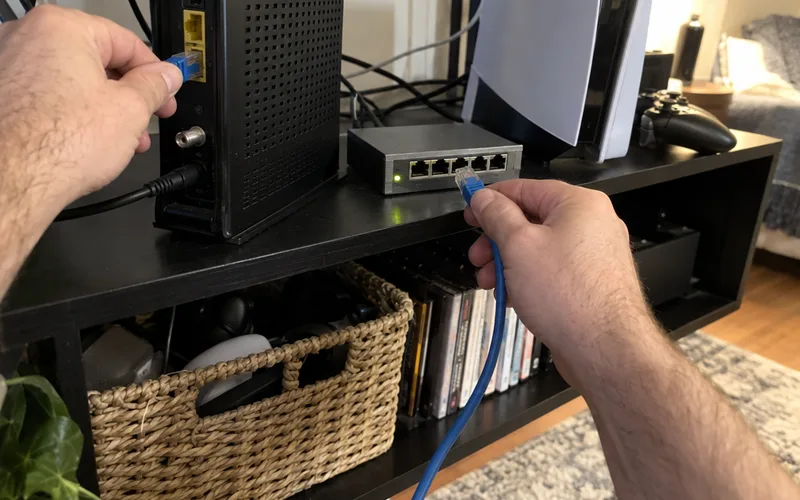
Not everything goes dark, though. Xfinity says bridge mode doesn’t disable the Home Hotspot feature, which some gateways have.
Your own router also carries the firewall alone now. TP-Link says the ISP modem’s built-in firewall is no longer active, though for most home users that makes no practical difference.
How to Turn On Bridge Mode
Bridge mode turns on from your gateway’s admin page, and the general process is similar on most ISP equipment. Menu names change with the firmware, but the order doesn’t:
- Set up your own WiFi router first, with its own network name (SSID), because the gateway’s wireless network may go off the moment you switch.
- Connect a computer to the gateway with an Ethernet cable, so you won’t lose the connection.
- Open a web browser and go to the admin address. TP-Link lists 192.168.0.1 or 192.168.1.1 as common ones, and Xfinity gateways use 10.0.0.1.
- Sign in with the admin password, usually printed on the device label.
- Open the routing, WAN or advanced settings, enable bridge mode and save. The gateway will typically restart.
- Run an Ethernet cable from the gateway to your router’s WAN port, then restart the router.
Now check your work: log in to your router and read its WAN IP address. A public address, not one starting with 192.168 or 10, means the gateway is passing the connection through.
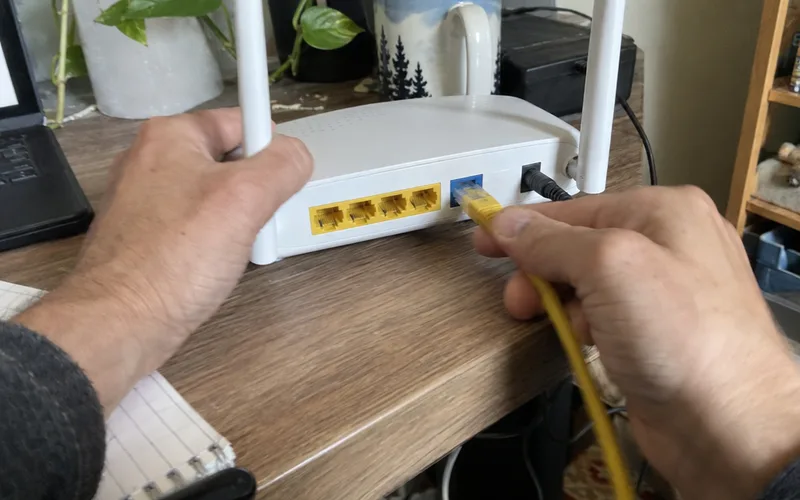
Xfinity owners can follow the exact Xfinity clicks, and you can always turn bridge mode off later.
Bridge Mode vs. Access Point Mode
Bridge mode and access point mode aren’t the same thing. Bridge mode turns off routing on the ISP gateway, and access point mode turns it off on the router you added.
TP-Link says access point mode converts a router into an access point that extends a network without a second layer of routing.
So pick by which box you want in charge.
Want your own router’s features? Bridge the gateway.
Happy with the gateway and just need more WiFi? Use an access point setup.
Two other terms get mixed in here. Some gateways offer IP passthrough as a separate setting, and a wireless bridge links devices over WiFi, which is a different job altogether.
Gateway Setup by Provider
Bridge mode is one part of home internet setup, and the details change with your provider and hardware. Pick your equipment:
- Xfinity: Set up a gateway without the app, replace the modem with your own, compare the XB7 and XB8 or fix port forwarding problems.
- Spectrum: Follow the WiFi 6 router setup, read the WiFi 7 router review or change your WiFi password.
- Verizon: See what a Verizon MoCA adapter does.
- Fiber: Learn what an optical network terminal is and how to use the ONT port on a router.
- Starlink: Find the Starlink Ethernet port or the Starlink Mini Ethernet port.
The Bottom Line on Bridge Mode
Bridge mode does 1 job: it leaves a single router in charge of your network.
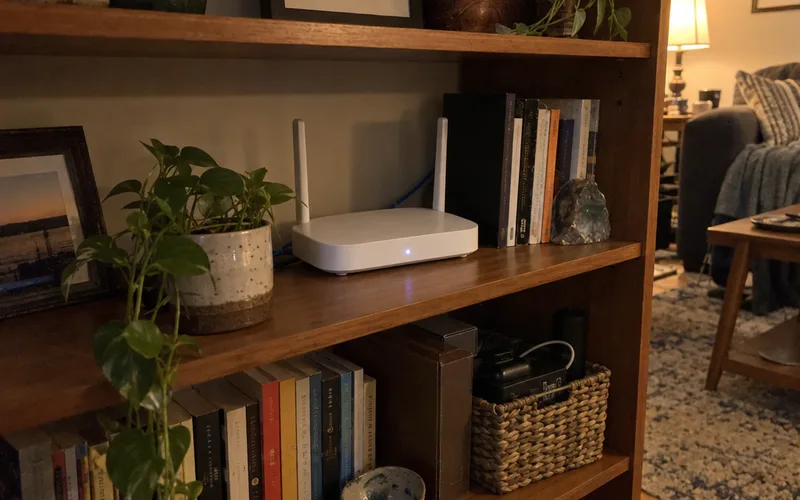
If you have 2 routers and something’s broken, log in to your own router this week and read its WAN address.
A private address points to double NAT, and that’s your cue to bridge the gateway.
Frequently Asked Questions
Does bridge mode make internet faster?
Bridge mode doesn’t directly make internet faster, according to TP-Link. It removes double NAT, which can clear up gaming lag, VPN slowdowns and port forwarding failures, so you’d only notice a change if double NAT caused them.
Does bridge mode turn off the firewall?
Bridge mode turns off the built-in firewall on the ISP gateway, TP-Link says. Your own router’s firewall keeps protecting the network, so check that it’s on before you switch.
What is bridge mode in Xfinity?
Bridge mode in Xfinity is a gateway feature that turns off routing and private WiFi while the modem stays on. Xfinity offers it for customers who want to use their own router.
Why use a bridge instead of a router?
A bridge makes sense when another router already runs your network, because a second router adds another layer of NAT. An ISP gateway in bridge mode passes the connection along and leaves every routing job to your router.
How do I access my gateway when it is in bridge mode?
An Xfinity gateway in bridge mode is still reached through its Admin Tool at 10.0.0.1, from a device connected to it by Ethernet cable. For other brands, ask your ISP, because the address depends on the equipment.
How can I tell if my modem is in bridge mode?
A modem’s admin page shows it: on an Xfinity gateway, check the Bridge Mode field under Gateway > At a Glance. You can also read your router’s WAN address, where a public IP address points to bridge mode.
How do I turn off bridge mode?
Bridge mode turns off from the same admin page: on Xfinity, go to Gateway > At a Glance and set the Bridge Mode field to Disable. Xfinity says the device you use must be connected to the gateway with an Ethernet cable.