
A Wi-Fi extender can cut your wireless bandwidth in half.
A wired access point skips that penalty, because it talks back over a cable instead of over the air.
That’s also how offices, hotels and schools handle Wi-Fi: lots of access points, each wired back to the network.
So what is a wireless access point, and does your home need one? You’ll get the plain-English answer, plus the simple test I’d use before buying anything.
What Is a Wireless Access Point?
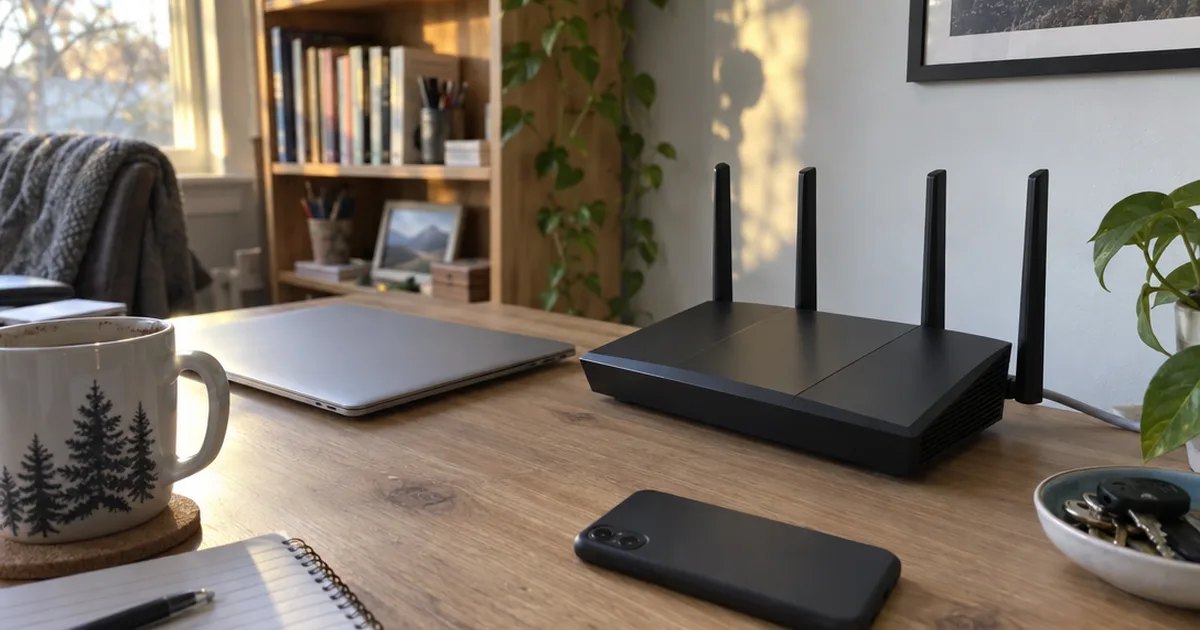
A wireless access point (AP or WAP) is the part of a home or office network that creates Wi-Fi, by broadcasting a wired connection as a wireless signal your devices can join.
In other words, it’s the radio that handles wireless communication, without the router attached.
You already own one, by the way.
Every Wi-Fi router and ISP gateway has an access point built in. But when people say “access point,” they usually mean a separate box that only does the Wi-Fi job.
That box plugs into your main network with a cable, and it’s what we’ll focus on here.
What Does an Access Point Do?
An access point does 3 jobs for your home network:
- It broadcasts your wireless network name (the SSID) so devices can find it.
- It lets smartphones, laptops, tablets and IoT devices like cameras and sensors connect without cables.
- It passes data between those wireless devices and the wired local area network (LAN), where desktop computers and printers often sit.
An access point extends your network; it doesn’t create new internet access. Everything still reaches the web through your Internet Service Provider (ISP).
How Does a Wireless Access Point Work?
A wireless access point works by receiving data over an Ethernet cable and turning it into radio waves that Wi-Fi devices understand. When a device answers, the access point turns that signal back into wired data for the router.
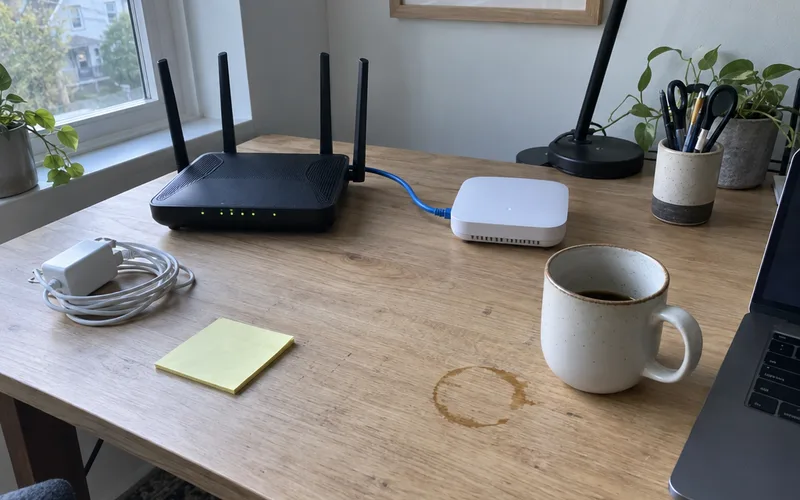
NETGEAR’s support documentation puts it simply: an access point receives data by wired Ethernet and converts it to a 2.4GHz or 5GHz wireless signal.
Here’s how a web page reaches your phone through one:
- Your phone joins the access point’s SSID with the Wi-Fi password.
- The access point checks that password, a step called authentication, and sets up encryption.
- Your phone asks for a page, and the access point sends the request down the cable.
- The router fetches the page from the internet and sends it back down the same cable.
- The access point’s antennas handle the final transmission over the air to your phone.
That whole trip takes a fraction of a second.
What an Access Point Doesn’t Do
An access point doesn’t route traffic, hand out IP addresses or connect to your modem. Those jobs belong to the router, which gives each device a private address (here’s how IP addresses work at home).
That’s why an access point always sits behind a router, never in front of it. In networking terms, it works at the Data Link Layer (layer 2) of the OSI model.
Access Point vs. Router: What’s the Difference?
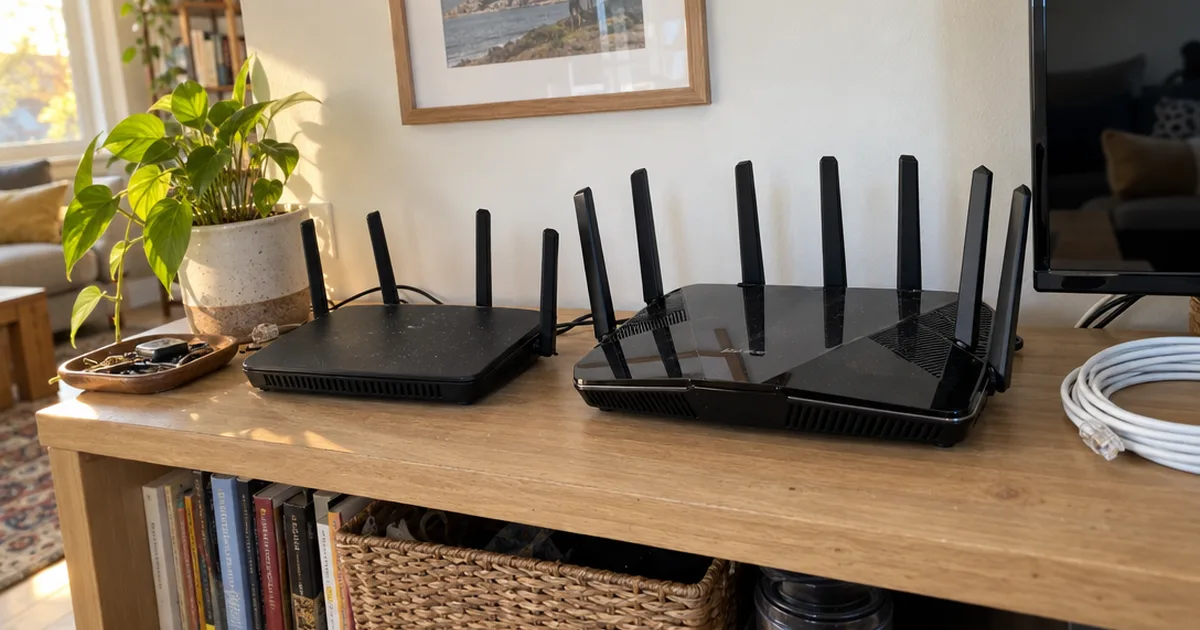
A router connects your home network to the internet and manages it, while a wireless access point only provides Wi-Fi. Most home Wi-Fi routers are really 4 devices in one box: a router, a small network switch, a firewall and an access point.
A standalone access point is just that last piece.
Think of the router as the front desk that decides who comes and goes. The access point simply lights up more hallways.
If you’re weighing the two for your own setup, the key differences between them go deeper, including when a second one makes more sense.
Do You Still Need a Router?
Yes, you still need a router with a wireless access point. The access point can’t give devices IP addresses or connect your home to the internet by itself.
In a typical home, the chain runs modem, then router, then access points. Many ISP gateways combine the first two, so your access point just plugs into a spare gateway port.
Access Point vs. Wi-Fi Extender
A wireless access point is faster than a Wi-Fi extender because it reaches the router over a cable. An extender has to relay everything over the same Wi-Fi it’s trying to boost.
That relay is where the speed goes, whether the box is sold as an extender or a repeater.
According to NETGEAR, using a wireless extender halves your bandwidth. The reason is that extenders are half duplex: either the router or the extender can transmit data, but not both at the same moment.
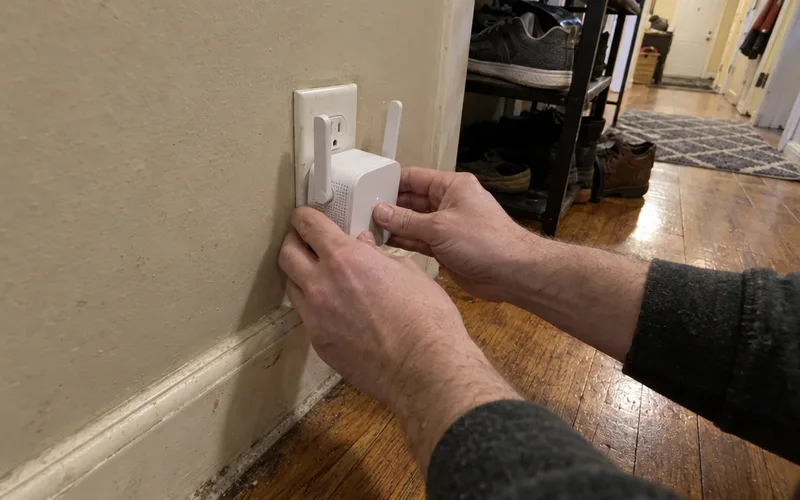
So when should you pick an extender? Only when a cable truly isn’t possible, like a rental where you can’t drill.
It also helps to know how a Wi-Fi extender works before you decide.
Key Takeaway: If you can get an Ethernet cable to the weak spot, an access point is almost always the better buy.
Access Points vs. Mesh Wi-Fi
A mesh Wi-Fi system is a set of wireless access points, called nodes, that work together under one network name. Mesh and access points aren’t rivals, because mesh is one way to run several of them.
The catch is the link between nodes.
Mesh networking lets nodes connect wirelessly, which is convenient but costs some speed. Wire them together with Ethernet, called wired backhaul, and you get easy roaming with full speed.
NETGEAR’s documentation shows how this works in its own gear. A wired unit can act as a root access point for up to four other access points, which connect back through it over Wi-Fi.
That’s a good model for a larger home: one wired anchor plus a few satellites. If that sounds like your house, sizing a mesh Wi-Fi system is the next step.
Types of Wireless Access Points
The 5 main types of wireless access points are standalone, controller or cloud-managed, mesh, outdoor and bridge-mode APs. The right type depends on how many you’ll run and where they’ll go.
Standalone Access Points
A standalone AP is set up on its own, usually through a web browser or phone app. That’s fine for one, but managing 3 separately gets old fast.
Controller and Cloud-Managed Access Points
These APs share one management dashboard, often with network monitoring built in, on a hardware controller, computer software or a cloud app. Change the Wi-Fi password once and every access point updates, which makes them the usual pick once you own 2 or more.
Ubiquiti UniFi and TP-Link Omada are well-known examples. Business models add VLANs and 802.1X logins that most homes can skip.
Mesh Access Points
Mesh APs link up automatically and hand your devices from node to node as you move. They trade some control for the easiest setup.
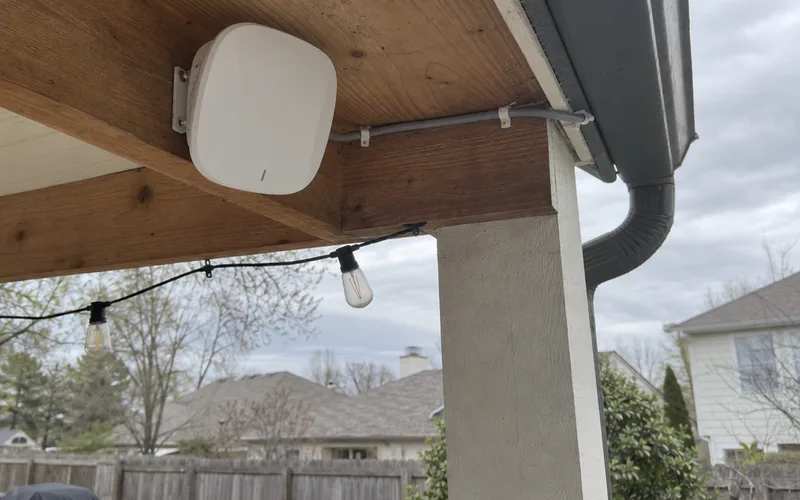
Outdoor Access Points
Outdoor models are sealed against rain, dust and heat. They suit a patio, pool area or detached garage.
Access Points in Bridge Mode
Some access points can link two buildings over the air instead of over a cable. A wireless Ethernet bridge like that is handy for a backyard office.
Pro Tip: Many older Wi-Fi routers have an “access point mode” that turns off their routing features. If yours still gets firmware updates and supports Wi-Fi 5 (802.11ac) or newer, it can be a free first access point.
When Does a Home Need a Wireless Access Point?
A home needs a wireless access point when one router can’t cover every room you use and a cable can reach the weak area. Size, layout and building materials matter more than the number on the router’s box.
For reference, Lenovo’s glossary puts a typical access point’s range at around 100 to 300 feet indoors. Walls, floors and furniture shrink it.
An access point makes the most sense for:
- A large or multi-story house with the main Wi-Fi box at one end
- A home office on another floor, where video calls drop
- A house with Ethernet already in the walls
- Lots of devices, from IoT cameras to game consoles, sharing one radio
- A detached garage or studio you can reach with cable
And when don’t you need one? In a small apartment where one box already covers every room, it adds cost and nothing else.
How to Connect a Wi-Fi Access Point
You connect a Wi-Fi access point by running an Ethernet cable from your router or switch to the weak area, powering the AP and entering your Wi-Fi settings. It takes 4 steps:
- Run the cable. Plug one RJ-45 end into a spare network port, and the other into the access point. This is the hardest part, and the wired networking basics cover running cable through walls.
- Power it up. Use the included adapter, or a PoE switch or injector.
- Open the setup app or web page. Set the SSID, security type and password.
- Test it. Walk the house with your phone and check the signal strength in each room.
Does a Wireless Access Point Need Power?
Yes, every wireless access point needs power, either from a wall adapter or through its Ethernet cable using Power over Ethernet (PoE). With PoE, one cable carries both data and power, so a ceiling AP doesn’t need an outlet nearby.
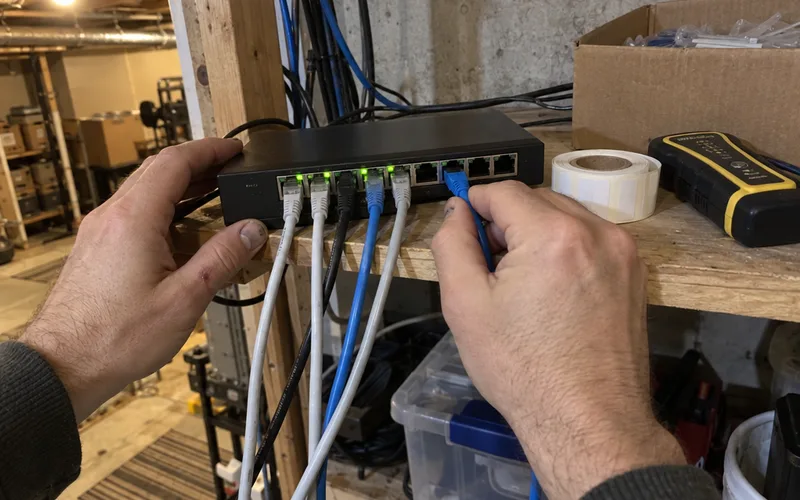
A PoE switch or a small injector acts as the power supply. This rundown of Power over Ethernet devices explains each piece.
Where to Place an Access Point
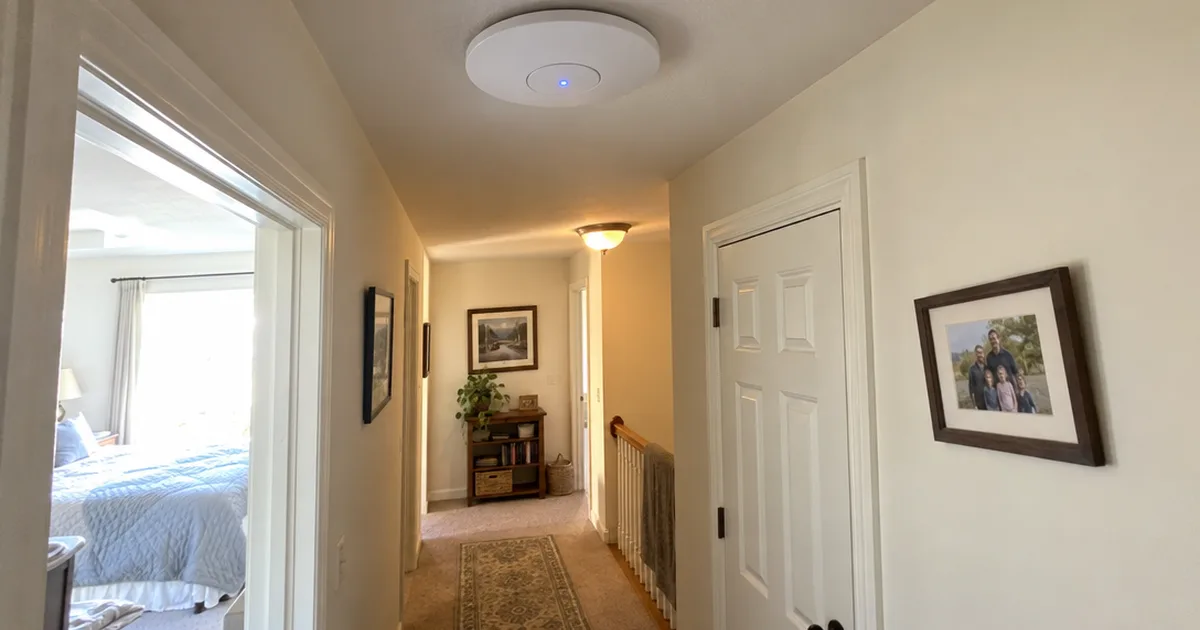
Put the access point high and central to the area it serves, like a hallway ceiling. Metal, mirrors and microwaves disrupt its radio frequencies, so keep it clear of them.
If your wireless network has 2 or more, give each one its own non-overlapping channel to cut interference. Picking Wi-Fi channels works the same way for every AP you add.
Is a Wireless Access Point Secure?
A wireless access point is as secure as its Wi-Fi settings, but it doesn’t protect your network from the internet. That job belongs to the device in front of it.
NETGEAR’s support article notes that an access point, unlike a wireless router, does not have firewall functions. So keep your router’s firewall on and its firmware current, because that’s where your network security starts.
On the access point itself, pick the strongest security protocols it offers. Lenovo’s glossary recommends WPA2 or WPA3 with a strong, unique password.
WiFi Protected Access 3 is the newer choice if all your devices support it, and it does far more than tricks like filtering MAC addresses. Most APs can also broadcast a second SSID, and a separate guest network keeps visitors off your main devices.
Disadvantages of a Wireless Access Point
The main disadvantages of a wireless access point are the cable run, one more device to manage and no routing of its own. None are deal-breakers, but know them up front:
- You need Ethernet. Running cable through finished walls can take an afternoon or a pro.
- It’s another device. Each AP needs updates, setup and occasional troubleshooting.
- No routing or protection. You still need a working router in front of it.
- Placement matters. A badly placed AP can overlap the main Wi-Fi and cause interference.
So an access point asks for more effort up front, and it pays you back with steadier Wi-Fi.
Choosing Your First Access Point
Choosing your first access point comes down to 3 things: the size of the area, how many devices will use it and which Wi-Fi standard they support. Wi-Fi 6 is a solid baseline, and Wi-Fi 7 makes sense if your newest phones and laptops support it.
For most houses, start with the best home access points. If price matters most, these budget access points cover the basics, and Wi-Fi 7 access points suit faster, newer gear.
Still planning the whole system? Choosing a home router starts with the same floor-plan questions.
And if you’re not sure what your provider gave you, learn to tell a modem, router and gateway apart.
The Bottom Line
An access point is the most reliable way to add Wi-Fi where your main signal can’t reach.
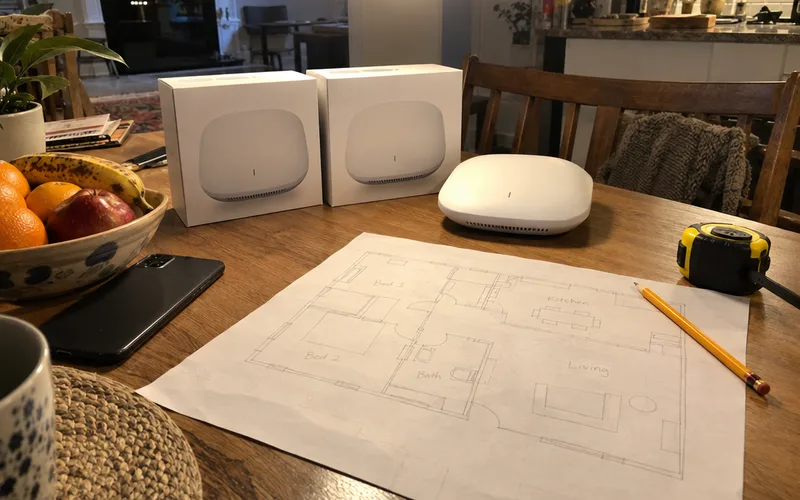
This week, sketch your floor plan, mark the rooms with weak Wi-Fi and check whether a cable can get there.
Frequently Asked Questions
Where do I find my wireless access point?
In most homes, the wireless access point is built into your Wi-Fi router or ISP gateway, the box your provider installed. A separate access point only exists if someone added one, usually on a ceiling or wall.
How far does a wireless access point reach?
A typical wireless access point reaches around 100 to 300 feet indoors, according to Lenovo’s glossary. Walls and floors shrink that, so plan on one access point per floor or wing.
Can you use a wireless access point without internet?
Yes, a wireless access point works without internet, because it only connects devices to your local network. Phones, laptops, printers and media servers can still share files with each other, they just can’t reach websites.
What is the access point (AP) in a wireless LAN?
The access point is the central radio of a wireless LAN (WLAN): the device every Wi-Fi client joins and the bridge to the wired network. Without one, a home WLAN has nothing to connect to.