
Slow Wi-Fi isn’t always a bad router, a weak internet plan or short Wi-Fi range.
Sometimes your network is just parked on a busy channel, sharing airtime with every neighbor nearby. In this guide, you’ll learn how Wi-Fi channels work on each band, which ones are worth using and how to move your network to a cleaner one.
Let’s dive right in.
What Are Wi-Fi Channels?
A Wi-Fi channel is a narrow slice of radio frequency that your router and devices talk on, like one lane on a highway. Wi-Fi is the technology behind your home’s wireless network, and every band it uses is split into these lanes.
Wi-Fi runs on three bands today: the 2.4 GHz band, 5 GHz and 6 GHz. Wi-Fi 6E added 6 GHz as the newest option, on tri-band routers such as the TP-Link AXE5400.
Each channel has a number. Your router picks one channel per band, and all the communication between the router and your phones, laptops and smart speakers on that band happens there.
Here’s the catch:
Wi-Fi is half-duplex, so only one device can transmit on a channel at a time. The 802.11 standards use a “listen before you talk” rule, so a device that hears another one waits before sending its own data.
That’s why channels matter. If your neighbor’s router uses your channel, both networks share one channel’s capacity, and all that waiting shows up as lag, buffering and slow downloads.
2.4 GHz Channels: Why 1, 6 and 11 Matter
The 2.4 GHz band has up to 14 channels, depending on where you live. That sounds like plenty of room.
It isn’t.
Each 2.4 GHz channel is 22 MHz wide, but the channels sit only 5 MHz apart, so neighboring channels overlap. Pick channel 3 and you overlap both channel 1 and channel 6.
That leaves just three non-overlapping channels: 1, 6 and 11. Every home router in your area should be on one of those three, because anything in between adds interference for everyone.
The band is crowded for another reason, too. Bluetooth uses it, and so do lots of IoT gadgets like smart plugs and cameras.
Network engineers often call 2.4 GHz a “junk” band for that reason. Still, plenty of devices lean on it, so keep it running and keep it tidy.
Pro Tip: Keep 2.4 GHz at 20 MHz wide. A wider channel eats two of your three clean channels, so you’ll overlap someone no matter what.
5 GHz Channels: More Room to Spread Out
The 5 GHz band solves the overlap problem with sheer space. At 20 MHz wide, it offers 24 non-overlapping channels, which is eight times what you get on 2.4 GHz.
You’ll notice the channel numbers jump by four: 36, 40, 44, 48 and so on. That’s because channel numbers are counted in 5 MHz steps, and usable 5 GHz channels sit 20 MHz apart.
Those channels fall into a few blocks. The low block (36 to 48) and the high block (149 to 165) need no radar checks, while the middle blocks do (more on that below).
The exact list depends on your country and router, so check a full Wi-Fi channel list before you hunt for a number. Each block behaves a little differently, too, which matters when you compare 5 GHz channels one by one.
One catch: both your router and your devices must support 5 GHz to use it. If a gadget only shows your 2.4 GHz network, that’s usually why.
What About 6 GHz?
Wi-Fi 6E introduced 6 GHz, with its own set of channels. Like 5 GHz, it only helps when your router and device both support it, so the differences between Wi-Fi 6 and 6E, and between Wi-Fi 7 and Wi-Fi 6, are worth knowing before you upgrade.
DFS Channels: Extra Room With a Catch
Some 5 GHz channels share airspace with military and other radar systems. So Wi-Fi doesn’t get in the way, those channels use Dynamic Frequency Selection, or DFS.
Before your router can use a DFS channel, it has to listen for radar first. If it hears radar at any point, it must stop and move your network to a different channel.

In the standard band plan, channels 52 to 64 and 100 to 140 are DFS channels, while 36 to 48 and 149 to 165 aren’t.
So should you use them?
WLAN engineers often recommend DFS channels, because they give you more room to spread out. The trade-off is that your Wi-Fi may pause while the router checks for radar or switches channels.
Bottom line: If your 5 GHz network drops out at random while it’s on a DFS channel, try a non-DFS channel first.
Channel Width: Speed vs. Room
Channel width is how much of the band one channel uses. The standard width is 20 MHz.
Routers can glue neighboring 20 MHz channels together into a 40, 80 or 160 MHz channel. That’s called channel bonding, and it gives you more bandwidth, so more data moves at once.
The problem? Every time you double the width, you cut the number of separate channels in half.
Here’s how that plays out on 5 GHz:
| Channel width | Non-overlapping 5 GHz channels |
|---|---|
| 20 MHz | 24 |
| 40 MHz | 12 |
| 80 MHz | 6 |
| 160 MHz | 2 |
At 160 MHz, you only have two channels, so you’re far more likely to land on a neighbor. And when networks overlap, a wide channel can perform worse than a narrow one.
Channel bonding has another cost. Wider channels pick up more background noise, which raises the noise floor, so your devices need a cleaner signal (a higher SNR) to hit the faster speeds.
That’s why wide channels shine where there’s little shared airspace, like a house with few neighbors. Before you push past 80 MHz, weigh the Wi-Fi channel width trade-offs for your home.
How to Pick the Best Wi-Fi Channel at Home
Now for the practical part. All you need is a phone or laptop and access to your router’s settings.
Step 1: Scan Your Neighborhood
First, see which channels nearby networks use. A WiFi scanner app (also called a WiFi analyzer) shows every network in range, plus information like its channel and signal strength.
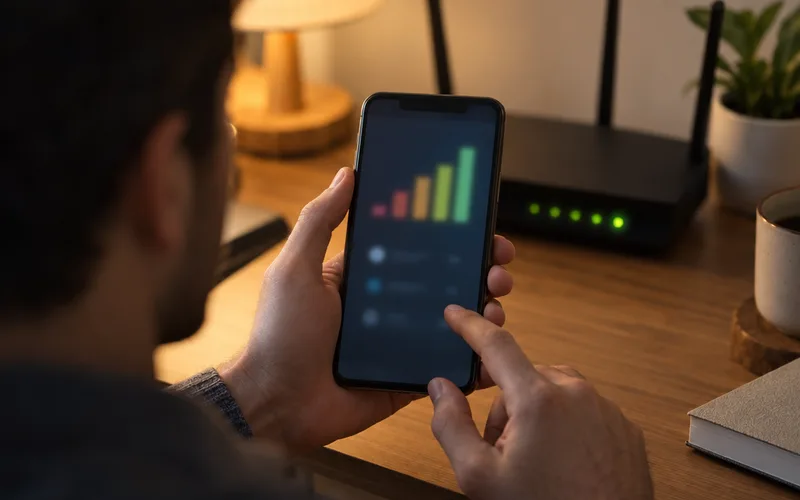
On an iPhone, a Wi-Fi analyzer app does the job. On a Mac, the built-in Wireless Diagnostics tool can scan without any extra apps.
Step 2: Pick Your 2.4 GHz Channel
Choose 1, 6 or 11, whichever has the fewest strong networks on it. Weak networks at the bottom of the list barely compete with you, so don’t worry about them.
Step 3: Pick Your 5 GHz Channel
Look for an empty or lightly used channel. If the low and high blocks are packed, try a DFS channel and keep an eye out for dropouts.
Step 4: Set a Sensible Width
Use 20 MHz on 2.4 GHz. On 5 GHz, start at 40 or 80 MHz, then step down if your scan shows lots of overlap.
Step 5: Make the Change and Test
Log in to your router’s app or admin page, the same two routes used for setting up an ASUS router, and open the wireless settings for each band. Channel and width usually sit next to the other router settings for that band.
Then run a speed test from the rooms you use most. If things got worse, switch back.
Note: Don’t assume the factory defaults suit your home. Auto channel is a fine start, but if your Wi-Fi drags at busy times, try a manual pick.
Your phone has a say, too. You can change Wi-Fi frequency on Android if you want it to stick to one band.
Running More Than One Access Point?
Mesh nodes and extra access points need their own channel plan. Put units that can hear each other on different non-overlapping channels, or they’ll compete for the same airtime.
If you run one of the mesh Wi-Fi systems on the market, check which channels its nodes picked after setup.
Wrapping Up
Wi-Fi channels come down to one idea: fewer networks on your channel means less waiting. Stick to 1, 6 or 11 on 2.4 GHz, use the extra room on 5 GHz, and only go wide when your neighborhood is quiet enough to allow it.
Channels are just one piece of setting up home Wi-Fi routers, but they’re one of the easiest to fix.
So which band are you going to scan first?
Frequently Asked Questions
How many channels does Wi-Fi have?
It depends on the band and your country. The 2.4 GHz band has up to 14 channels, but only three of them (1, 6 and 11) don’t overlap, while 5 GHz has 24 non-overlapping 20 MHz channels.
Is channel 108 a DFS channel?
Yes. Channel 108 sits in the 5 GHz range of channels 100 to 140, and every channel in that range requires Dynamic Frequency Selection, so your router must check for radar before using it.
How do I change my Wi-Fi frequency?
Open your router’s app or web admin page and find the wireless settings for each band. From there you can change a band’s channel and width or turn a band off.
Which is best on 2.4 GHz: B, G or N?
Of those three, 802.11n is the newest, so a mode that includes N is usually the right choice. Newer routers also run 802.11ax (Wi-Fi 6) on 2.4 GHz, which is better still if your devices support it.
Which Wi-Fi channel width is better, 20 MHz or 40 MHz?
Use 20 MHz on 2.4 GHz, where 40 MHz leaves no clean channels. On 5 GHz, 40 MHz is a good middle ground that still leaves 12 non-overlapping channels.
Should I separate Wi-Fi channels?
Yes, if you run more than one access point or mesh node. Put nearby units on different non-overlapping channels so they don’t have to take turns sharing the same airtime.