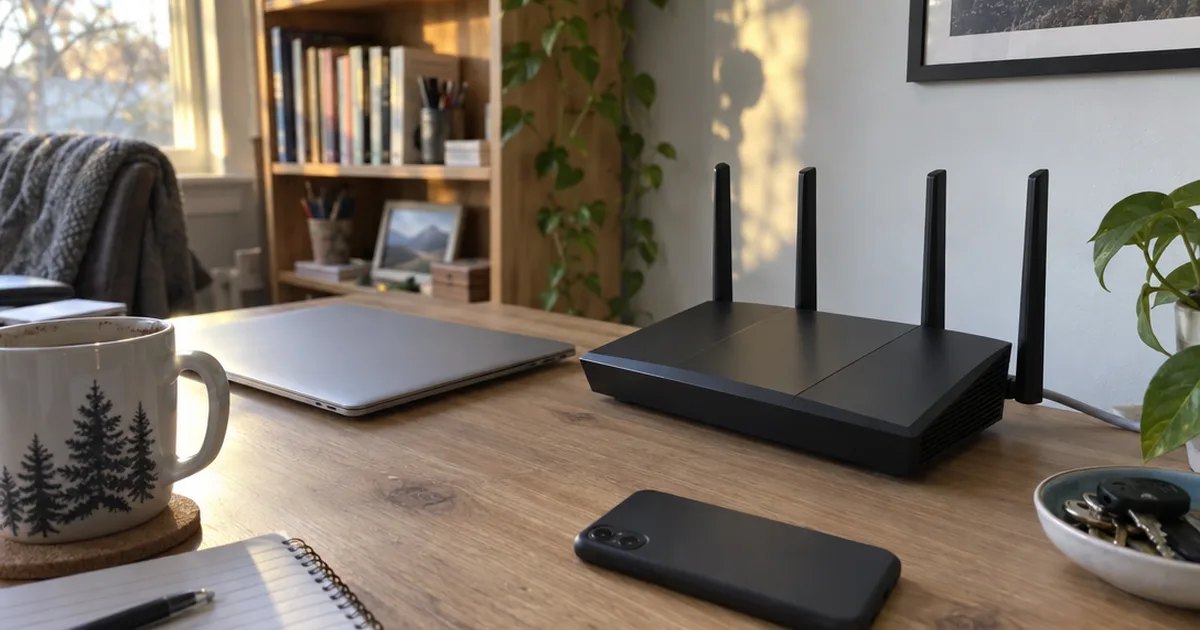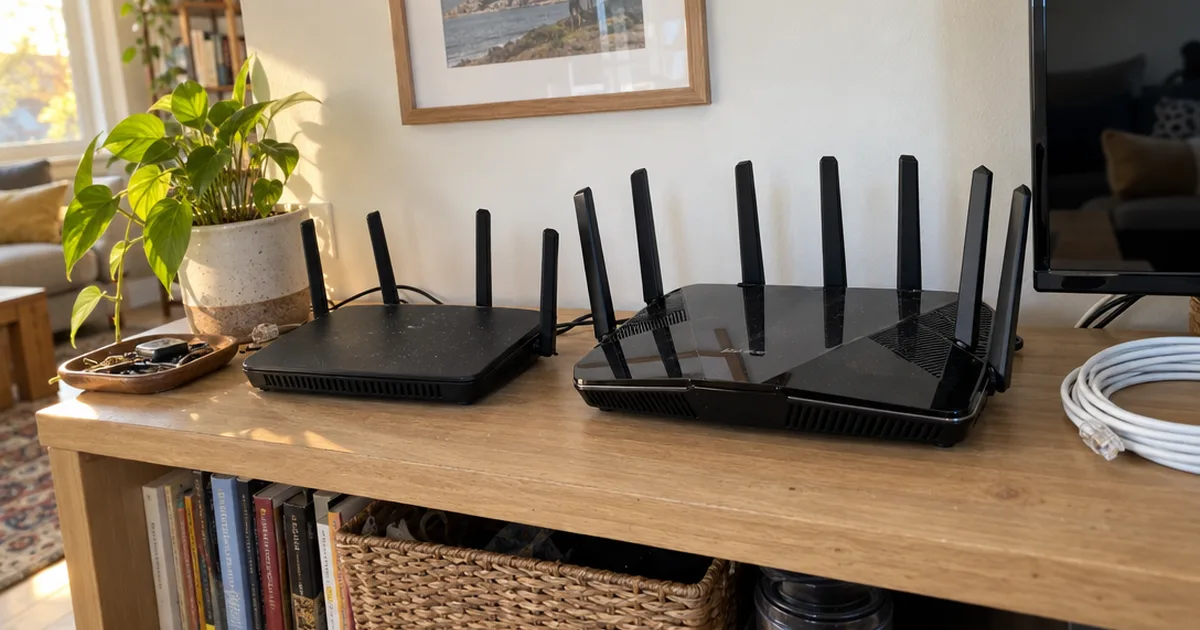

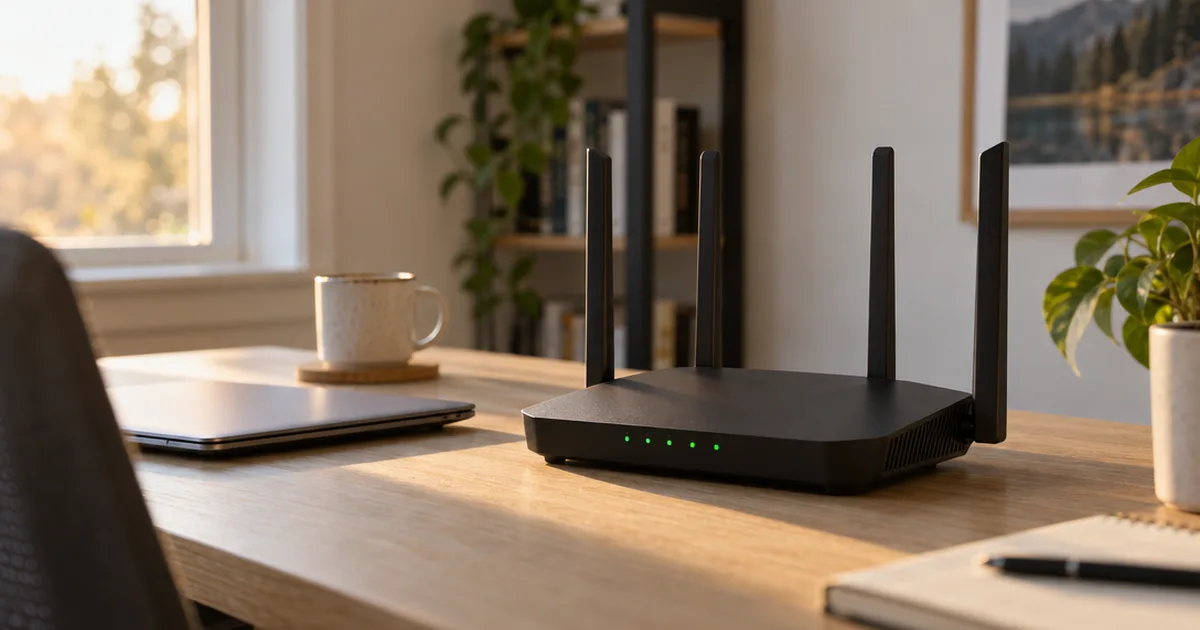
Your router has a setting that can double your Wi-Fi speed or quietly make it worse.
It’s called channel width. In this guide, you’ll learn what each width does, why wider isn’t always faster and which WiFi channel width to use on all three frequency bands.
Let’s dive right in.
What Is WiFi Channel Width?
Every Wi-Fi network, from office wireless LANs to your home setup, talks on a channel, which is a small slice of the radio spectrum. That slice sits inside one of three frequency bands: 2.4 GHz, 5 GHz or 6 GHz.
Channel width is how big that slice is, measured in megahertz (MHz). A wider slice gives your data more room to travel at once.
Think of it like lanes on a highway. A 20 MHz channel is one lane, while 40, 80, 160 and 320 MHz channels are two, four, eight and sixteen lanes side by side.

The basic Wi-Fi channel is 20 MHz wide. Newer WiFi routers can glue neighboring 20 MHz channels together into one wider channel.
That trick is called channel bonding, and it’s how a router reaches its biggest advertised speeds. Without it, even the fastest router would be stuck in a single 20 MHz lane.
The rules come from the IEEE 802.11 family of standards, written by the IEEE for the wireless communications every Wi-Fi device uses. Each new generation has allowed wider channels than the one before.
So the width setting sounds like a simple speed dial. But there’s a catch, and it’s the reason your router’s “auto” setting doesn’t always pick the biggest number.
Why Wider Channels Are Faster (and When They’re Not)
A wider channel carries more data at once. In most cases, doubling the channel bandwidth roughly doubles the top speed, because the radio has twice the spectrum to spread data across.
Netgear’s support page on 160 MHz puts it simply: the higher the channel bandwidth, the faster the connection. It adds that compatible laptops can reach up to 1733 Mbps on a 160 MHz channel.
The problem? That speed comes with three costs.
- Fewer channels. Every time you double the width, you cut the number of separate channels in half, so you’re more likely to share one with a neighbor.
- More interference. A wide channel covers more spectrum, so it runs into more co-channel interference (neighbors on the same channel) and adjacent channel interference (neighbors that partly overlap it).
- More noise. A wider receiver hears more background noise too, so devices need a stronger, cleaner signal to hit the faster speeds.
When two networks share the same channel, they can’t talk at the same time. Wi-Fi uses a form of multiple access where each radio listens first and waits its turn, so a busy neighbor eats into your airtime.
That’s why a wide channel on a crowded band can deliver less real throughput than a narrow one on a quiet band. Bottom line: the best width is the widest one your airspace can actually keep clean.
Does Channel Width Affect Range?
Yes, a little. A router has a fixed amount of transmit power, and a wider channel spreads that power across more bandwidth.
Combined with the extra noise, that means the signal at the edge of your home is weaker relative to the background. Devices far from the router often can’t use the fastest modulation and data rates on a wide channel, so they fall back to slower ones.
In practice, a wider channel won’t shrink your coverage map much. But in a far bedroom or backyard office, a narrower channel can hold a steadier connection than a wide one stuck at low speeds.
If range is your real problem, width isn’t the fix. Router placement and extra Wi-Fi access points do far more to extend your Wi-Fi range than any width setting.
Channel Width by WiFi Generation
The widths WiFi routers offer depend on which Wi-Fi standard they support, and the Wi-Fi Alliance’s generation names make that easy to spot. Older gear simply doesn’t have the wider options or the newer frequency bands.
Here’s how each generation of IEEE 802.11 handles channel width:
| Wi-Fi generation | Standard | Bands | Max channel width |
|---|---|---|---|
| Legacy Wi-Fi | 802.11a/b/g | 2.4 or 5 GHz | 20 MHz |
| Wi-Fi 4 | 802.11n | 2.4 and 5 GHz | 40 MHz |
| Wi-Fi 5 | 802.11ac | 5 GHz | 160 MHz |
| Wi-Fi 6 | 802.11ax | 2.4 and 5 GHz | 160 MHz |
| Wi-Fi 6E | 802.11ax | Adds 6 GHz | 160 MHz |
| WiFi 7 | 802.11be | 2.4, 5 and 6 GHz | 320 MHz |
Two things stand out. First, 802.11ac made 80 MHz the normal 5 GHz width, with 160 MHz as an option that many Wi-Fi 5 routers never supported.
Second, 320 MHz exists only on WiFi 7 and only in the 6 GHz band. That doubled room is one of the biggest upgrades when you compare WiFi 7 vs Wi-Fi 6, though not the only one.
How Many Channels Fit at Each Width
Width and channel count are a direct trade-off. The band you’re on decides how much bandwidth you start with, and each step wider cuts your choices.
In the United States, the FCC rules for North America allow these non-overlapping channels at each width:
| Channel width | 2.4 GHz | 5 GHz | 6 GHz |
|---|---|---|---|
| 20 MHz | 3 | Up to 25 | 59 |
| 40 MHz | 1 | 12 | 29 |
| 80 MHz | None | 6 | 14 |
| 160 MHz | None | 2 | 7 |
| 320 MHz | None | None | 3 |
The 2.4 GHz band runs out of room fast. The 6 GHz band, on the other hand, has so much spectrum that even 160 MHz leaves you seven separate channels.
That’s the whole story of channel width in one table. Pick a width that still leaves you enough channels to dodge your neighbors, and you’ll get most of the speed with few of the headaches.
2.4 GHz: Stick With 20 MHz
On 2.4 GHz, the answer is easy. Use 20 MHz.
The 2.4 GHz band is narrow, and in the United States you get 11 channels spaced just 5 MHz apart. Since each one is about 20 MHz wide, only channels 1, 6 and 11 avoid overlapping each other.
A 40 MHz channel swallows most of that band’s bandwidth. It overlaps nearly every neighbor, plus Bluetooth devices, cordless phones, baby monitors and microwave ovens that share 2.4 GHz.
There’s also a built-in safety rule. Under 802.11n, a router running 40 MHz on 2.4 GHz should drop back to 20 MHz when it detects nearby networks.
Many WiFi routers label that feature “20/40 coexistence.” It protects your neighbors’ networks, and it protects yours from theirs.
So in most neighborhoods, a 40 MHz setting on 2.4 GHz just bounces back to 20 MHz anyway. Lots of smart plugs, cameras and other IoT gadgets only use 20 MHz on 2.4 GHz, and Zigbee smart-home radios built on IEEE 802.15.4 share the band too.
Pro Tip: On a dual band router, treat 2.4 GHz as your range and smart-home band, not your speed band. Set it to 20 MHz, then let 5 GHz and 6 GHz carry the heavy traffic.
For the channel itself, pick whichever of 1, 6 or 11 your scan shows is quietest. Choosing among those three Wi-Fi channels matters more on 2.4 GHz than any width tweak.
5 GHz: 80 MHz Is the Sweet Spot for Most Homes
The 5 GHz band is where your width choice matters most. It has far more room than 2.4 GHz, but not so much that you can go wide without thinking.
Its unlicensed spectrum is grouped into the U-NII bands, short for Unlicensed National Information Infrastructure. Channels 36 to 48 sit in U-NII-1, 52 to 64 and 100 to 144 in U-NII-2, and 149 to 165 in U-NII-3.
Here’s what I recommend:
- 80 MHz for most houses. It’s the standard 802.11ac width, almost every 5 GHz device supports it, and the U.S. band still fits six of them.
- 40 MHz for apartments and dense townhomes. If a scan shows strong neighbors on most channels, halving the width doubles your channel choices to 12.
- 20 MHz only for very crowded buildings or devices that keep dropping at long range.
Why not just max it out? Because a wide 5 GHz channel almost always overlaps someone else in a dense building.
Two networks sharing one 80 MHz channel each get only part of the airtime. So a clean 40 MHz channel can beat a shared 80 MHz one.
Width and channel number also go together. An 80 MHz channel on 36 bonds 36, 40, 44 and 48, so the 5 GHz channel numbers you pick decide which neighbors you overlap.
When 160 MHz Makes Sense on 5 GHz
Here’s the deal: 160 MHz on 5 GHz is a “nice when it works” setting. The U.S. band fits only two of these channels, and both depend on DFS channels.
Dynamic Frequency Selection is a rule that lets Wi-Fi share parts of the 5 GHz band with weather and military radar. Before using a DFS channel, your router must listen for radar first, and if it hears any, it has to leave that channel.
When that happens, the router usually jumps to a different channel and often a narrower width. Your devices can drop off for a moment, and your speed can fall without any obvious reason.
So when is 160 MHz worth it? Use it if you live away from airports and weather stations, have few neighbors and own devices that support it.
Note: If you see random disconnects after turning on 160 MHz, drop back to 80 MHz first. That one change fixes a lot of mystery dropouts.
6 GHz: Go Wide With 160 or 320 MHz
The 6 GHz band is the reason wide channels finally make sense. It’s the newest of the three frequency bands, and only Wi-Fi 6E and WiFi 7 devices can use it.
That means no older devices slowing things down and far fewer neighbors. Under the same FCC rules, the band has room for seven 160 MHz channels or three 320 MHz channels.
My advice is simple. Use 160 MHz on 6 GHz, and choose 320 MHz if you have a WiFi 7 router and WiFi 7 devices to match.
The catch is range. Higher frequencies don’t pass through walls and floors as well, so 6 GHz works best in the same room or one room over.
That short reach is the main thing to weigh in Wi-Fi 6 vs 6E, because 6 GHz only pays off where your devices sit near the router. On a Wi-Fi 6E router such as the TP-Link AXE5400, 160 MHz is the widest 6 GHz setting you’ll get.
Your Devices Set the Real Limit
A router set to 160 MHz doesn’t make every device faster. Each device connects at the widest channel both it and the router support, and plenty of mobile devices top out below the router’s maximum.
Many smartphones, tablets and laptops handle 80 MHz on 5 GHz. Support for 160 MHz is more common on recent flagship phones and newer Wi-Fi 6 and 6E laptops, while streaming sticks, printers and smart-home gear often stay at 20 or 40 MHz.
Here’s an example: say your router runs 160 MHz, but your computer supports only 80 MHz. It still connects at 80 MHz, so you carry the interference risk of a wide channel with none of the extra speed.
Before you go wide, check your main devices’ spec sheets for their maximum channel width. If the devices you care about stop at 80 MHz, a wider channel buys you nothing.
Best WiFi Channel Width Settings by Situation
The right width depends on your building, your neighbors and your devices more than on the router itself. Busy airspace calls for narrower channels, while quiet airspace rewards going wide.
Use this chart as your starting point:
| Your situation | 2.4 GHz | 5 GHz | 6 GHz |
|---|---|---|---|
| Apartment or condo | 20 MHz | 40 MHz | 160 MHz |
| Suburban house | 20 MHz | 80 MHz | 160 MHz |
| Rural home, few neighbors | 20 MHz | 80 or 160 MHz | 160 or 320 MHz |
| Gaming or video calls | 20 MHz | 80 MHz | 160 MHz |
| Many smart-home devices | 20 MHz | 80 MHz | 160 MHz |
Gamers and VoIP callers might expect the widest setting to win, but stable latency matters more than peak speed. That’s why 80 MHz on a clean channel is the safer pick, alongside other router settings for gaming like Ethernet connections and traffic priority.
Think of these as defaults, not rules. Your next step is to test them in your own home, room by room.
Setting Width on a Mesh System
Mesh systems add one more twist. Many tri-band kits use a separate 5 GHz or 6 GHz radio as a backhaul, the link that carries data between the nodes.
That backhaul radio often uses a wide channel to move traffic quickly, and many systems manage it automatically. If your app lets you adjust it, keep the backhaul wide only when the nodes are close enough for a strong signal.
Wide backhaul across a long gap tends to fall back to slow rates, just like a far-off phone. Placing mesh Wi-Fi nodes closer together usually fixes that better than narrowing the channel.
How to Change Your WiFi Channel Width
Changing the width takes a few minutes. Here’s the step-by-step process.
Step #1: Scan Your Airspace
First, see how crowded each band is. A Wi-Fi analyzer app shows nearby networks as curves on a graph.
Each curve’s width is that network’s channel width, and its height is the signal strength. A tall, wide curve sitting on your channel is the kind of neighbor that steals airtime.
Stand where you use Wi-Fi most and run the scan. Then count the strong networks on each band, since weak ones far below yours matter less.
On a Mac, the built-in wireless diagnostics tool includes a scanner. Apple limits what iPhone apps can see, so a Wi-Fi analyzer on iOS shows less than one on Android or a Windows PC.
Step #2: Open Your Router Settings
Next, log in to your router’s app or web page, such as www.asusrouter.com on an ASUS router. Look for wireless or Wi-Fi settings, then the advanced settings for each band, which can move after a firmware update.
The option may be called channel width, channel bandwidth or just bandwidth. Most brands tuck it under advanced or professional router settings, one menu below the band’s name and password.
Step #3: Pick a Width for Each Band
Set each band using the chart above. Most WiFi routers also offer an “Auto” or “20/40/80” option, which lets the router choose and step down when it detects interference.
Auto is fine on 5 GHz and 6 GHz for many homes. On 2.4 GHz, I recommend setting 20 MHz manually, since some routers’ auto setting still tries 40 MHz.
Step #4: Test Before and After
Finally, run a speed test from the same spot before and after each change. Test on a phone or computer that supports the wider width, and try a far room as well as one near the router.
If speeds jump and stay steady, keep the new setting. If they swing up and down or devices disconnect, step down one width and test again.
How to Check What Width Your Device Is Using
On a Mac, hold the Option key and click the Wi-Fi icon in the menu bar. The menu shows your current channel along with its band and width, such as 5 GHz and 80 MHz.
An iPhone doesn’t show channel width in its Wi-Fi settings, so a Mac or your router’s connected-devices list is the easier check. Some routers list each device’s link speed there, which hints at the width it’s using.
Android phones vary by brand. Many let you change the Wi-Fi frequency on Android or view band details, and analyzer apps list each network’s width.
Wrapping Up
Channel width is a trade-off between speed and room. Wider channels move more data, but only when the spectrum around you is clean and your devices can use them.
For most homes, 20 MHz on 2.4 GHz, 80 MHz on 5 GHz and 160 MHz on 6 GHz is the right place to start. Then match each width to a quiet spot on the Wi-Fi channel list and test.
Which band are you going to retune first?
Frequently Asked Questions
Is 80 MHz or 160 MHz better?
160 MHz is faster on paper, but 80 MHz is better for most 5 GHz networks. It leaves more channels free, avoids depending on radar-checked DFS channels and works with more devices; save 160 MHz for 6 GHz or a quiet house.
Which is better, 20 MHz or 40 MHz?
On 2.4 GHz, 20 MHz is better because 40 MHz overlaps almost the whole band. On 5 GHz, 40 MHz is usually the better pick, since it doubles throughput and still leaves a dozen channels to choose from.
Should I use 40 MHz or 80 MHz?
Use 80 MHz on 5 GHz if your Wi-Fi analyzer shows only a few strong neighbors. Drop to 40 MHz if you live in an apartment where most 5 GHz channels already carry a neighbor’s network.
What frequency is Wi-Fi?
Home Wi-Fi runs in three frequency bands: 2.4 GHz, 5 GHz and, on Wi-Fi 6E and WiFi 7 gear, 6 GHz. Each band is split into numbered channels, and channel width decides how much of the band each one uses.
What should I set my Wi-Fi channel width to?
Start with 20 MHz on 2.4 GHz, 80 MHz on 5 GHz and 160 MHz on 6 GHz. Then test, and step 5 GHz down to 40 MHz if speeds swing or devices drop.
How do I use a Wi-Fi analyzer?
Open the analyzer near where you use Wi-Fi most and look at its channel graph for each band. Pick the width and channel that overlap the fewest strong networks, then scan again after you change settings.