
TP-Link gives its own range extenders 3 out of 5 for a multi-story home.
Its mesh systems and powerline adapters score 5 out of 5 in the same comparison chart, and TP-Link sells all three.
So the right way to extend WiFi range depends on your layout, not on whichever box is cheapest.
Below are 7 steps in the order I’d do them, from free fixes to wired gear, with where each one falls short.
Best for: anyone with a room, floor or corner where Wi-Fi drops. Skip it if every room holds a steady signal.
Cost: Free for Steps 1 to 3. Steps 4 to 7 need hardware.
Time: Same day for the free fixes, This week if you add hardware.
First step: Open your phone’s Wi-Fi settings and walk to the room where the signal is worst.
How to Extend WiFi Range Step by Step
To extend WiFi range, map your dead zones, move the router to a central open spot and switch bands, which costs nothing. Only then add an extender, mesh or a wired access point where the signal still drops.
Work through the steps in order and stop as soon as the dead zone is gone, because each one costs more than the one before it.
Step 1: Find Your Dead Zones First
Start by mapping where the signal fails, because the fix depends on whether it’s one room or half the house.
Sketch a rough floor plan, then walk it with your phone and mark each room as strong, weak or dead.
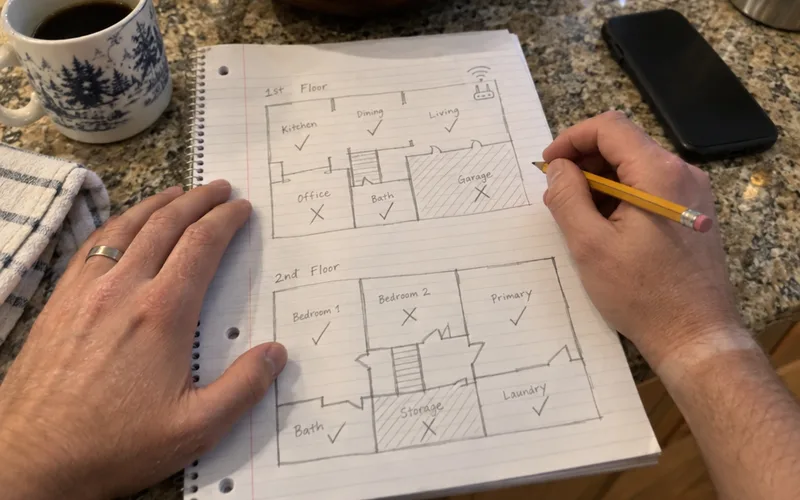
While you walk, note what sits between the router and each weak spot.
Brick, concrete, mirrors, metal appliances and water pipes all soak up signal, while drywall and wood let more of it through.
That sketch decides your path: 1 weak room points to an extender, several rooms to mesh, and thick walls to a wired fix.
If several rooms struggle, the plan for a strong signal in every room walks through it floor by floor.
Step 2: Move Your Router to a Central, Open Spot
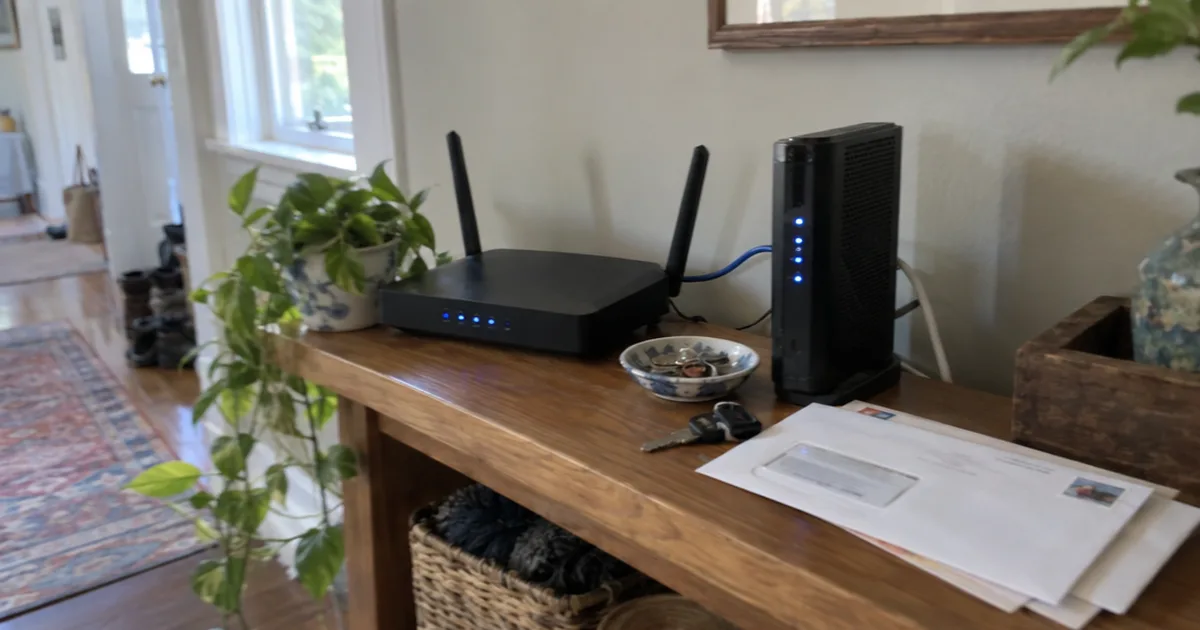
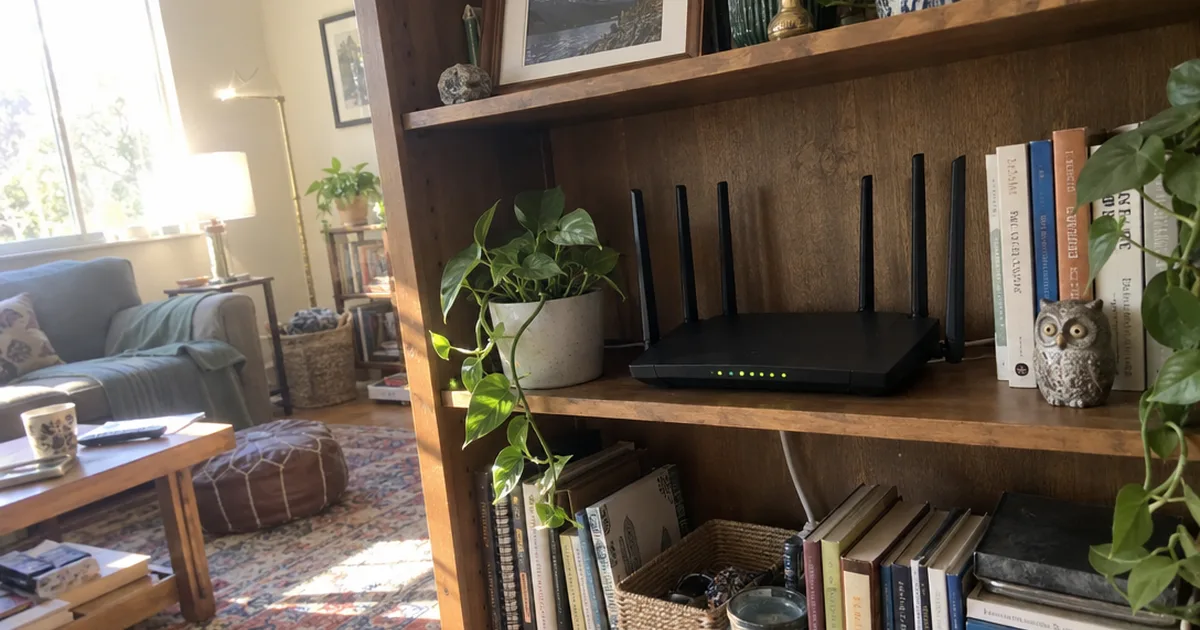
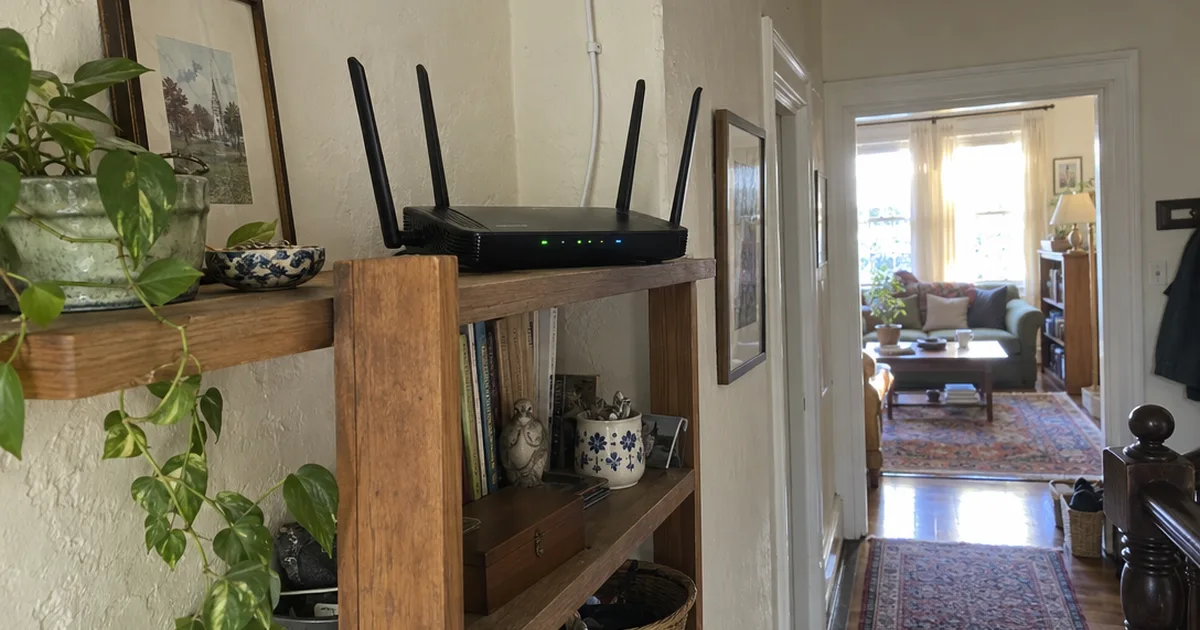
The best spot for your router is central, raised and open, because Wi-Fi spreads outward from it and weakens with every wall it crosses.
Get it off the floor, out of cabinets and away from the back corner of the house.
A high shelf in a hallway or living room works well.
Keep it clear of microwaves, cordless phone bases, TVs and big metal objects, which either block the signal or add interference.
ISP gateway stuck in a closet?
Plug your own router into it and put that router somewhere central instead.
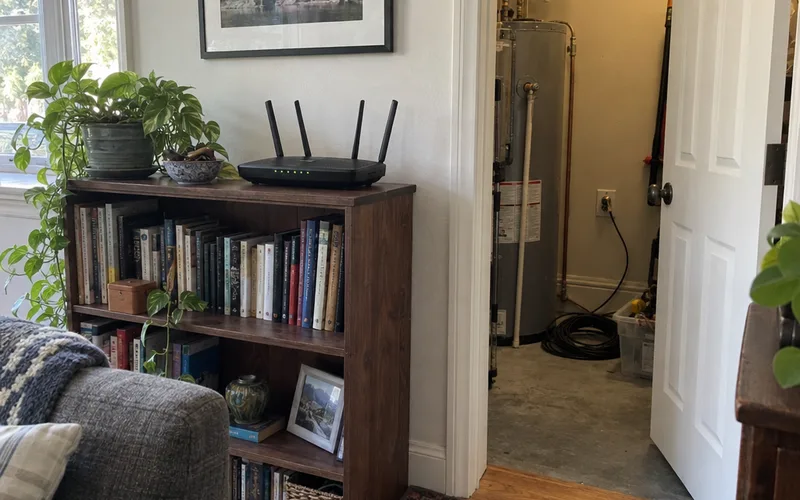
If your walls are plaster or brick, a few tricks for boosting Wi-Fi through walls can win back a room.
You’ll also see the aluminum foil reflector trick online, but a reflector can only aim the signal you already have.
Key Takeaway: Move the router before you buy anything, then walk your sketch again.
Step 3: Pick the Right Band and Update Firmware
The 2.4 GHz band gives you more Wi-Fi range than 5 GHz because it reaches farther and gets through walls better, while 5 GHz is faster up close but fades sooner.
So the band your device uses matters as much as where the router sits.
So if a far bedroom keeps dropping, connect it to 2.4 GHz and see if it holds.
Many routers merge both bands under one network name and steer devices between them automatically.
A crowded channel can also make range feel worse than it is.
If your neighbors’ networks pile onto yours, choosing a cleaner Wi-Fi channel can steady the signal at the edge of your coverage.
While you’re logged in to your router settings, check for a firmware update.
Router makers ship fixes for performance and security, and many routers have an automatic update setting you can switch on.
Step 4: Add a Range Extender for One Weak Room
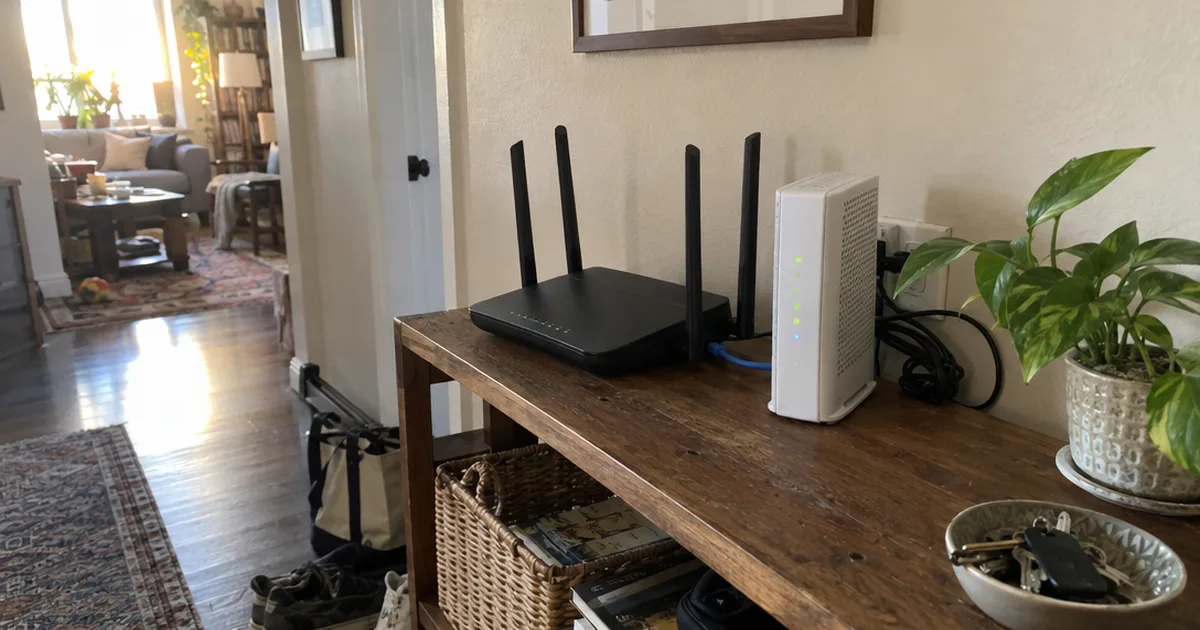
A range extender is the cheapest hardware fix when one room or one corner is still weak.
It picks up your router’s signal and rebroadcasts it, so it can only pass on the signal it receives.
According to TP-Link’s support FAQ, last updated April 17, 2026, you should place the extender about halfway between your router and the area with a poor signal.
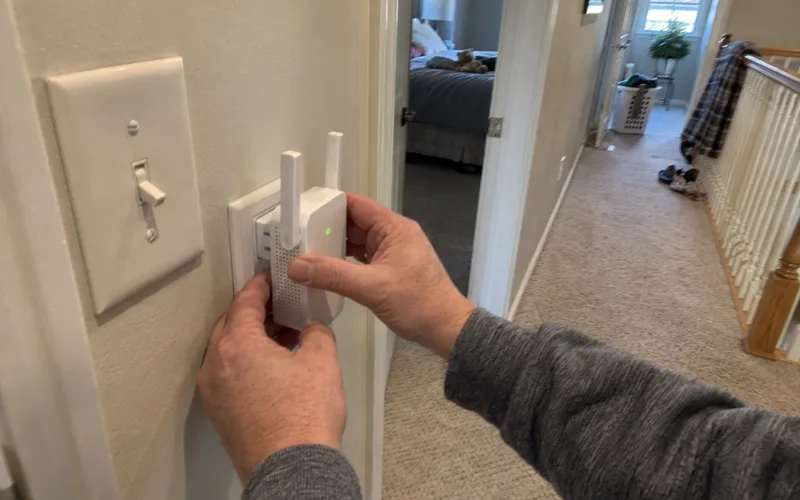
Too close and it adds little reach, but too far and it repeats an already weak signal.
Here’s how to set it up:
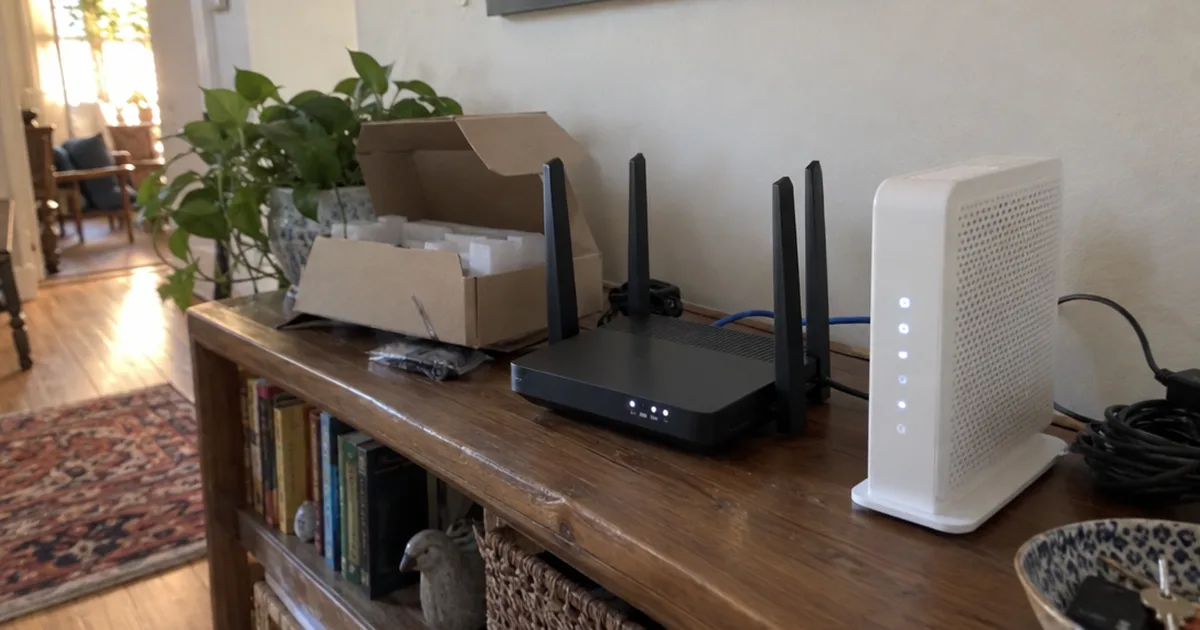
- Plug the extender into an outlet about halfway to the dead zone.
- Connect it to your router through its app or the WPS button.
- Check its signal light, then move it 1 outlet closer if the link is weak.
- Test speed in the dead zone and compare it with your sketch.
If you get stuck, follow this repeater setup walkthrough, and learn how an extender works before you pick one.
There’s a catch, though.
NETGEAR’s coverage guide, updated September 22, 2026, notes that an extender may create a second network and decrease bandwidth, so devices may hop between names and run slower.
The same NETGEAR article says extenders suit small and medium-sized homes that need to cover only a couple of weak spots.
If that’s your house, compare the best Wi-Fi extenders, or a gaming extender if the weak room has a console.
And if a setup goes wrong, the TP-Link reset steps and NETGEAR reset steps get you back to a clean start.
Step 5: Switch to Mesh WiFi for Whole-Home Coverage
A mesh Wi-Fi system is the better fix when several rooms or a whole floor are weak.
You get 2 or more nodes that form one network with one name, so your phone moves between them on its own.
NETGEAR’s guidance puts mesh in medium to large homes, homes spread over several floors and homes with dense walls.
That lines up with TP-Link’s chart, where mesh scores 5 of 5 for multi-story homes and extenders score 3.
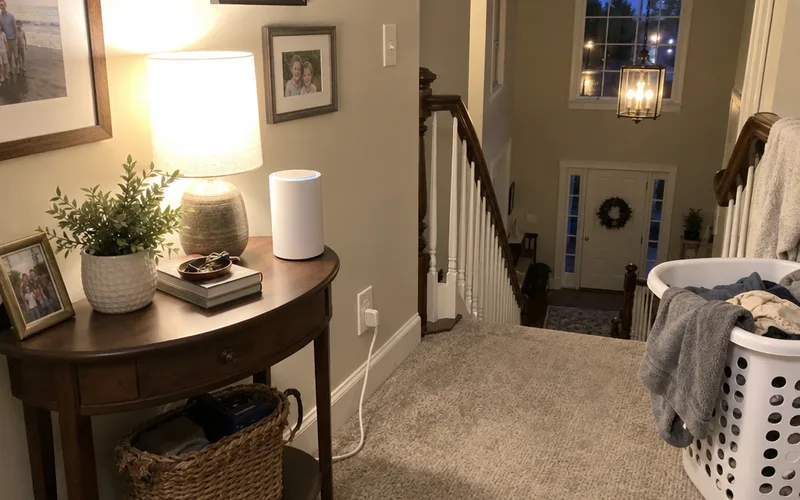
Put the main node next to your modem, then place each extra mesh Wi-Fi node where the signal is still decent, not inside the dead zone itself.
A node needs a good link back to the main unit to pass along a good signal.
Already own a TP-Link router?
TP-Link says EasyMesh is an open standard that works across brands, while OneMesh works only with TP-Link gear.
So check your router’s support page before you buy a whole new kit.
Step 6: Go Wired With an Access Point or Powerline
Wired backhaul gives you the strongest signal in a far room, because the Wi-Fi there no longer depends on a weak wireless hop.
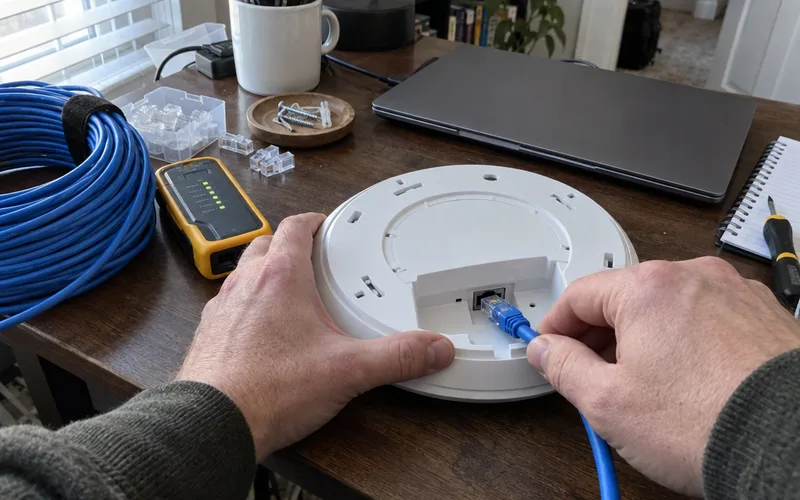
You run Ethernet from your router to the far room and plug in a wireless access point or a mesh node. Bare cable ends need a plug or a wall jack, so terminate each end before you connect anything.
NETGEAR calls wired Ethernet backhaul between mesh nodes the most effective way to improve coverage in large homes with severe structural interference.
Got an old router in a drawer?
You can use another router to extend range by switching it to access point mode and wiring it back to the main one.
Can’t run cable?
Powerline adapters carry your network over the home’s electrical wiring, with one adapter by the router and one in the far room.
Note: TP-Link warns that both powerline adapters must be on the same electrical circuit, so check your breaker panel before you buy.
If you’re torn between the two, compare powerline adapters and Wi-Fi extenders side by side.
Step 7: Reach the Yard, Garage or Another Building
Outdoor coverage is its own problem, because exterior walls, windows and distance all cut the signal before it leaves the house.
For a patio or backyard, start with an access point or mesh node near the outside wall, then follow these tips to extend Wi-Fi outside.
A detached garage usually needs more than an indoor extender.
The steps for getting Wi-Fi into a garage usually come down to buried cable or a wireless bridge.
Weatherproof outdoor Wi-Fi extenders work for a yard or a shed close to the house.
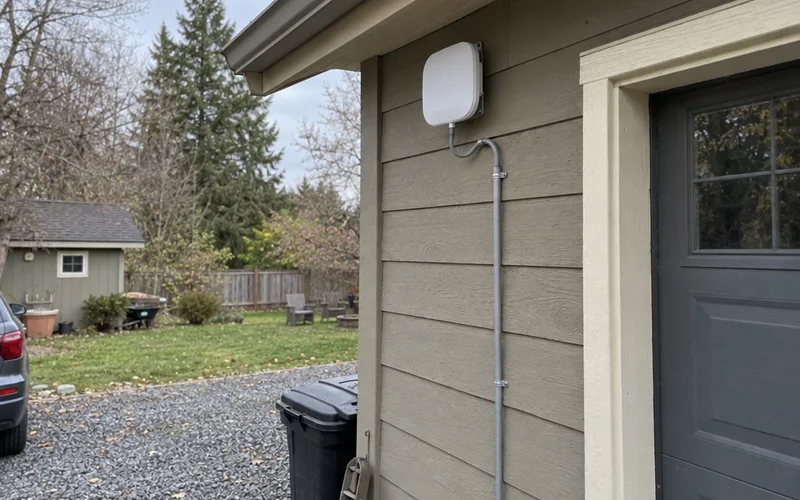
For a barn or a second building far away, a point-to-point wireless bridge beams the connection between 2 mounted radios that can see each other.
WiFi Extender vs Repeater vs Booster: What’s the Difference?
A Wi-Fi extender, a repeater and a booster are usually the same kind of device sold under different names.
Each one listens to your router and rebroadcasts its signal into a weaker area, though some brands also call mesh nodes “boosters.”
So check what the device actually does: rebroadcast wirelessly, join a mesh system or connect over Ethernet.
In other words, judge the product type, not the name on the box.
Extender vs Mesh vs Wired: Which Fix Fits Your Home?
The right Wi-Fi range fix depends on the shape of your dead zone: an extender for 1 weak room, mesh for several rooms or floors, and a wired access point for thick walls.
Here’s the full match-up:
- One weak room in a small or medium home: a range extender.
- Several weak rooms or a multi-story home: a mesh Wi-Fi system.
- Thick walls or a large home: an access point or mesh node with Ethernet backhaul.
- No way to run cable: powerline adapters on one circuit.
Stuck between an extender and mesh? Pick mesh when more than a couple of rooms are weak, since NETGEAR limits extenders to a couple of spots.
And if your router is old enough to be the real problem, start with choosing a home Wi-Fi router before adding anything.
Common Mistakes When Extending WiFi Range
The most common mistake when extending Wi-Fi range is buying hardware before fixing the router’s location.
An extender can’t repeat signal the router never sends, so a closet router makes every add-on worse.
The second mistake is putting an extender or mesh node inside the dead zone.
It needs a strong link back to the router, which is why TP-Link’s placement advice puts an extender about halfway to the weak area.
Watch out for these too:
- Mixing old and new gear that doesn’t share a mesh standard.
- Parking an extender beside a microwave, a concrete wall or a big metal object.
- Forgetting to update the extender’s firmware along with the router’s.
Fix those, and most homes reach every room without a second shopping trip.
Frequently Asked Questions
Do Wi-Fi range extenders actually work?
Yes, Wi-Fi range extenders work for one or two weak spots: they pick up the router’s signal and rebroadcast it. NETGEAR warns that an extender can create a second network and may decrease bandwidth, so place it about halfway to the dead zone.
What can I use instead of a WiFi extender?
The best alternatives to a WiFi extender are a mesh Wi-Fi system for a whole house and an Ethernet-wired access point for the strongest signal in a far room. Powerline adapters are the fallback when you can’t run cable, as long as both outlets share one electrical circuit.
How do I extend my WiFi signal to another building 1000 feet away?
For another building that far away, use a point-to-point wireless bridge with a clear line of sight between the 2 buildings, not an indoor extender. Plug a router or access point into the far radio.
How do I extend WiFi range without losing speed?
To extend WiFi range without losing speed, connect the new access point or mesh node to the router with Ethernet, which NETGEAR calls the most effective fix for large homes with heavy structural interference. A wireless extender shares its airtime between the router and your devices, so it’s the option most likely to cost speed.
Final Thoughts
The best way to extend WiFi range is to fix the router’s spot first and buy hardware only for the rooms that still struggle.
This week, walk your home with your phone, mark the dead zones on a sketch and move the router before you spend a dollar.