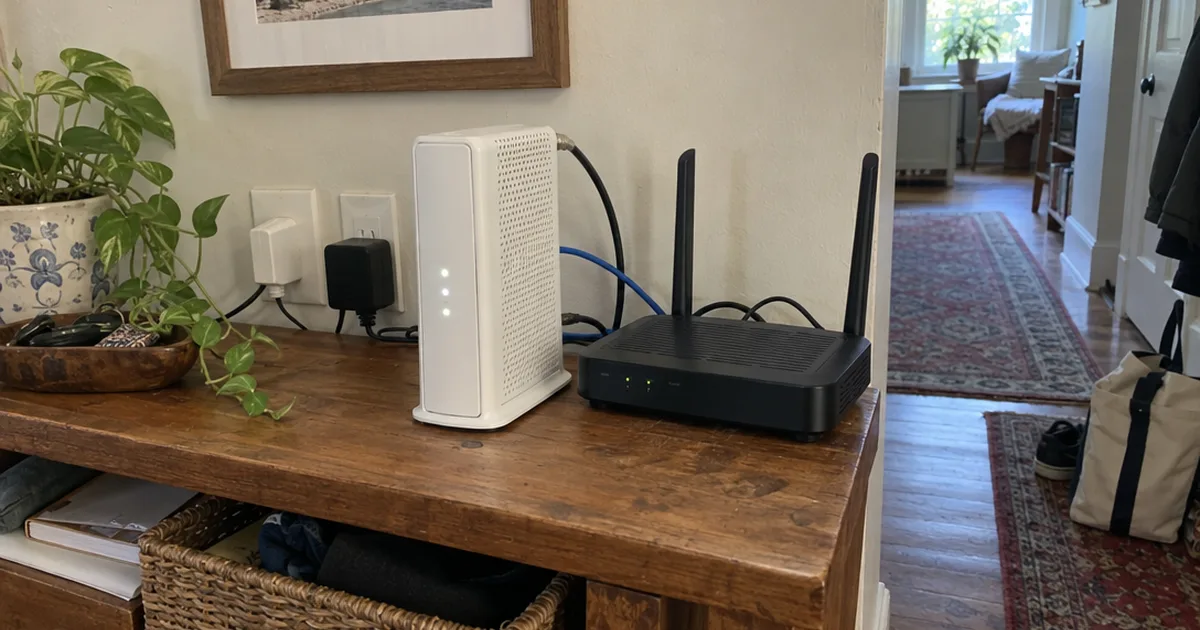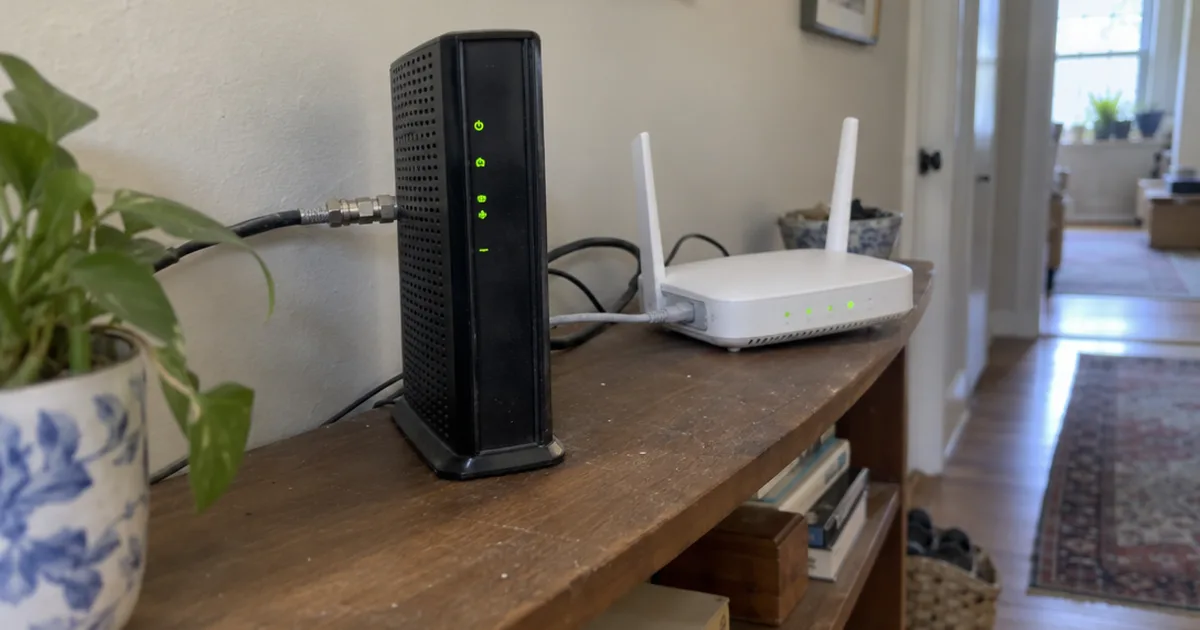

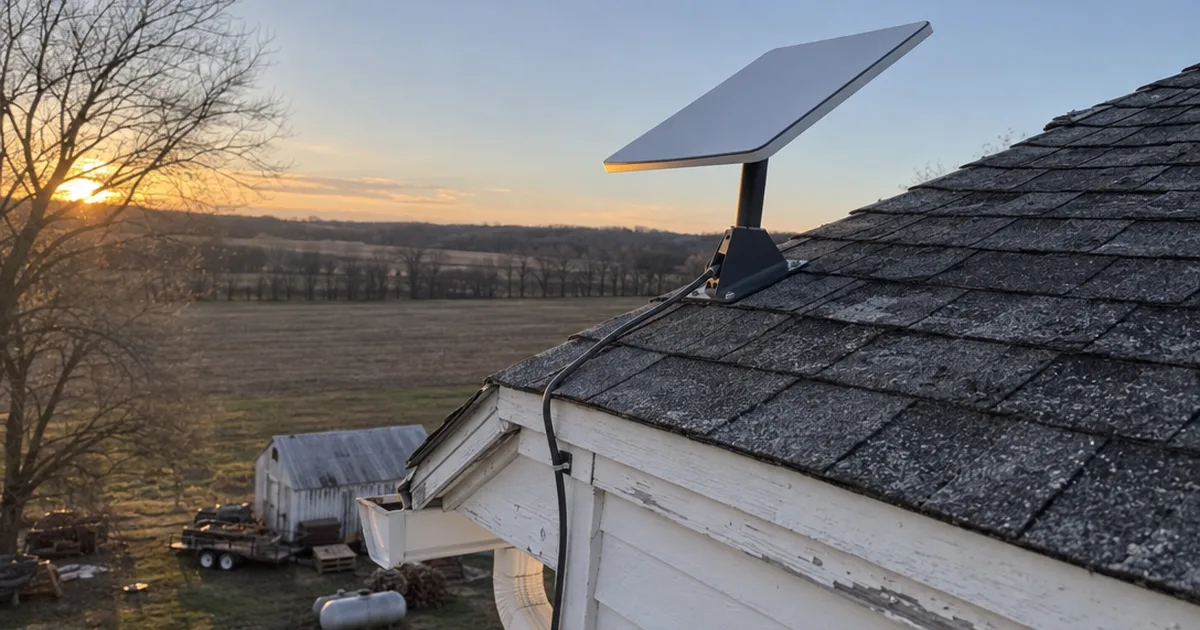
Starlink’s median ping runs about 15 times lower than HughesNet’s.
Ookla’s Speedtest data clocked Starlink at 45 ms in Q1 2025, against 683 ms for HughesNet and 684 ms for Viasat.
That gap turned satellite internet into a real option for gamers in rural homes.
So is Starlink good for gaming every time you queue up? Mostly, and the times it isn’t usually come down to a handful of things you can fix.
Below you’ll get the real latency numbers, how 7 popular games play on it, what causes the lag spikes and the 6 setup steps that cut them.
Is Starlink Good for Gaming in 2026?
Starlink is good enough for most online gaming, as long as the dish has a clear view of the sky and your console or PC is wired in. Casual, co-op and MMO players do well, while ranked shooter players feel the occasional spike.
How it plays depends on the kind of player you are:
- Casual multiplayer, co-op and MMOs: A great fit. A brief spike rarely decides anything.
- Battle royale and shooters at casual levels: Very playable, with the odd lost gunfight.
- Ranked Valorant, Counter-Strike and fighting games: Playable, but one spike at the wrong moment can cost a round.
- Cloud gaming: The riskiest use, because every hiccup shows up on your screen.
Speedify, which sells an app that pairs Starlink with a second connection, puts it the same way. Competitive shooters like Valorant and Counter-Strike “feel every spike,” while casual, turn-based and most online role-playing games “ride out the spikes without much trouble.”
Why the split? Average ping is good, but the connection isn’t perfectly steady.
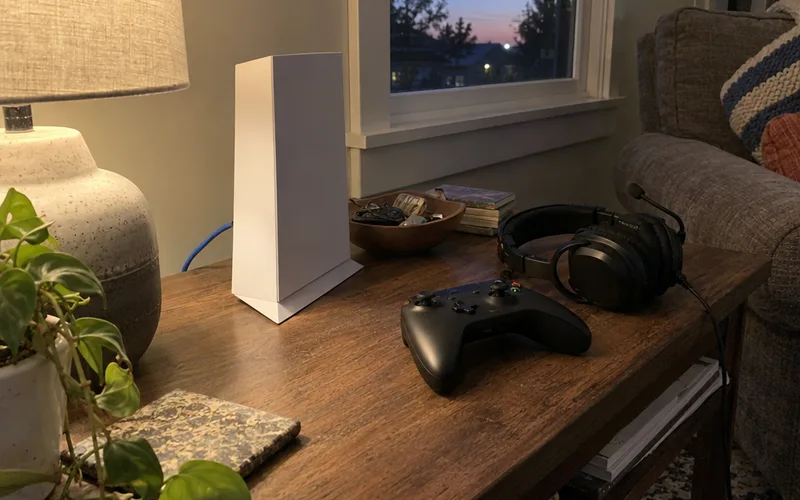
If your only other choice is HughesNet or Viasat, Starlink is a huge upgrade for gaming. If you can get fiber internet for gaming or cable, keep that for ranked play and treat the dish as the backup.
Starlink is one of several options covered in our home internet section, and for many rural households it’s the only fast one.
What Is Starlink’s Ping for Gaming?
Starlink’s ping for gaming usually lands between about 25 and 45 ms in the US. Starlink reports a 25.7 ms median peak-hour latency as of June 2025, and Ookla’s Speedtest users measured a 45 ms median in Q1 2025.
Ping and latency mean the same thing here.
Starlink defines latency as the time it takes a packet to go from the Starlink router to the internet and for the response to come back, also called round-trip time. The company calls it one of the most important factors in how responsive online gaming feels.
Those 2 numbers don’t match, though, and the reason matters.
Starlink’s Own Latency Numbers
Starlink’s network update reports that June 2025 median across all US customers at peak hour. Peak hour is the busy evening stretch, so that’s the number under load, not at 3 am.
The same update says fewer than 1% of US measurements exceed 55 ms.
That’s a strong result for any home connection. Starlink’s stated goal is a stable 20 ms median latency with minimal packet loss, so the company is still chasing a lower number.
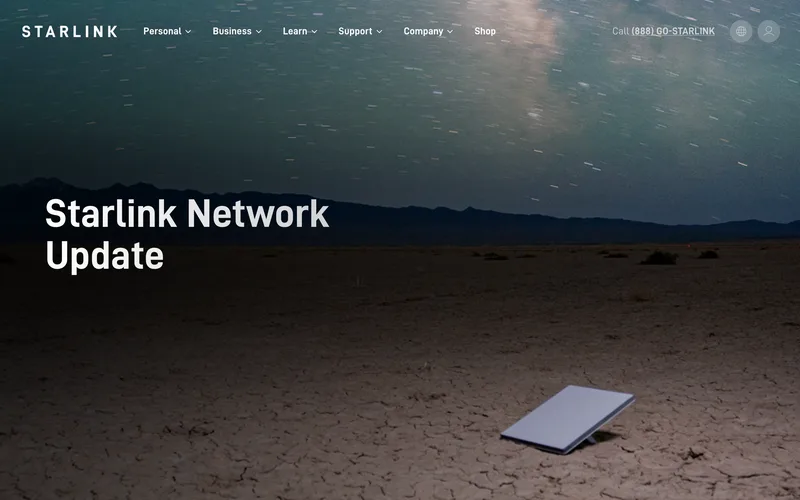
How does the company measure it? It collects anonymized readings from millions of its routers every 15 seconds.
What Ookla’s Speed Tests Show
Ookla’s numbers come from people running Speedtest on their own devices. Ookla’s Starlink report found US median latency fell from 76 ms in Q2 2022 to 45 ms in Q1 2025.
The trend kept going into the second half of 2025, when the best states dipped below 40 ms.
Why the 2 Numbers Don’t Match
The gap comes down to where each test starts and ends. Starlink measures from its own router, and says that method avoids interference from Wi-Fi conditions and bottlenecks from third-party hardware.
Speedtest runs on your phone or PC, so its number includes your Wi-Fi, your device and the trip to a test server.
In other words, Starlink’s figure is the best case for the satellite link itself. Your in-game ping adds the path to the game server on top.
Starlink’s sample is also enormous. It says US routers run hundreds of billions of latency measurements a day, which it says avoids sampling bias.
Ookla’s sample is smaller but closer to your experience, because it’s people testing on their own gear.
The main measurements side by side:
| Source | Period | Median latency |
|---|---|---|
| Starlink network update | June 2025, US peak hour | 25.7 ms |
| Ookla Speedtest, US | Q2 2022 | 76 ms |
| Ookla Speedtest, US | Q1 2025 | 45 ms |
| Ookla Speedtest, best states | 2nd half 2025 | 37 ms |
Either way, the trend is clear: Starlink’s ping has dropped a lot since 2022. You can compare these numbers with the ping and speed targets for gaming to see where your games land.
What Starlink Gamers Report
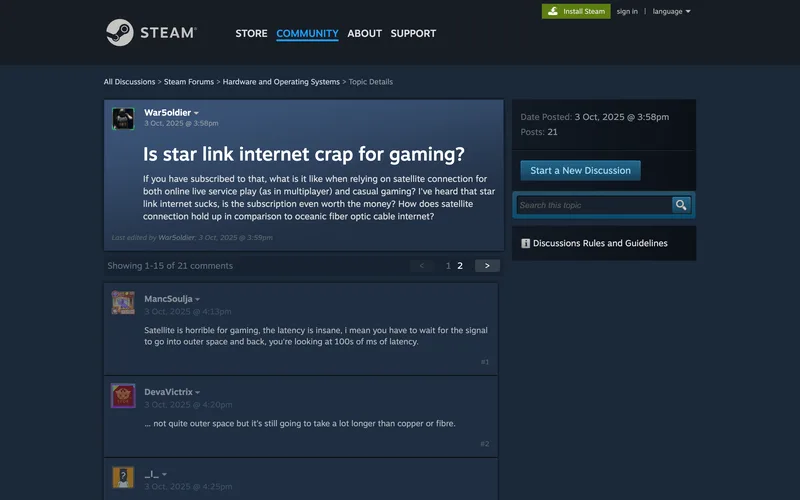
Real users often see numbers between those 2 sources. In a Steam Community thread, one Starlink user on the $80 US plan says their ping stays between 17 and 33 ms, and sits around 22 to 24 ms 98% of the time.
Another player in the same thread, posting in October 2025, reports pings in the 20s and 30s in Call of Duty and Battlefield.
Their condition? A completely open sky with no obstructions.
Key Takeaway: Expect a ping in the 20s to 40s on a good Starlink setup, and judge it by your own in-game numbers.
Why Is Starlink’s Latency So Much Lower Than HughesNet and Viasat?
Starlink’s latency is far lower than HughesNet and Viasat because its satellites orbit about 340 miles up, while their geostationary satellites sit about 22,000 miles up, according to Ookla. A shorter trip means a faster round trip for every packet.
Starlink uses satellites in low Earth orbit (LEO), which circle the planet close to the ground. Geostationary (GEO) satellites park far higher so they can hover over one spot.
Distance is the whole story here. Every action you take in a game has to travel up, down and on to the server, then come back.
You can see the effect in the measured numbers:
| Provider | Orbit | Median latency, Q1 2025 | Median download, Q1 2025 |
|---|---|---|---|
| Starlink | LEO, about 340 miles | 45 ms | 104.71 Mbps |
| HughesNet | GEO, about 22,000 miles | 683 ms | 47.79 Mbps |
| Viasat | GEO, about 22,000 miles | 684 ms | 49.12 Mbps |
Upload tells the same story. Ookla measured median uploads of 14.84 Mbps on Starlink, 4.44 Mbps on HughesNet and just 1.08 Mbps on Viasat in Q1 2025.
That matters for voice chat, which sends your voice up while you play. A 1 Mbps upload leaves little room for it once anything else in the house is uploading.
The same report still calls HughesNet and Viasat “a viable solution for customers that are not latency sensitive.” Online gamers are the opposite of that.
Starlink also cut latency on the ground. The company says it runs more than 100 gateway sites in the United States, with over 1,500 antennas, placed to lower latency for rural and remote homes.

And with more than 7,800 satellites in orbit, Starlink says customers always have several satellites in view.
So the best satellite internet for gaming is Starlink, by a wide margin. The GEO services are fine for email and video, but not for anything real-time.
How Much Has Starlink Gaming Improved Since 2022?
Starlink gaming has improved a lot since 2022: Ookla measured US median latency dropping from 76 ms to 45 ms by Q1 2025, while median download speed nearly doubled from 53.95 Mbps in Q3 2022 to 104.71 Mbps.
That matters if your opinion of Starlink comes from a friend’s setup a few years ago.
The network itself grew fast. Ookla notes Starlink had 1,560 satellites in orbit in February 2022, and by mid-2025 the company said it had more than 7,800.
That growth lines up with the gains since 2022.
Upload, the weak spot, moved too, from a US median of 7.50 Mbps in Q3 2022 and 14.84 Mbps in Q1 2025.
Then there’s the broadband test. Telecompetitor reports a later Ookla report found 44.7% of Starlink users got FCC broadband speeds in both directions in Q4 2025, up from 17.4% in Q1 2025.
What’s next? Starlink said SpaceX was targeting the first half of 2026 to start launching third-generation satellites, which will fly lower to cut latency further.
So if you wrote Starlink off for gaming in 2022, it’s worth a fresh look. Just judge it on today’s numbers at your own address, not on the trend.
Why Does Starlink Lag Spike During Games?
Starlink lag spikes come from 4 main causes: the dish switching between moving satellites, obstructions in its view of the sky, busy evening hours and, less often, heavy rain. A spike is a short jump in ping, and it’s what makes Starlink feel different from cable.
Your average ping can look great while a few spikes ruin a match.
That’s why spikes matter more than the average for competitive players, so it helps to know what drives each one.
Satellite Switches
Starlink satellites move fast across the sky, so your dish keeps handing off from one to the next. Speedify reports the dish switches satellites about every 15 seconds, and each switch can lose a little data that shows up as a stutter in a fast game.
Most switches go unnoticed.
Some don’t. US Mobile, a company that resells Starlink, saw brief jumps to 100 to 200+ ms every few minutes as the dish switches satellites.
You can’t turn this off. It comes with the technology, and it’s the main reason Starlink can’t match a wired line for steadiness.
Obstructions
An obstruction is anything that blocks part of the dish’s view of the sky. Starlink’s Help Center says objects such as a tree branch, pole or roof that block the connection between Starlink and a satellite may cause service interruptions.
In a game, an interruption looks like rubber-banding or a quick disconnect.
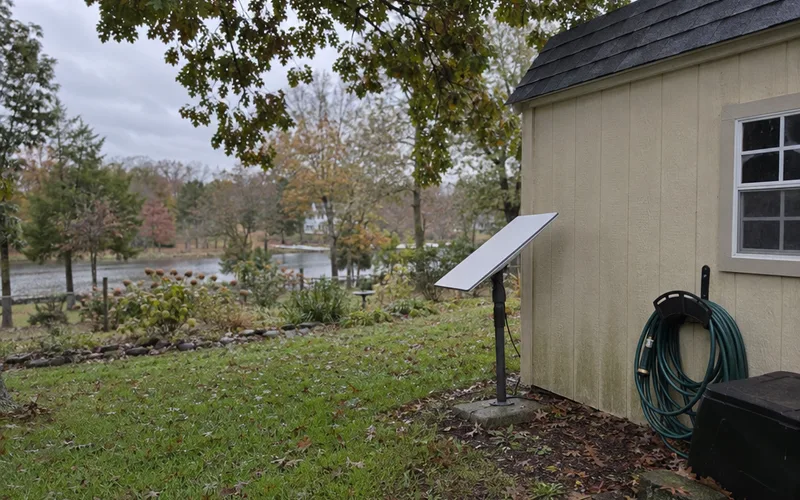
Obstructions are the cause you have the most control over. Raising the dish or clearing one branch can change how the whole connection behaves.
Busy Evening Hours
Evening is when most people game, and it’s also when your neighbors are online. The bonding-app maker notes evening play lands right when the most people near you use Starlink, so ping climbs and stays up.
Starlink’s own plans page says speeds are maximums, not guaranteed, and will be slower during congestion.
One Steam user’s numbers show the swing. They report over 200 Mbps most of the time, about 130 Mbps from 7 to 11 pm, and almost 500 Mbps from around 1 to 6 am.
Bad Weather
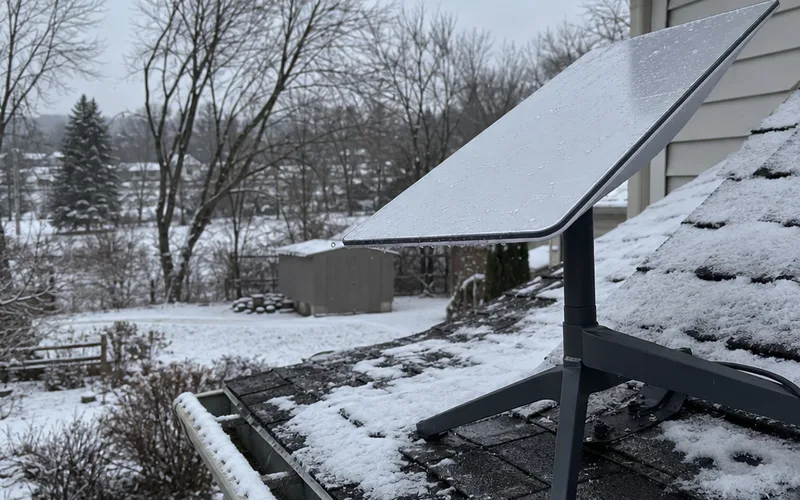
Starlink says its dish is engineered to melt snow and withstand sleet, heavy rain and harsh winds. That keeps you online through most storms.
But heavy rain can still cost you some data. Speedify lists heavy rain, along with partial obstructions, as a cause of lost data that you feel as lag.
A Steam user makes the same point in plainer words: satellite internet has issues in bad weather, where a 5G service like T-Mobile 5G Home Internet wouldn’t.
So what should you do when a storm rolls in?
Check the Starlink app before a ranked session. If your numbers are jumping around, play casual modes until the storm passes, and save ranked games for a clear evening.
Want to dig into the general fixes too? This walkthrough on how to fix ping spikes covers the home network side.
How Reliable Is Starlink for Gaming?
Starlink is reliable enough for daily gaming, with Starlink saying fewer than 1% of its US latency measurements exceed 55 ms. It isn’t spotless, though: Speedify reports its fixed Starlink users went offline about 38 minutes a day on average in September 2026.
Those 2 numbers measure different things.
Starlink’s figure is about ping staying low while you’re connected. The company backs it with a huge sample, since its US routers run hundreds of billions of latency measurements every day.
Speedify’s figure counts the moments the connection drops completely. The company measures Starlink connections across its app’s users, and it reports that dishes on RVs and boats did worse, at about 46 minutes a day.
So what does 38 minutes a day look like in a match?
It’s a daily average, not one long outage. You might never notice most of those moments, but one that lands in a ranked round costs you the round.
There’s a flip side, too. Starlink says its customers keep service even when ground networks suffer fiber cuts, subsea cable damage and power outages.
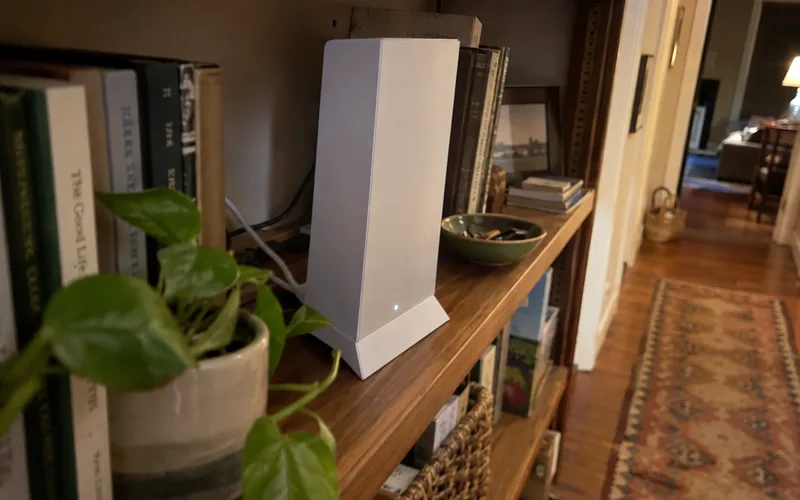
In other words, Starlink can keep you playing when a local wired line goes down, even if that line wins on a normal day.
Bottom line: plan for a few short dropouts a day, and keep important matches off a dish with a blocked view.
How Popular Games Play on Starlink
Most popular online games play well on Starlink. In US Mobile’s own wired tests on the Standard residential plan, average ping ran from 30 to 65 ms across Fortnite, Call of Duty: Warzone, Valorant, Apex Legends, Rocket League and Minecraft.
US Mobile says it tested over wired Ethernet with a clear sky view. It also sells Starlink, so treat these as one company’s results, not an independent lab test.
The reseller’s results, game by game:
| Game | Average ping reported | What stood out |
|---|---|---|
| Fortnite | 35 to 55 ms | Spikes of 80 to 150 ms every 5 to 10 min |
| Call of Duty: Warzone | 40 to 65 ms | Gunfights felt mostly fair |
| Valorant | 35 to 60 ms | A 150 ms spike can lose a peek |
| Apex Legends | 35 to 55 ms | Movement felt smooth |
| Rocket League | 30 to 50 ms | Smooth in normal play |
| Minecraft | 30 to 60 ms | Low ping for a slower game |
| MMO PvP (WoW, FFXIV) | 40 to 70 ms | Still very playable |
Notice something? The averages are all fine.
The differences come from how each game handles a sudden spike.
Here’s what that means game by game.
Fortnite
Fortnite plays very well on Starlink. The reseller’s tests showed an average ping of 35 to 55 ms, with spikes of 80 to 150 ms every 5 to 10 minutes and packet loss of 0.1 to 0.5%.
Packet loss is data that never arrives, which shows up as your character snapping back.
For casual matches, that’s barely a problem. In a tight build fight, a spike can still cost you an edit.
Call of Duty and Battlefield
Call of Duty runs well on Starlink for regular play. In the reseller’s tests, gunfights in Warzone felt mostly fair at 40 to 65 ms.
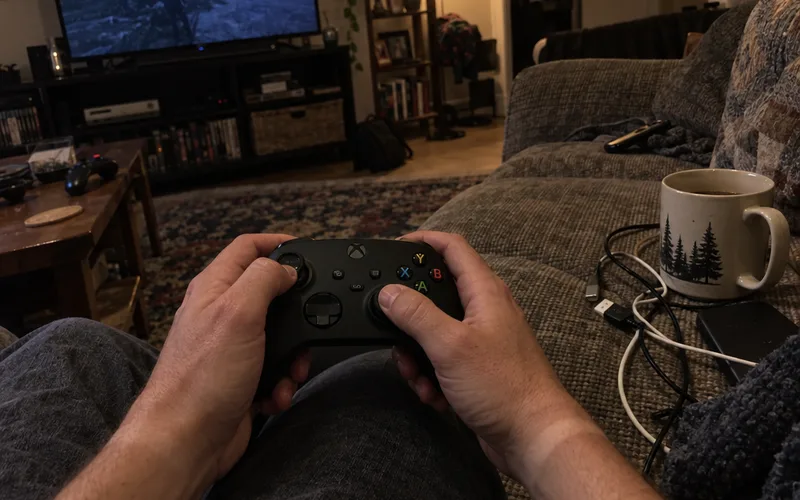
Players report similar results. One Steam Community user with a fully open sky reported pings in the 20s and 30s in both Call of Duty and Battlefield in October 2025.
So if you mostly play public lobbies, you’ll be fine. The fast time-to-kill means a spike hurts more here than in a slower game, though.
Valorant and Other Ranked Shooters
Valorant is playable on Starlink, but it’s where spikes hurt most. The reseller measured a base latency of 35 to 60 ms. But it warned that a 150 ms spike as you peek an angle can get you killed before the enemy even shows on your screen.
That’s the problem with tactical shooters. One-tap gunplay leaves no room for a half-second hiccup.
The bonding-app maker says the same about Counter-Strike: competitive shooters feel every spike.
One thing helps.
Riot’s Server Select feature lets you change servers if you lead your party or play solo. US options include Oregon, Northern California, Virginia, Texas, Illinois and Georgia.
Try 2 or 3 nearby servers and keep the one with the lowest steady ping.
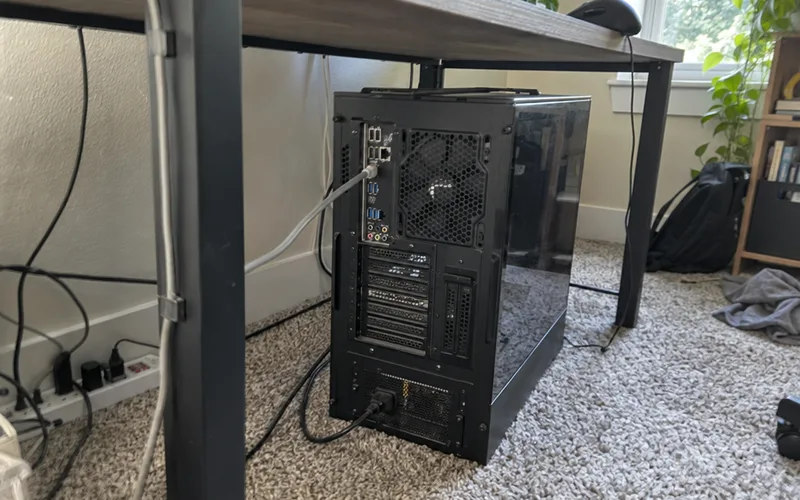
Starlink works for unranked and mid-rank shooters, but if you grind ranked Valorant or Counter-Strike seriously, a wired line still wins.
Apex Legends
Apex Legends is one of the better shooters for Starlink. Movement felt smooth at 35 to 55 ms.
That was in the same reseller tests. So if you want a battle royale on Starlink, Apex is a solid pick.
Rocket League
Rocket League plays smoothly on Starlink most of the time. The reseller reported a base ping of 30 to 50 ms that felt smooth in normal play.
The catch is timing. Aerials and fast touches depend on the ball being exactly where you see it, so the higher your rank, the more a spike stands out.
Minecraft
Minecraft is an easy match for Starlink, with an average ping of 30 to 60 ms in the reseller’s tests.
The game moves slowly enough that a brief spike barely registers.
MMOs Like World of Warcraft and Final Fantasy XIV
MMOs are about the best fit there is. The reseller reported that player-versus-player modes in World of Warcraft and Final Fantasy XIV stayed very playable at Starlink’s typical 40 to 70 ms.
Questing, dungeons and raids are even less sensitive than PvP. The bonding-app maker agrees that most online role-playing games ride out the spikes.
Single-Player, Turn-Based and Fighting Games
Single-player games don’t care about the connection at all once they’re installed. Turn-based games come close, since nobody’s racing your reflexes.
Fighting games are the opposite. Speedify says fighting and rhythm games are just as unforgiving as competitive shooters.
No source we found measured fighting games or racing games on Starlink, so test your own matches before you buy for those.
Is Starlink Good for Gaming on PS5, Xbox and PC?
Starlink is good for gaming on PS5, Xbox and PC, because ping depends on the connection, not the platform. What changes by device is how you connect it and how it reports your NAT type.
All 3 platforms get the same satellite link. So the setup matters more than the box.
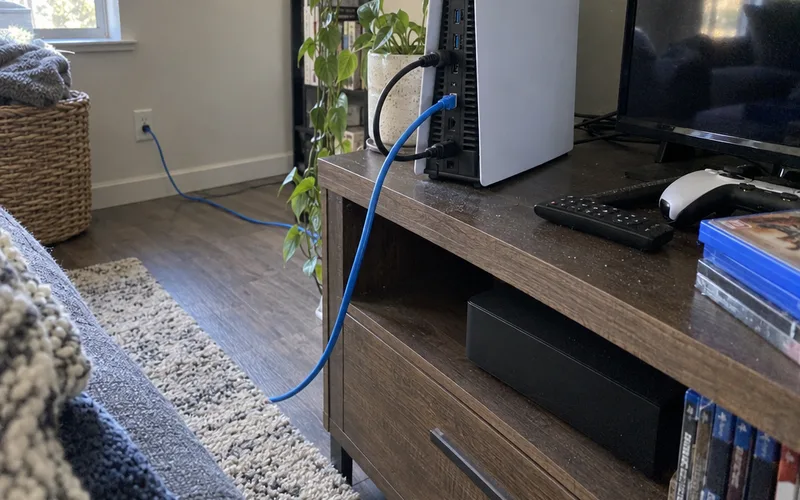
What to do on each:
- PS5 and Xbox Series X: Plug the console into the Starlink router with an Ethernet cable whenever you can. Consoles also show a NAT type, which CGNAT affects.
- PC: Use Ethernet too. A gaming PC on Wi-Fi adds its own delay on top of the dish’s.
- Older consoles like PS4 and Xbox One: The same rules apply, and Ethernet matters even more on older Wi-Fi hardware.
The V4 kit comes with Router 3, and Starlink’s specifications page lists it as best for everyday use, including online gaming.
Router 3 has Ethernet ports on the back, so most homes can wire a console without an adapter. If you need the details on cables and ports, this guide to the Starlink Ethernet port walks through each kit.
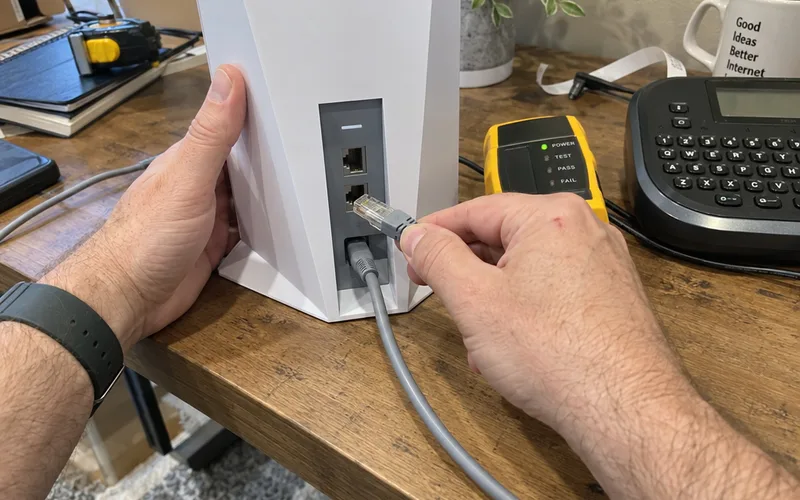
Can’t run a cable to the TV? A long Ethernet run beats Wi-Fi for gaming, so it’s worth a weekend project.
Once it’s wired, run this quick setup on any console or PC:
- Run the console’s network test. Note the ping, packet loss and NAT type it reports.
- Check whether it’s using IPv6. IPv6 works on every plan, and that path skips the IPv4 address sharing (CGNAT).
- Turn on overnight downloads. Let updates install while you sleep, when the network is least busy.
- Repeat the network test in the evening. That’s your real gaming number.
In other words, wire the console and check the obstruction map before blaming the platform.
What NAT Type Does Starlink Have?
Starlink uses carrier-grade NAT (CGNAT) by default, so your dish gets a private address from the 100.64.0.0/10 range instead of its own public IPv4 address, according to Starlink’s Help Center. The default policy also blocks inbound IPv4 traffic.
NAT, or Network Address Translation, is how many devices share an address.
Carrier-grade NAT does that at the internet provider’s end. Starlink’s IP address article says the “default” IPv4 CGNAT policy “does not allow inbound traffic.”
What does that mean for gaming? Connections you start, like joining a match, work normally.
But anything that needs another player to reach you first, such as hosting a lobby or some peer-to-peer voice chat, can struggle.
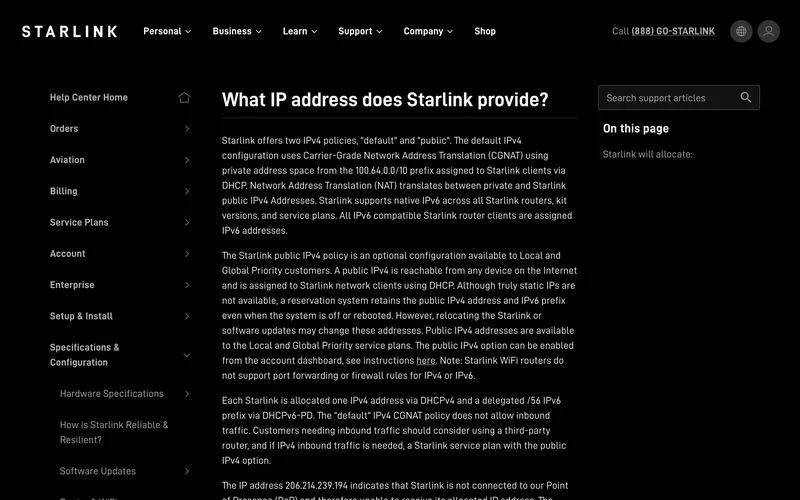
Want to confirm you’re on CGNAT? If you run your own router, open its status page and find the WAN (internet) address.
An address from 100.64.0.0 to 100.127.255.255 falls inside the 100.64.0.0/10 CGNAT range. That means inbound connections can’t reach you over IPv4.
Can You Port Forward on Starlink?
You can’t port forward on the Starlink router. Starlink’s Help Center says you need a third-party router that supports port forwarding and a public IP assigned to your Starlink service.
The catch? A public IPv4 address is only an option on the Local and Global Priority plans.
Standard home plans stay on CGNAT.
So the path looks like this:
- Move to a Local or Global Priority plan and turn on the public IPv4 option in your account dashboard.
- Put the dish’s router in bypass mode and connect your own router to it.
- Forward the game’s ports on your router, following the usual port forwarding for gaming steps.
Skip step 2 and you’d have 2 routers each translating addresses, which is double NAT, another common cause of strict NAT warnings.
How IPv6 Helps
Starlink supports native IPv6 on all its routers, kits and service plans. IPv6 doesn’t go through the IPv4 CGNAT at all.
So games and consoles that support IPv6 can avoid some of the CGNAT limits without a plan change. Check your console’s network test to see whether it’s using IPv6.
Note: Most players never need port forwarding. If matchmaking works and voice chat connects, leave your NAT setup alone.
Does Starlink Work for Cloud Gaming?
Starlink has plenty of speed for cloud gaming, since Microsoft says Xbox Cloud Gaming works best at 20 Mbps on consoles and PCs. The weak spot is lag spikes, which hit cloud gaming harder than any other kind of play.
Xbox Cloud Gaming’s own page lists 10 Mbps on mobile and 20 Mbps on consoles, PCs and tablets, over 5 GHz Wi-Fi or mobile data.
That bar is easy to clear. Even the lowest speed tier serves customers with 100 Mbps down and 20 Mbps up in most states, according to the company.
So why is cloud gaming the risky one?
With cloud gaming, the whole game runs on a server and streams to you as video. Speedify says that makes services like GeForce Now and Xbox Cloud Gaming the most sensitive of all to Starlink lag spikes.
Every spike delays both your button press and the picture you see.
My advice: install fast shooters locally and save cloud gaming for slower single-player and turn-based games.
A simple way to split your library:
- Stream from the cloud: Story games, strategy and turn-based titles, where a short stutter just delays a scene.
- Install locally: Shooters, fighting games and anything ranked, where the stutter decides a fight.
- Either way: Try a game in the cloud first, then install it if it feels laggy. And if you do stream games, use Ethernet instead of the 5 GHz Wi-Fi Microsoft allows.
Can Several People Game on Starlink at Once?
Several people can game on Starlink at once, because online games use little bandwidth and Starlink says its speeds reach 400+ Mbps in most places, enough for 4K streaming on multiple devices alongside online gaming. The limits that show up first are upload speed and evening congestion.
Here’s the deal: download speed is rarely the problem.
Say 2 kids play Xbox Cloud Gaming at the same time in a hypothetical household. At Microsoft’s 20 Mbps per console, that’s 40 Mbps, which fits inside even the 100 Mbps plan.
Upload is tighter. Ookla’s second-half 2025 median upload was 16.91 Mbps, and that has to cover every game, voice chat and video call in the house.
That’s where lag comes from in a busy home. When one person uploads a big file or starts a stream, the connection’s queues fill and everyone lags.
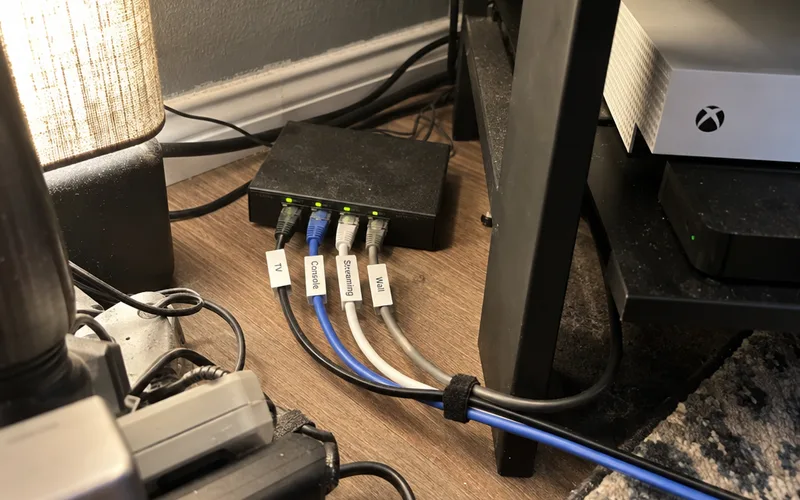
This kind of lag has a name: bufferbloat. You fix it on the router, not on the dish.
What works:
- Wire the gaming devices so they don’t fight for Wi-Fi airtime.
- Use your own router in bypass mode and turn on QoS so game traffic goes first.
- Schedule big downloads overnight, when the house is asleep.
- Pick Residential Max if 3 or more people game and stream every evening, for its top residential priority.
Key Takeaway: A busy household needs good queue management more than more speed.
Starlink vs 5G Home Internet, Cable and Fiber for Gaming
Starlink is the best satellite option for gaming, but it isn’t built to beat wired fiber. One Starlink user on Steam calls its ping fine for gaming unless you’re highly competitive and playing against people with sub-10 ms fiber connections.
My ranking for most homes: wired first, then Starlink or 5G, then GEO satellite.
The right choice depends on what you can actually get at your address.
Starlink vs Fiber and Cable
Fiber and cable are wired, so there’s no satellite handoff and no dish to block. That’s why ranked players with a wired option should keep it.
Speed is closer than you’d think, but upload is not. Ookla found only 17.4% of US Starlink Speedtest users got the FCC’s broadband minimum of 100 Mbps down and 20 Mbps up in Q1 2025, mainly because of low upload speeds.
The FCC treats 100 Mbps download and 20 Mbps upload as the minimum for broadband.
That share is climbing, though: the median upload roughly doubled between Q3 2022 and Q1 2025.
If fiber is coming to your road, this breakdown of whether fiber is good for gaming shows what you’d gain.
Starlink vs 5G Home Internet
5G home internet uses cell towers instead of satellites, so weather affects it differently. No source we found compared the two head to head on ping, so the honest answer is that it depends on your local signal.
The simplest way to decide? If you can get both, try each during your usual evening gaming hours and compare your in-game numbers.
Starlink makes that easy with a 30-day trial and a full refund if you’re not satisfied. Check whether your area has 5G home internet and its own trial before you commit.
Some gamers skip the choice and use both. Speedify reports that about 7 in 10 Starlink users on its app pair the dish with a second connection, such as 4G/5G cellular.
Does Starlink Have Data Caps for Game Downloads?
Starlink has no data caps on its residential plans. Starlink’s residential page lists unlimited data on Residential 100 Mbps, Residential 200 Mbps and Residential Max.
No data caps is huge for gamers, because modern games and updates are big.
Download speed decides how long you wait. Starlink says its US median download during peak demand was nearly 200 Mbps across more than 2 million customers as of July 2025.
Ookla’s numbers run lower, at a 104.71 Mbps median in Q1 2025. By the second half of 2025, its data showed a median of 100 Mbps or more in every state except Alaska.
In practice? Say a new game is a 100 GB download (a hypothetical size for the math):
- At 100 Mbps: about 2 hours and 13 minutes.
- At 200 Mbps: about 1 hour and 7 minutes.
The math is simple: 100 GB is 800,000 megabits, so divide by your speed in Mbps to get seconds.
Pro Tip: Queue big downloads overnight. One Steam user reports nearly 500 Mbps from about 1 to 6 am, versus about 130 Mbps in the evening.
Which Starlink Plan Is Best for Gaming?
Residential Max is the best Starlink plan for gaming if you can afford $130 a month, because Starlink gives it top residential network priority and no speed cap. Residential 200 Mbps at $85 a month is the better value for most single-gamer homes.
The residential plans compare like this on Starlink’s plans page:
| Plan | Starting price | Download limit | Priority |
|---|---|---|---|
| Residential 100 Mbps | $55/mo | 100 Mbps | Standard |
| Residential 200 Mbps | $85/mo | 200 Mbps | Standard |
| Residential Max | $130/mo | Up to 400+ Mbps | Top residential priority |
All 3 include unlimited data, so there are no data caps to plan around.
Starlink says the 100 Mbps and 200 Mbps plans cap downloads at those speeds and are only sold in select areas.
So which one should you pick?
Speed doesn’t lower ping, so you don’t need 400 Mbps to play. Priority matters more, because busy evening hours are when the network slows down.
Here’s how I’d choose:
- One gamer, light streaming: Residential 200 Mbps covers game traffic and downloads with room to spare.
- Several gamers and streamers in the evening: Residential Max, for the priority.
- Tight budget, mostly casual games: Residential 100 Mbps still clears Xbox Cloud Gaming’s 20 Mbps console need.
- You must host servers or forward ports: Look at a Local or Global Priority plan, the only ones with a public IPv4 option.
Note: Prices are “starting at” rates and can vary by address, so check your own quote before you order.
Is Starlink Good for Streaming on Twitch?
Starlink can handle Twitch streaming in some states, but upload speed is its weak spot. Ookla measured a 16.91 Mbps US median upload in the second half of 2025, and only 22 states had median uploads of 20 Mbps or more.
Telecompetitor’s report on Ookla’s data notes that no state hit 20 Mbps median upload in the second half of 2024. So it’s improving fast.
Why does upload matter? When you stream, your video goes up to Twitch while your game traffic shares the same pipe.
Speedify says Starlink’s slower uploads hit voice chat and game streaming first.
Results vary a lot by home. The Steam user with 17 to 33 ms ping reports an average upload of 30 Mbps, so check your own upload in the app before you pick a stream quality.
Before you go live, run Speedtest wired during your usual streaming hour, then note the upload number.
If it reads 15 Mbps, for example, set your stream well below that so your game and voice chat still have room.
Then match your bitrate to it using this guide to the internet speed for streaming on Twitch. Leave headroom, since a stream that maxes out your upload will drag your game’s ping up with it.
Where in the US Starlink Gaming Works Best
Starlink gaming works best in the states with the lowest latency, led by New Jersey, Colorado, Arizona and Washington, DC at a 37 ms median in the second half of 2025, per Ookla data. Alaska and Hawaii trailed far behind, at 105 ms and 115 ms in Q1 2025.
Most of the country sits in between.
Ookla data reported by the Benton Institute shows states with Starlink latency under 40 ms rose from 1 to 10 between the second half of 2024 and the first half of 2025.
What does that mean for you? Location sets your baseline before you even set up the dish.
Why do Alaska and Hawaii lag behind? Ookla’s analysts say it’s likely their distance from the constellation and lower satellite density than the continental US.
So if you live in Alaska or Hawaii, expect a noticeably higher baseline for fast shooters. Elsewhere, setup usually matters more than your state.
Before you order, look up your state in Ookla’s latest Starlink report. It’s a quick check that gives you a realistic starting point.
What to Check Before You Buy Starlink for Gaming
Before you buy Starlink for gaming, check your sky view with the Starlink app, your state’s typical latency, the plan that fits your household and whether you need open ports. Those 4 checks decide most of your experience.
The company itself recommends that people in heavily obstructed areas check for obstructions before ordering.
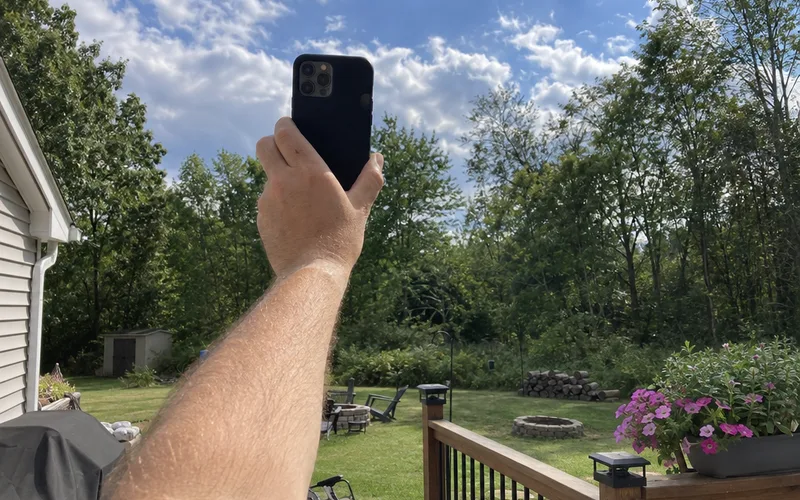
That’s the most useful advice in this guide for a would-be buyer. You can do it with the free app before you spend a dollar.
The checklist I’d run:
- Scan your planned dish spot. The app’s Check for Obstructions tool shows what’s in the dish’s field of view and gives an overview of the expected experience for various activities.
- Look up your state’s latency. Ookla’s 2025 data put the best states at 37 ms, with Alaska and Hawaii above 100 ms.
- Pick your plan by household size. One gamer can start on Residential 200 Mbps, and busy homes should lean toward Residential Max.
- Decide if you need port forwarding. If you host servers, you’ll need a Local or Global Priority plan with a public IPv4 address.
- Plan your cable run. Know how you’ll get Ethernet from the router to your console or PC.
- Use the 30-day trial. Test your real evening numbers in your first week.
What if you fail more than one check?
A blocked view, a far-off state and a household full of streamers all point the same way. In that case, compare a wired or 5G option before you commit.
A few minutes with the obstruction tool tells you more than any review, including this one.
How to Test Your Starlink Connection for Gaming
To test your Starlink connection for gaming, check your in-game ping at the times you actually play, run the test both wired and on Wi-Fi, and repeat it while someone else in the house is downloading. One speed test at noon tells you very little.
Why so many tests? The connection changes through the day.
The company’s own plans page says speeds will be slower during congestion. And one Steam user’s numbers swing from about 130 Mbps in the evening to almost 500 Mbps overnight.
Try this routine for 3 days:
- Check the obstruction map in the app. Any blocked area in the dish’s view will show up as spikes later.
- Open your game’s network stats. Most shooters can show ping and packet loss on screen, so play 2 or 3 matches and note the steady number and the worst spike.
- Run Speedtest wired, then on Wi-Fi. The gap between them is the delay your Wi-Fi adds.
- Test again during busy evening hours. Compare it with an early morning test.
- Test while someone downloads a big file. If ping jumps a lot, you’re looking at bufferbloat, which your router can fix.
Write the numbers down. After 3 days you’ll know your real evening numbers, your worst spikes and whether Wi-Fi or your router is part of the problem.
Judge the connection by your worst evening spikes, not your best morning ping. That’s the number that decides ranked matches.
How to Reduce Lag on Starlink for Gaming
To reduce lag on Starlink for gaming, clear obstructions first, then wire your console or PC, use your own router in bypass mode, pick the closest game server and keep big downloads off the line while you play. Start at the top, because the first steps fix the most.
None of this removes the spike from a satellite switch. But it gets you the best performance your dish can give.
Step #1: Clear Every Obstruction
Start with the app’s Check for Obstructions tool. The company says you follow the guided steps to scan the dish’s field of view with your phone camera and estimate how blocked the spot is.
Hold the phone at the height where the dish will sit.
Once the dish is online, it builds a real obstruction map from its actual satellite connections. Starlink says that map can take up to 12 hours to complete.
So give it a full day, then check it. If the map shows blocked sky, raise the dish, move it or trim the branch.
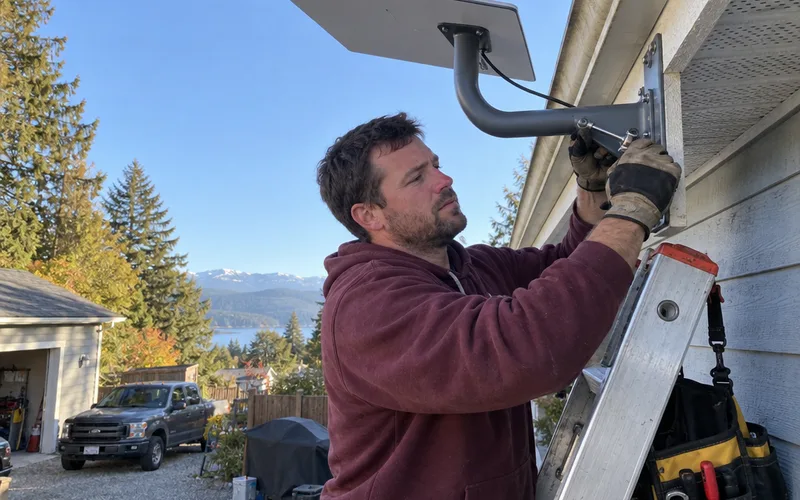
Once you’ve found a clear spot, make it permanent. Starlink recommends a permanent install for best performance, cable protection and long-term reliability, which beats a dish on a kickstand that gets bumped out of position.
Step #2: Plug In With Ethernet
Plug your console or PC into the router with an Ethernet cable instead of using Wi-Fi. Speedify lists it as the first quick fix, because it cuts the delay between your device and the router.
Wi-Fi adds its own delay and drops, especially through walls.
I’m biased toward cable, and here’s why: a single wired run to your gaming setup is the cheapest lag fix on this list.
Step #3: Use Your Own Router in Bypass Mode
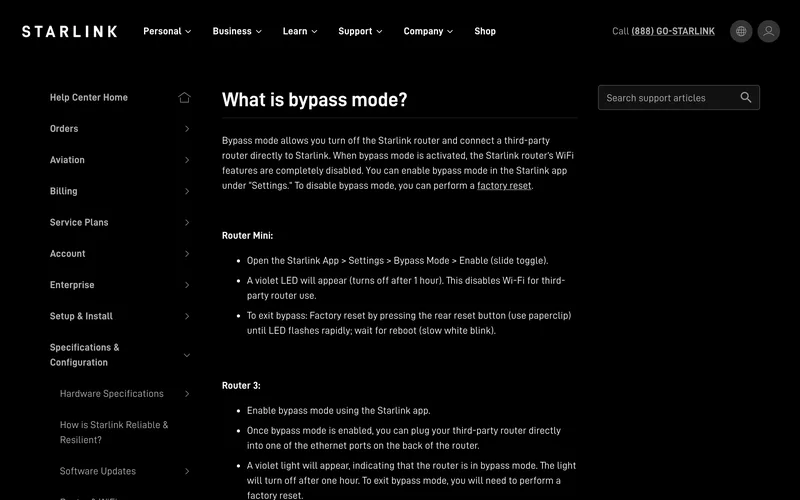
Bypass mode lets a better gaming router do the work. Starlink’s bypass mode article says it turns off the Starlink router so a third-party router connects directly to Starlink.
On Router 3, it takes 3 steps:
- Open the app and enable bypass mode under Settings.
- Plug your own router into one of the Ethernet ports on the back of Router 3.
- Look for the violet light, which shows bypass mode is on.
To undo it later, you’ll need a factory reset.
Why bother? Your own router can turn on Quality of Service (QoS), which puts game traffic first when others use the connection.
The bonding-app maker recommends exactly that.
It also helps with bufferbloat, the lag that builds up when a busy connection’s queues fill. This guide to fixing bufferbloat shows how to test for it, and these router settings for gaming cover QoS step by step.
Step #4: Pick the Closest Server
Choose your game’s server by ping, not by map. Valorant’s Server Select is one example: it lets party leaders and solo players switch servers within their region.
Run a few matches on each nearby server.
Then stick with the one that gives the lowest steady number, not the lowest single reading.
Step #5: Play Off-Peak and Pause Downloads
Busy evening hours push lag up, so play earlier when you can. Speedify also says to pause cloud backups and large downloads while you play.
That includes other people’s downloads. A console update in the next room competes with your game for the same connection.
Step #6: Add a Second Connection for Spikes
A second internet connection can cover the gaps a single dish can’t. Speedify says its app sends your game’s data over the dish and a second line, such as 4G/5G cellular, so a satellite switch doesn’t break the stream.
The catch? It only works with that second connection.
Speedify says that with Starlink alone, it can’t cover the spikes or lower your ping.
If you’re already weighing a backup internet connection for outages, it can pull double duty for gaming.
Key Takeaway: Obstructions and Wi-Fi cause most fixable lag, so start there before you spend money.
Is Starlink Worth It for Gamers?
Starlink is worth it for gamers who can’t get fiber or cable, because its ping is low enough for nearly every online game.
Ranked shooter players with a wired option should keep the wired line.
This week, run the Starlink app’s obstruction check at your planned dish spot, and if you order, use the 30-day trial to test evening play over Ethernet.
Frequently Asked Questions
Is Starlink internet fast enough to stream?
Yes, Starlink is fast enough to stream video: Starlink reported a US median peak-hour download of nearly 200 Mbps as of July 2025. Netflix and YouTube also play from a buffer, so a short dropout that would hurt a game usually doesn’t interrupt a show.
What are the negatives of Starlink for gaming?
The main negatives of Starlink for gaming are lag spikes when the dish switches satellites, slow uploads and carrier-grade NAT, which blocks inbound IPv4 connections by default. Obstructions and busy evening hours make the spikes worse, so clear the dish’s view and wire your console first.
Is 400 Mbps Starlink good for gaming?
Yes, Starlink’s 400+ Mbps Residential Max plan is good for gaming, mostly because it gets top residential network priority, not because games need that much speed. Extra download speed shortens game downloads, but it doesn’t lower your ping.
Is Starlink Residential 200 Mbps good for gaming?
Yes, Starlink Residential 200 Mbps is good for gaming in most homes, since online games and even Xbox Cloud Gaming’s 20 Mbps console requirement use far less than 200 Mbps. Pick Residential Max instead if several people game and stream at once during busy evening hours.
Is Starlink internet good?
Starlink internet is good for most homes without fiber or cable, with Ookla measuring a 104.71 Mbps US median download and 45 ms median latency in Q1 2025. Its weak spots are upload speed and short dropouts, so test it during the 30-day trial.
What is the best satellite internet for gaming?
Starlink is the best satellite internet for gaming, with Ookla measuring a 45 ms median latency in Q1 2025 against 683 ms for HughesNet and 684 ms for Viasat. Those geostationary services work for browsing and video, but their delay makes fast online games hard to play.
Is Starlink good for gaming on PS4?
Yes, Starlink works for gaming on PS4 the same way it does on PS5, because ping depends on the connection rather than the console. Plug the PS4 into the Starlink router with Ethernet, since its older Wi-Fi adds delay that a cable avoids.
Is Starlink good for gaming in rural areas?
Yes, Starlink is often the best gaming connection in rural areas, because its low Earth orbit satellites give far lower ping than HughesNet or Viasat. Starlink says it placed more than 100 US gateway sites to cut latency, especially for rural and remote homes.